


Conversation scripts ᴺᴱᵂ
Conversation scripts are a tool for creating interactive scripts that an agent uses during a call. They help display text prompts, suggest response options, request data, and save entered values to Voximplant Kit variables.
The Conversation scripts feature is not available in the account by default. If the feature is not enabled, you cannot use conversation scripts in call settings. To get access to the feature, contact us.
Contents
Conversation scripts list
- Go to Settings > Conversations > Conversation scripts.
- Review the list of created scripts.
The table displays:
Name
Status
Updated
Folder
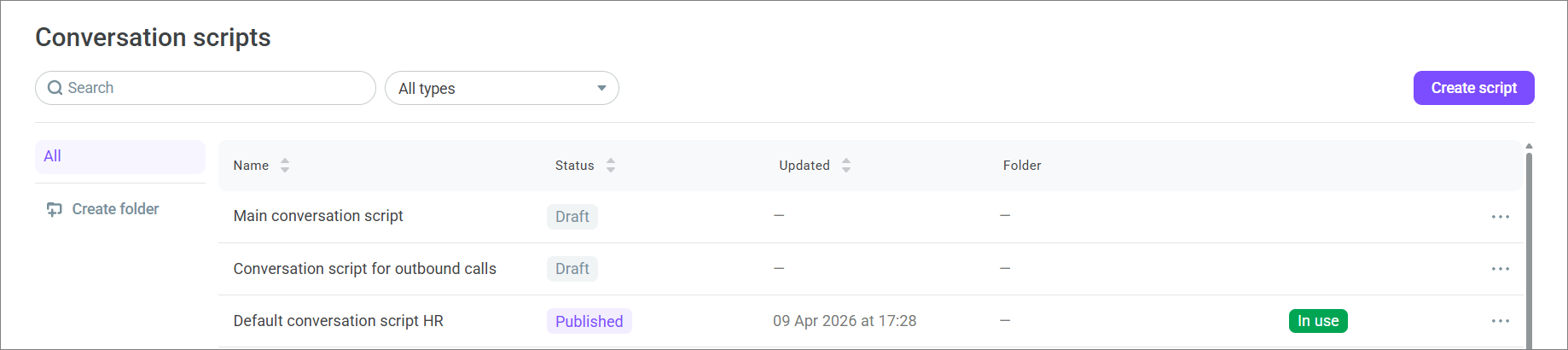
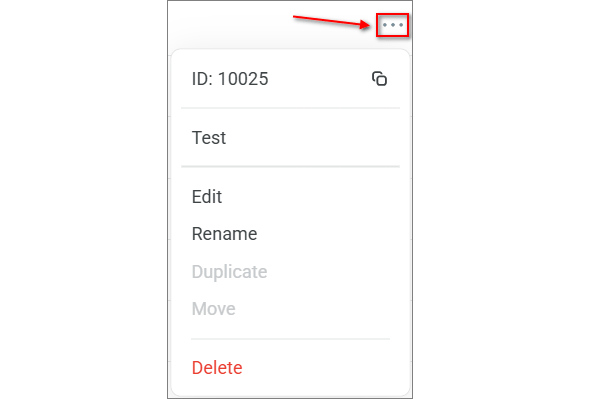
Each script has an action menu. You can use it to test a script, modify it, create a copy, or remove it from the list.
Test — open the script in test mode to check its logic, step transitions, field input, and variable values before publication. For details, see below.
Edit — open the script in the visual editor to modify blocks, transitions, and settings.
Rename — change the script name in the list without editing its contents.
Duplicate — create a copy of the current script. Use this option if you want to quickly prepare a similar script with minor changes.
Move — move the script to another folder for easier script list organization.
Delete — remove the script from the scripts list.
Creating a conversation script
- In the Conversation scripts section, click Create script.

The script edit window opens immediately after creation. In the editor, you can:
Undo and restore actions
Test the script
Search the script text
Change the canvas scale
The editor supports selecting multiple blocks with Shift and copying a branch to another place in the script.
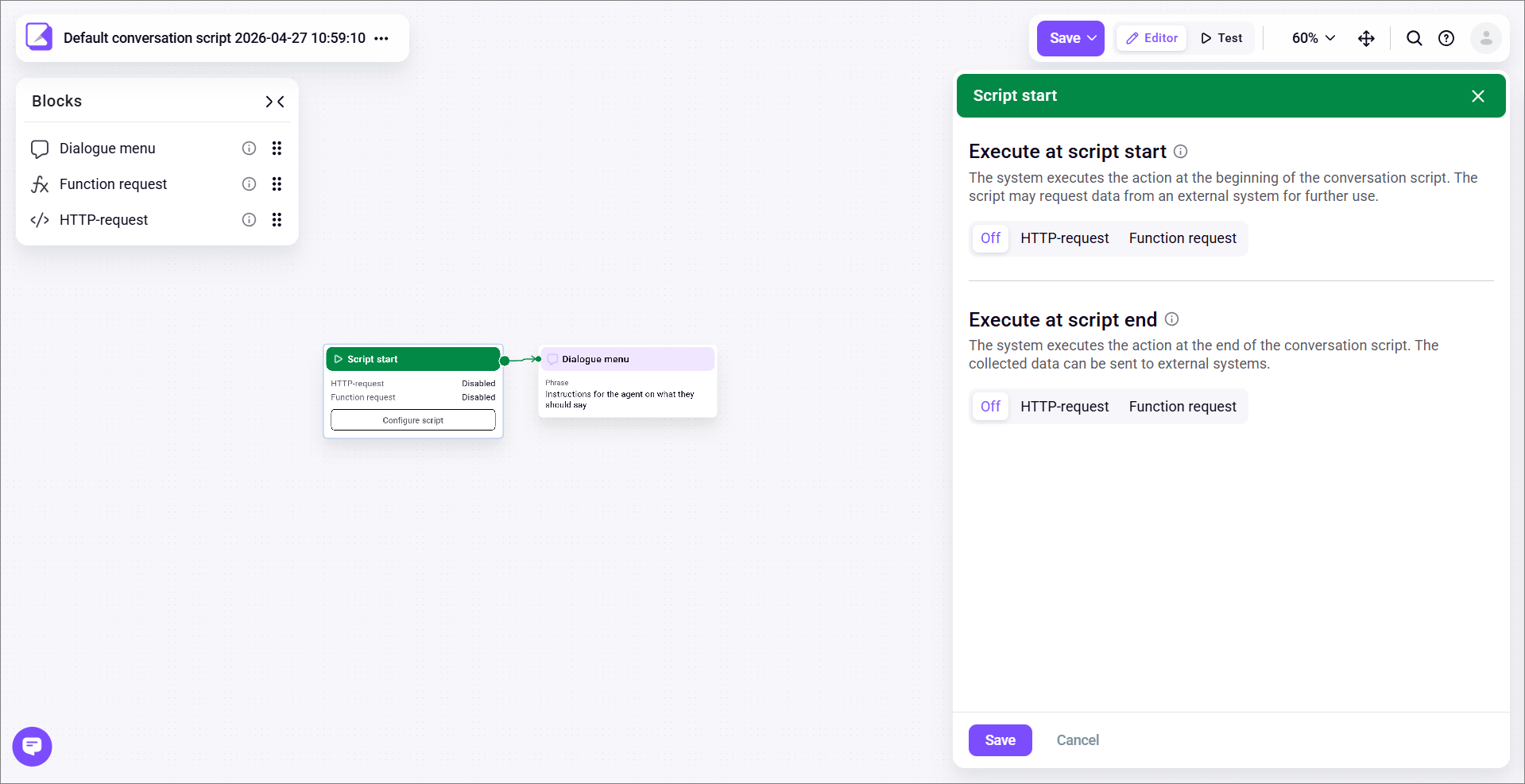
- Build the script in the visual editor. Use the following blocks:
Script start — a unique non-removable block that is added to the editor by default. It configures actions that should be executed at the beginning and at the end of the script.
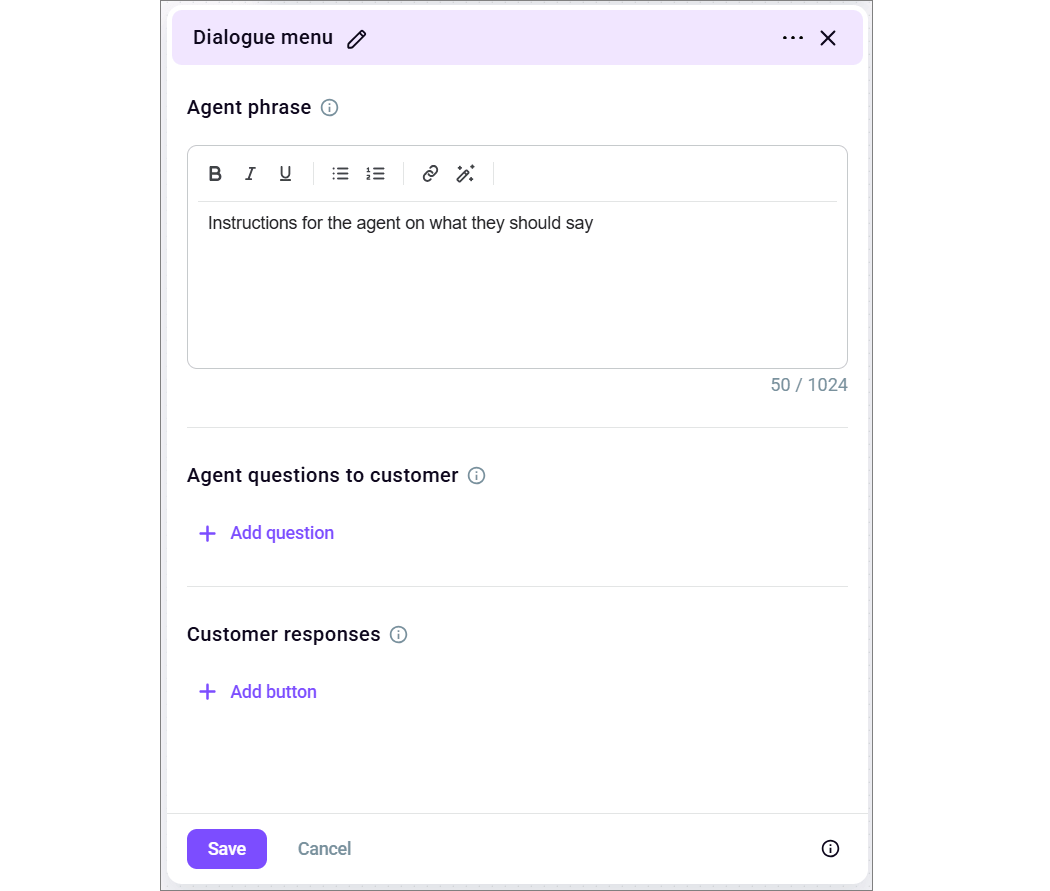
Dialogue menu — the main script block. It lets you add the agent phrase, questions to fill in during the conversation, and buttons to move to the next script step.
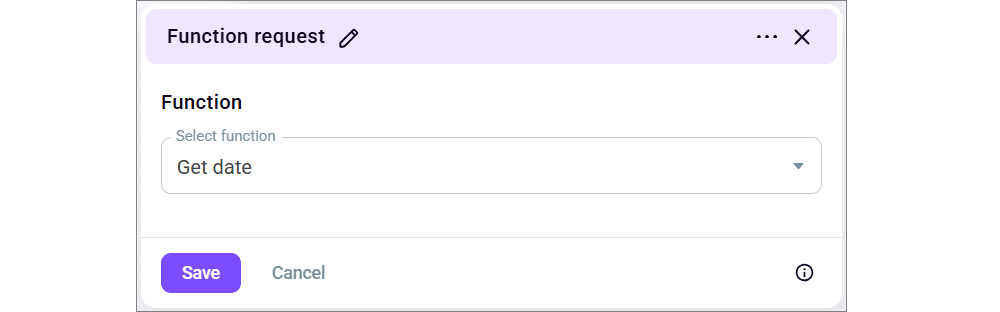
Function request — lets you run a function while the script is being executed and get its result. Add functions in Administration > Functions > Functions; after that, they become available inside the block.
HTTP-request — lets you send a request to an external service, for example a CRM system, to get data or send the conversation result there.
- Configure the script blocks.
For the Script start block, define the actions that the system should execute before the script is shown to the agent and after the script is completed.
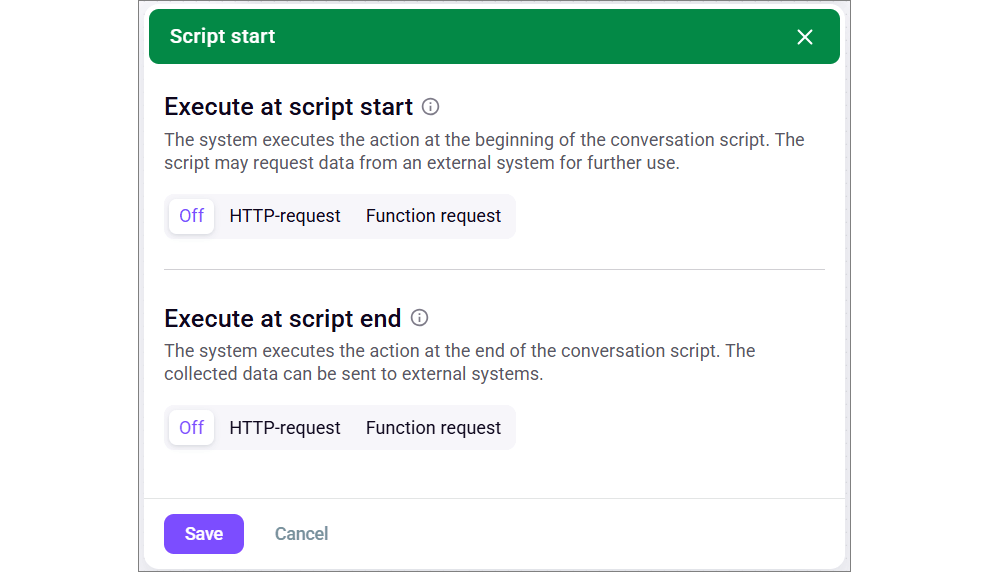
This block is useful in two cases:
If you need to get customer data from an external service before the conversation starts, for example from a CRM system.
If you need to send collected data to an external service after the conversation ends, for example the call result, agent comment, or completed fields.
For example, before the conversation starts, the script can send the customer phone number received from the call data, for example {{phone}}, to a CRM system and get the customer card in response: customer name, order number, request status, or personal manager name. You can then save this data to Voximplant Kit variables, for example {{client_name}}, {{order_id}}, {{request_status}}, or {{manager_name}}.
After that, the variables are used in the script itself. For example, the agent can immediately see the phrase Hello, {{client_name}}, the order number {{order_id}}, or the request status {{request_status}}. This helps start the conversation with known context and avoids asking the customer for the same data again.
Execute at script start
Select one of the following options:
Off — no additional actions are executed at the beginning of the script.
HTTP-request — use this option if you need to get data from an external system via API before the script starts. For example, you can request the customer name, order number, request status, or other data and then use it in the script text.
Function request — use this option if you need to run a Voximplant Kit function at the beginning of the script and get its result.
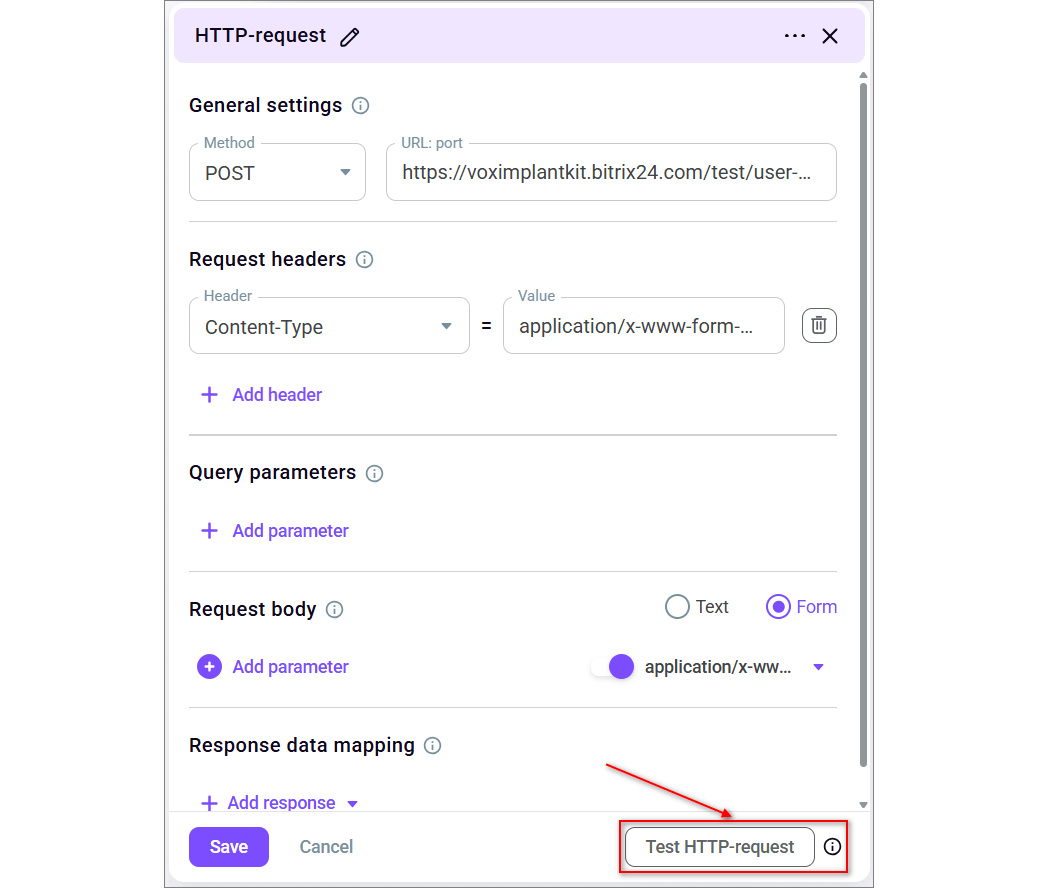
If you select HTTP-request, fill in:
General settings — HTTP method and service address
Request headers — request headers required by your service
Query parameters — request parameters. If necessary, you can use script variables in them
Response data mapping — rules for writing data from the service response to script variables
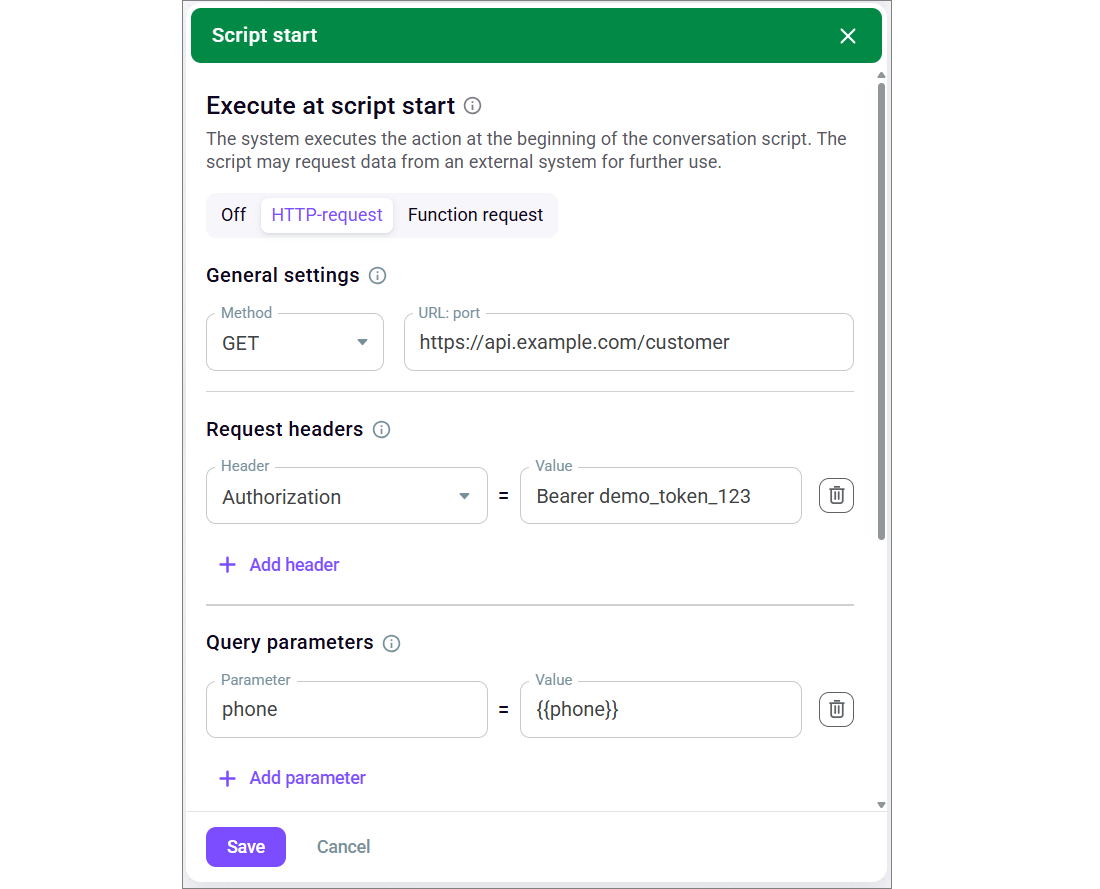
Response data mapping lets you automatically save data from the service response to Voximplant Kit variables. You can then use these variables in the script text, in subsequent blocks, in functions, or in other HTTP requests.
For example, you can pass the {{phone}} variable in the HTTP request query parameters so that the CRM system finds the customer by phone number. The CRM can return the customer name, order number, and request status in response. Then you can save, for example, the customer name to the {{client_name}} variable, the order number to {{order_id}}, and the request status to {{order_status}}, and use this data in the agent phrase or in the following script blocks.
For more details on creating variables, variable naming rules, and using variables in requests, see Basic work with variables.
Inside Response data mapping, click Add response and select one of the following options:
Using HTTP response data — use this option if the request is already configured and you want to get real data from the external service. After you click Get data, the system executes the request and lets you select the required fields from the actual response.
Using JSON data example — use this option if the external service is not available yet or if you want to configure the mapping in advance using a test example. Paste a sample JSON response and select which fields should be saved to variables.
Specify data path manually — use this option if you already know the response structure and the path to the required field. In this case, you can manually specify where to get the value from without selecting a field from the response or a JSON example.
If you select Using HTTP response data, the system opens the Preview request window. Check the request parameters there and click Get data to execute the request and get the response for mapping.
After you receive the response, map the required fields from the service response to script variables.
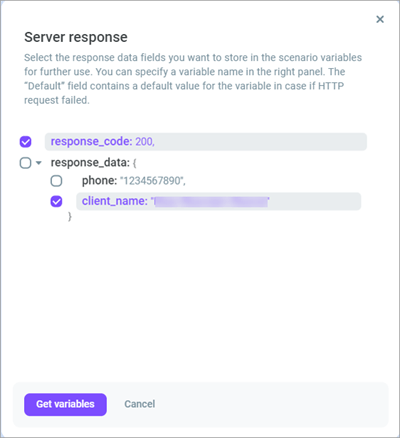
You can reuse variables in different script blocks. For example, you can show a value received from an HTTP response at the beginning of the script in the agent phrase and then send it to an external service at the end of the script. Variable names are case-sensitive: {{Phone}} and {{phone}} are different variables.
After you fill in the parameters, click Test HTTP-request to make sure the service responds correctly.
Execute at script end
Select one of the following options:
Off — no additional actions are executed after the script is completed.
HTTP-request — use this option if you need to send collected data to an external service after the script is completed.
Function request — use this option if you need to run a Voximplant Kit function after the script is completed.
If you select HTTP-request, fill in the same parameters:
General settings
Request headers
Query parameters
Response data mapping
In Response data mapping, also click Add response and select the required mapping method:
Using HTTP response data — lets you get real data from the external service and select the required fields from the response
Using JSON data example — lets you configure the mapping from a prepared JSON example without executing a real request
Specify data path manually — lets you manually define the path to the required field in the response if the response structure is already known
If you use Using HTTP response data, the system opens the Preview request window where you need to click Get data.
For example, at the end of the script, you can send the selected conversation result, agent comment, callback date, or callback time to an external service and then save data from the response to script variables.
For the Dialogue menu block, specify:
Agent phrase — the text the agent sees during the conversation. You can use script variables in the phrase, for example the customer name, order number, or other data previously received from a function or an HTTP request.
Agent questions to customer — fields the agent fills in based on the conversation result. For each question, select the response type and the variable where the entered result should be saved. You can use this variable in the next script steps, in functions, and in HTTP requests.
Customer responses — buttons the agent uses to choose the next conversation path. For each button, specify the name and code. When the agent selects a button, the system writes the selected button code to a variable. If the agent selects another button later in the script, this variable value is overwritten. For example, you can use the selected button code for script branching or for sending the result to an external service.
If you need to display data received earlier in the script, insert the required variable into the phrase text.
For example, at the beginning of the script, you can get the customer name from an external service and save it to the {{client_name}} variable. Then you can use this variable in the agent phrase: Hello, {{client_name}}.
Available response types for questions:
Quick reply — for a short text value, for example a name, contract number, or city
Detailed response — for a more detailed comment or description
Multiple choice — for selecting one of several predefined options
Date selection — for saving a date
Time selection — for saving a time value
The response to each question is saved to the selected variable. You can then use this variable in subsequent script blocks, in HTTP requests, and in functions.
You can reuse variables in different script blocks. For example, you can show a value received from an HTTP response at the beginning of the script in the agent phrase and then send it to an external service at the end of the script.
For the Function request block, specify:
Function — select the required function from the drop-down list. Add functions in Administration > Functions > Functions; after that, they become available inside the block.
For the HTTP-request block, specify:
General settings — HTTP method and service address
Request headers — request headers
Query parameters — request parameters. If necessary, you can use script variables in them
Request body — request body in Text or Form format
Response data mapping — rules for writing data from the HTTP response to script variables
This block is useful if you need to execute a request not at the beginning or end of the script, but at a specific point in the conversation. For example, the agent confirms the order number with the customer, and then the script should send a request to an external service to get the order status.
The Request body field supports the following options:
Text — use this option if the request body should be sent as ready text, for example JSON
Form — use this option if the request body should be sent as a set of
parameter = valuepairs
In Response data mapping, click Add response and select one of the following options:
Using HTTP response data — use this option if the request is already configured and you want to get real data from the external service
Using JSON data example — use this option if the external service is unavailable or if you want to configure the mapping in advance from a test example
Specify data path manually — use this option if you already know the response structure and the path to the required field
For example, you can pass the {{order_id}} variable in the request, save the order status from the response to the {{order_status}} variable, and show it to the agent in the next script step.
After the configuration is complete, click Test HTTP-request.
- If necessary, test the script. To do this, click Test at the top of the window.
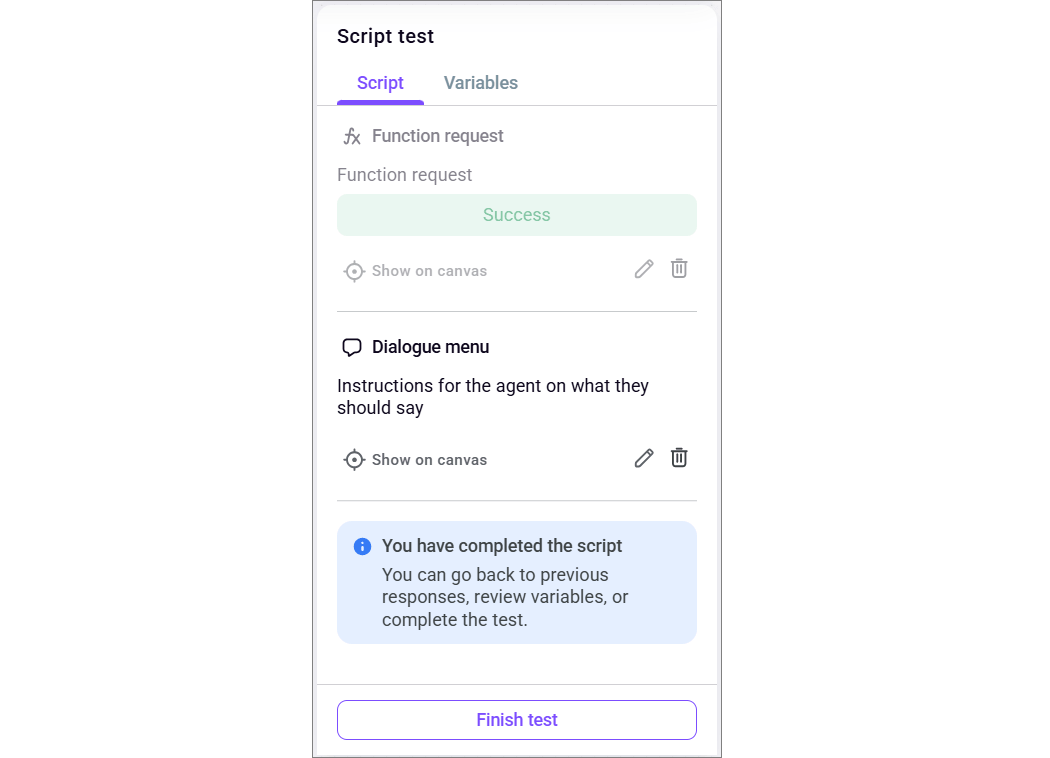
Testing helps you verify in advance how the script works: whether step transitions work correctly, whether buttons and fields are displayed, whether values are written to variables, and whether there are any logic errors in the script.

In the test window:
On the Script tab, check the logic of transitions between steps and the display of text, buttons, and fields.
On the Variables tab, check the variable values used in the script and filled in during the test.
During testing, go through the script in the same way an agent would during a call: click buttons, move between branches, and fill in the form fields. This helps make sure the script works as intended.
For example, you can verify whether the customer name is inserted into the agent phrase, whether the selected button code is written to a variable, and whether the next script step opens after clicking a button.
If the script works correctly, the system does not highlight errors, and the script behavior is as expected, click Finish test.
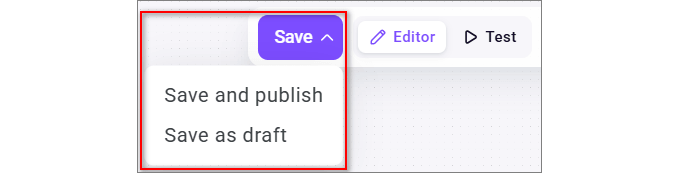
- Save the script. The following options are available:
Save and publish — the script becomes immediately available for selection in call settings and is displayed in the list with the Published status
Save as draft — the script is saved but is not available to agents until publication
To publish a draft later, open it from the scripts list, click Edit, and save it using Save and publish.
Setting up a script in call permissions
In the Call permissions section, you can specify a conversation script that opens automatically in the Workspace for specific call types.
- Go to Settings > General settings > Call permissions.
- Find one or both of the following settings:
Use conversation scripts for outbound calls — so that the selected script opens automatically in the Workspace for outgoing click-to-call calls from the Softphone
Use conversation scripts for inbound calls — so that the selected script opens automatically in the Workspace for incoming calls to a User group or User extension number
- Enable the required setting.
- In the Conversation script field, select a script from the list.
- Click Save changes.
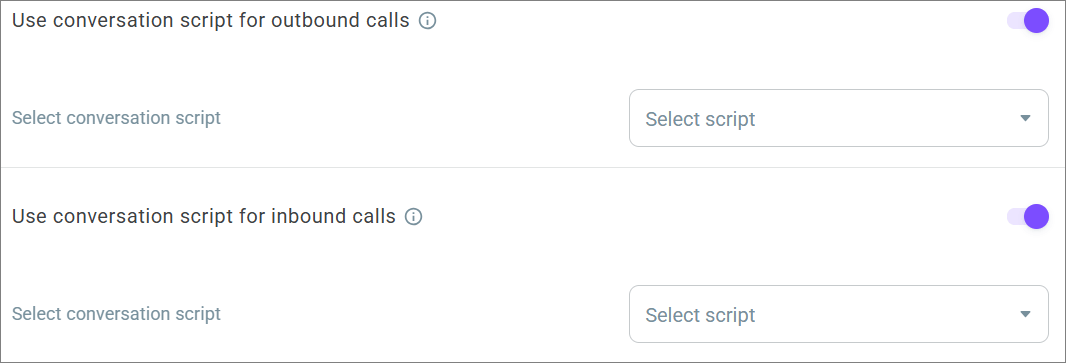
The Use conversation scripts for outbound calls and Use conversation scripts for inbound calls settings are located after the Allow outbound calls setting.
After you enable the setting, the selected script opens automatically in the Workspace for the corresponding call type. If only one conversation script exists in the account, it is inserted into the Conversation script field automatically.
Only conversation scripts with the Published status are available for selection. Scripts with the Draft status are not available for selection.
If there are no conversation scripts in the account, first create one in the Conversation scripts section. If you do not have access to script creation, contact your administrator.
By default, settings in the Call permissions section apply to all contact center users. If a user group has its own conversation script settings, they take precedence over the general settings.
Setting up a script in an agent campaign
The conversation script in the Call permissions section applies to regular outgoing click-to-call calls from the Softphone and to incoming calls to user and group extension numbers. The conversation script in an agent campaign is configured separately and is used only for calls within this campaign.
In an agent campaign, you can select a conversation script that is used for calls within this campaign.
- Go to Administration > Automation > Outbound campaigns.
- Click Create campaign and select Create agent campaign, or open an existing agent campaign for editing.
- On the Settings tab, find the Use conversation script setting.
- Enable the setting.
- In the Use conversation script field, select a script from the list.
- Save the changes.
After you save the changes, the selected script opens in the Workspace when agents process calls within this campaign.

The script selected in the agent campaign settings applies only to calls in this campaign. If only one conversation script exists in the account, it may be inserted into the field automatically.
Only conversation scripts with the Published status are available for selection. Scripts with the Draft status are not available for selection.
If a conversation script is selected for an agent campaign, that script is used for calls in this campaign even if another script is selected in the Call permissions section.
Using a script in the Workspace
While processing a call, the selected script is displayed in the right sidebar menu of the Workspace on the Conversation scripts tab. Go to the Workspace section.
To open the menu with available scripts, click the Conversation scripts button.

Conversation scripts are available:
For outgoing click-to-call calls that users make from the Softphone
For incoming calls to a User group extension number
For incoming calls to a User extension number
For calls within an agent campaign if a script is selected in its settings
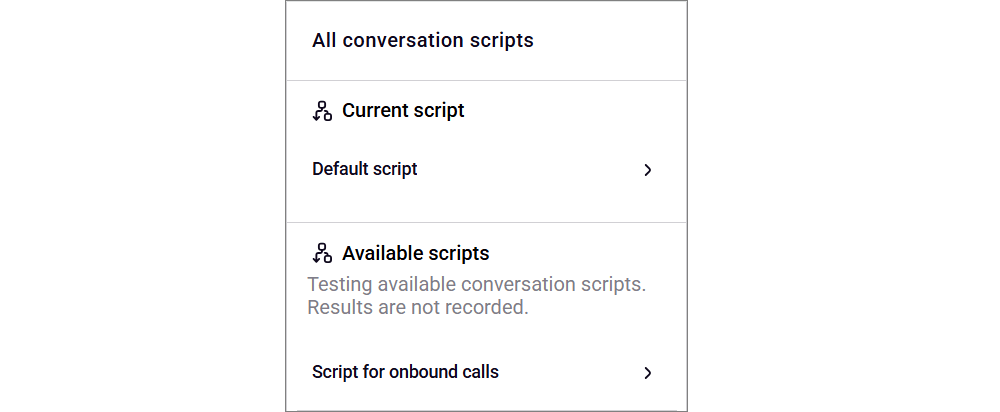
After you select a script, a window with its contents opens. There, the agent sees the current step and can continue working with the script. In the agent interface, the script is displayed to the right of the call and contains:
Current script text
Response options
Input fields
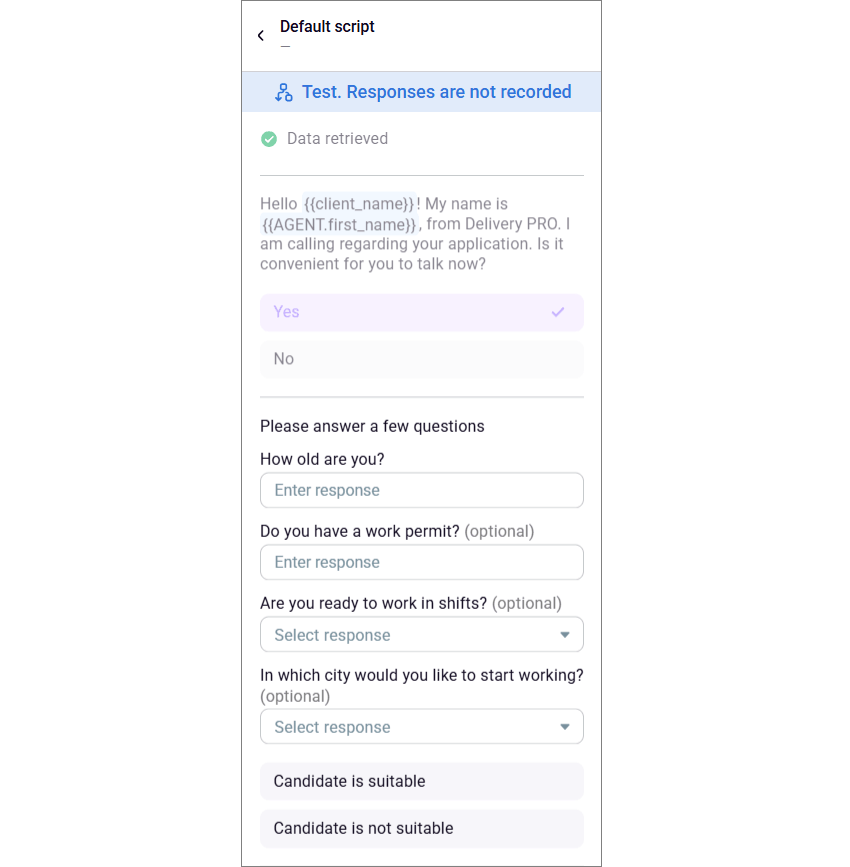
A script can use call variables, for example the customer name, phone number, or other previously received data. The data the agent enters during the conversation is also saved to Voximplant Kit variables. This lets you use the same data at different script stages. For example, at the beginning of the call, you can show the customer name to the agent, save the selected result, comment, or callback date during the conversation, and then pass this data to a function or an external service using an HTTP request.