Bulk message metrics
Bulk message metrics is a report for a specific bulk message that shows its results after launch. You can use it to view overall statistics, check message statuses for each contact, find sending errors, and download detailed data for further analysis.
The report helps you quickly evaluate the result of a bulk message: how many messages were sent, delivered, read, not sent, or not delivered, and what status each contact has.
Contents
How to open message metrics
You can open message metrics from the bulk message list:
- In the left menu, select Administration > Bulk messages.
- Find the required bulk message.
- Open the ⋯ action menu on the right side of the bulk message.
- Select Message metrics.
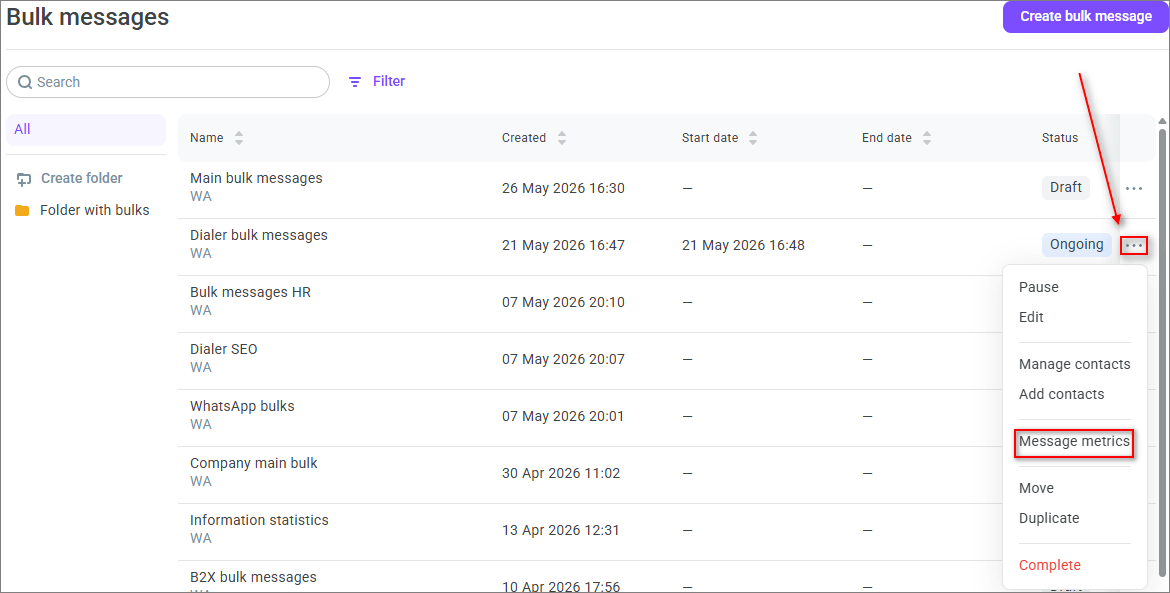
From Administration > Bulk messages, you can open message metrics for any bulk message except a bulk message in the Draft status.
Bulk messaging statistics and Bulk message metrics are different screens. The Bulk messaging statistics section displays a list of bulk messages for the selected period. Bulk message metrics opens for one specific bulk message and shows its statistics and contact details.
Bulk message actions
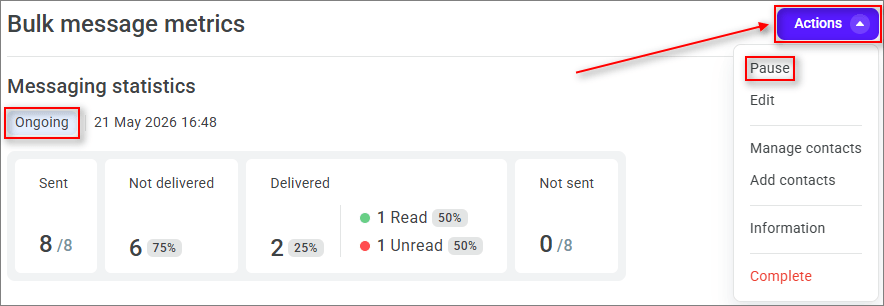
In the upper-right corner of message metrics, the Actions menu is available. The set of actions depends on the bulk message status.
Bulk message status | Available actions |
Ongoing | Pause, Edit, Manage contacts, Add contacts, Information, Complete |
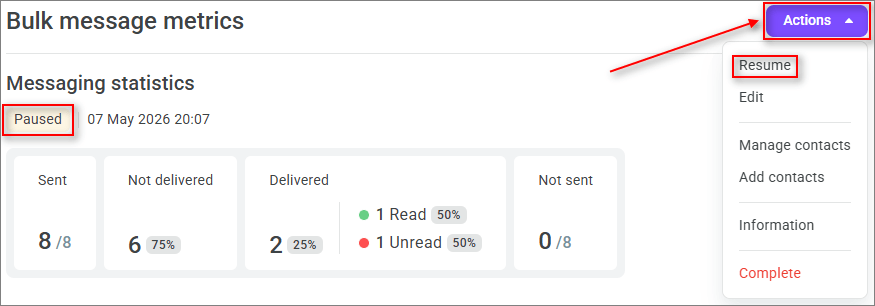
Paused | Resume, Edit, Manage contacts, Add contacts, Information, Complete |
Completed | Manage contacts, Information |
The actions allow you to manage the bulk message directly from message metrics:
Pause — temporarily stop the bulk message. After that, the bulk message switches to the Paused status.
Resume — continue a paused bulk message. After that, the bulk message switches to the Ongoing status.
Edit — go to the bulk message settings.
Manage contacts — open the bulk message contact lists.
Add contacts — upload new contacts to the bulk message.
Information — open the side panel with detailed information about the bulk message.
Complete — complete the bulk message. Before completion, you need to confirm the action.
For a bulk message in the Ongoing status, you can pause sending, go to the settings, manage contacts, add contacts, open bulk message information, or complete the bulk message.
For a bulk message in the Paused status, the Resume action is available. Use it to continue sending messages.
For a bulk message in the Completed status, only the Manage contacts and Information actions are available. You cannot edit or resume a completed bulk message.
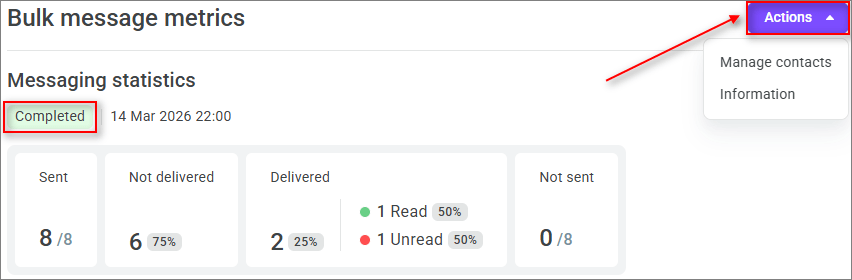
To complete a bulk message, select Complete in the Actions menu and confirm the action.
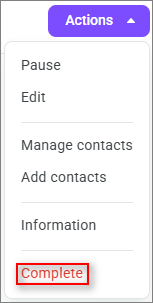
After confirmation, the bulk message switches to the Completed status, and message sending stops.
Bulk message information
To view detailed settings and the content of a bulk message, select Information in the Actions menu.
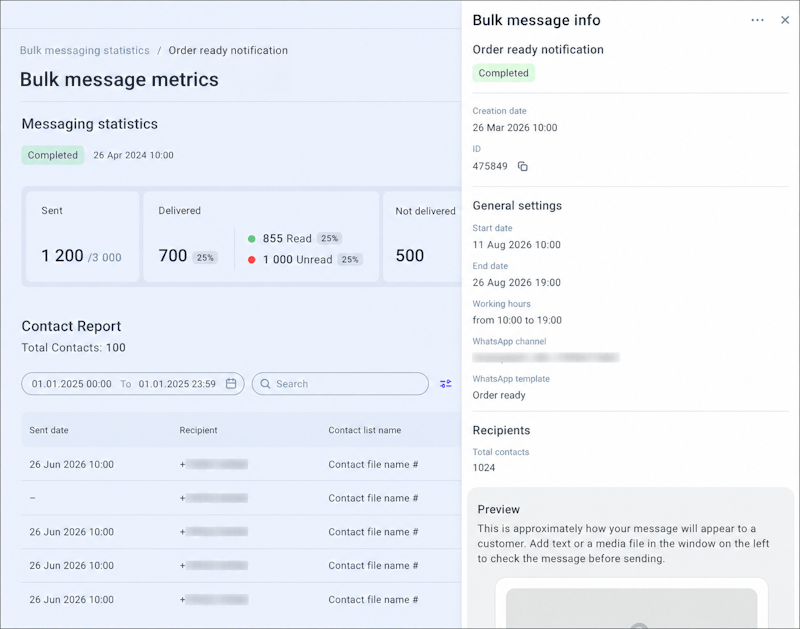
The Bulk message information side panel displays:
bulk message name;
bulk message status;
creation date;
bulk message ID;
start date;
end date;
working hours;
channel used for the bulk message;
message template;
number of recipients;
message preview.
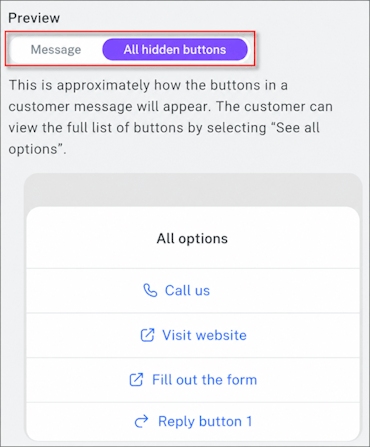
The preview shows how the message will approximately look to the customer. If the message contains hidden buttons, switch to the All hidden buttons tab to view the full list of buttons.
Viewing message metrics
After you open message metrics, the top of the page displays the bulk message name, its status, and the launch date or status change date. Below, you can find the Bulk message statistics and Contact report blocks.
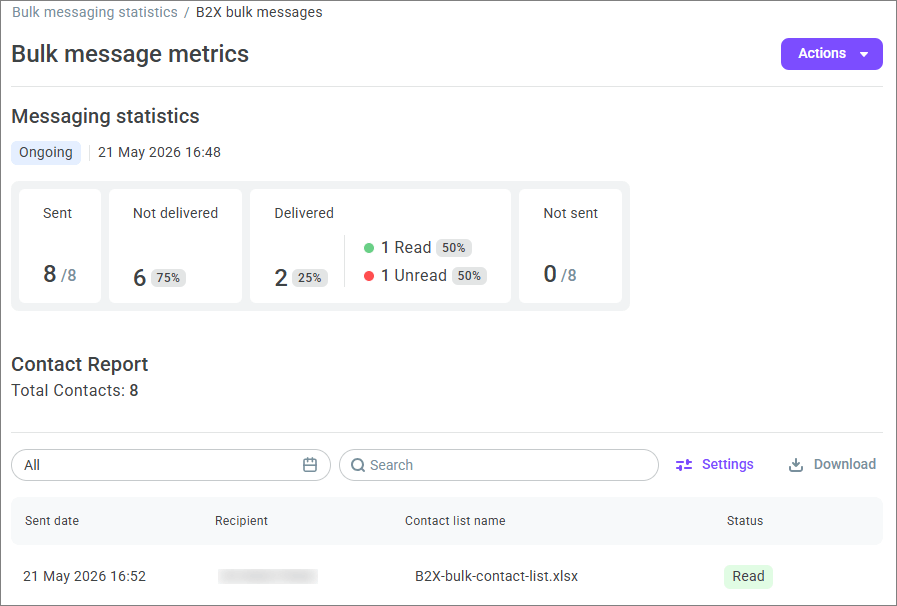
Next to the bulk message status, the system displays the date and time when the bulk message switched to this status: launch, pause, or completion.
Message metrics can display the following bulk message statuses:
Ongoing — the bulk message is launched.
Paused — the bulk message is paused manually or automatically.
Completed — the bulk message is completed manually or when the end date is reached.
If a bulk message is paused automatically, an icon with a tooltip may appear next to the status. Hover over the icon to view the reason for the pause. For example, a bulk message may be paused because the daily message sending limit in the channel has been reached or because the template has been disabled by the provider or operator. If the tooltip indicates a template issue, contact technical support.
Bulk message statistics
The Bulk message statistics block shows the overall result of the bulk message.
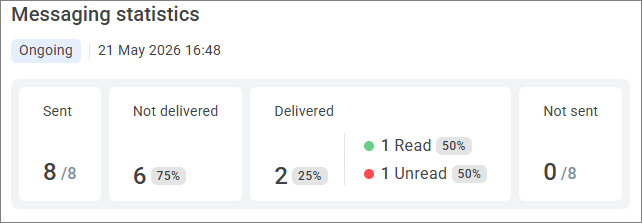
Metric | Description |
Total contacts | Total number of contacts in the bulk message. |
Sent | Number of messages sent to recipients. Next to the metric, the system displays the ratio of sent messages to the total number of contacts. |
Delivered | Number of messages delivered to recipients. The percentage is calculated as the ratio of delivered messages to the total number of contacts. |
Read | Number of delivered messages read by recipients. The percentage is calculated as the ratio of read messages to delivered messages. |
Unread | Number of delivered messages not read by recipients. The percentage is calculated as the ratio of unread messages to delivered messages. |
Not delivered | Number of messages that were sent but not delivered to recipients. The percentage is calculated as the ratio of undelivered messages to the total number of contacts. |
Not sent | Number of messages that were not sent to recipients. Next to the metric, the system displays the ratio of not sent messages to the total number of contacts. |
If a percentage is displayed next to a metric, it shows the share of this metric in the overall bulk message statistics. For example, you can use these percentages to quickly evaluate what share of messages was delivered, read, or not delivered.
Contact report
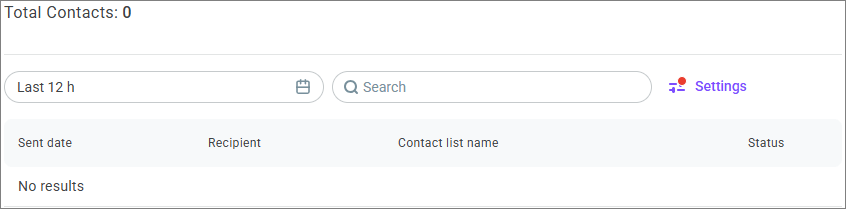
The Contact report block is located at the bottom of message metrics. It shows the sending result for each recipient.
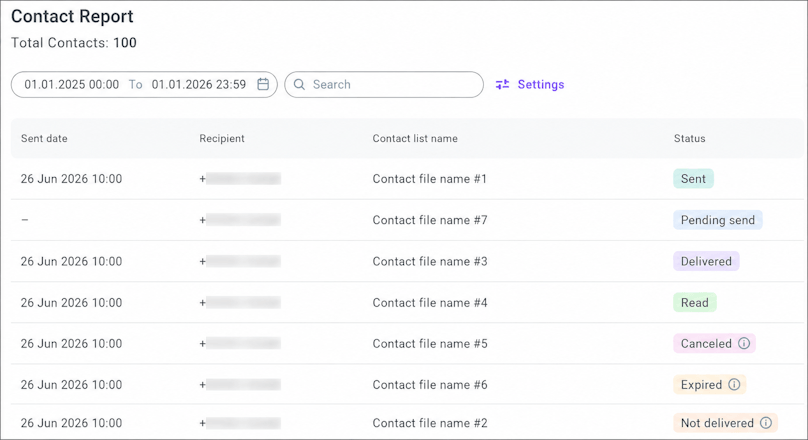
The table displays the following data:
Column | Description |
Sent date | Date and time when the message was sent to the recipient. |
Recipient | Recipient phone number. |
Contact list name | Contact list from which the recipient was taken. |
Status | Current or final message status for the recipient. |
For the Pending send and Failed statuses, the sent date may not be displayed.
The contact report uses the following statuses:
Status | Description |
Pending send | The message has not been sent yet and is waiting to be sent. |
Sent | The message has been sent to the recipient. |
Delivered | The message has been delivered to the recipient. |
Read | The recipient has read the message. |
Not delivered | The message has been sent but not delivered to the recipient. |
Canceled | The message has not been sent because sending was canceled. |
Expired | The message has not been delivered to the recipient within the allowed time. |
Failed | The message has not been sent or delivered due to an error. |
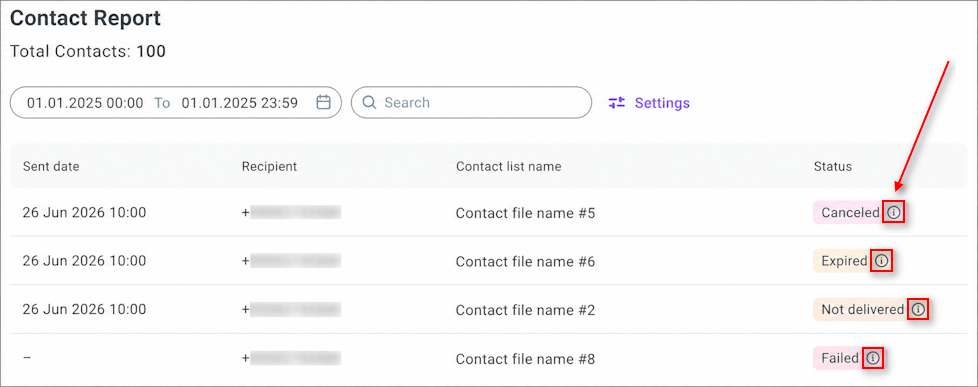
For some statuses, an icon with a tooltip appears next to the status name. Hover over it to view the status reason.
Tooltip examples:
Canceled — the message has not been sent because the contact list was canceled in the bulk message settings.
Expired — the message has not been delivered to the recipient within 30 days from the sent date.
Not delivered — the message has been sent but not delivered to the recipient.
Failed — the message has not been sent or delivered due to an error. For example, the recipient is not registered on WhatsApp or there is already an open conversation with them.
If the tooltip does not explain why the message received this status, contact technical support.
Use the Search field to find a contact by recipient phone number or contact list name.
To view contacts for the required period, select dates in the period filter. You can select a preset period or specify a custom date range.
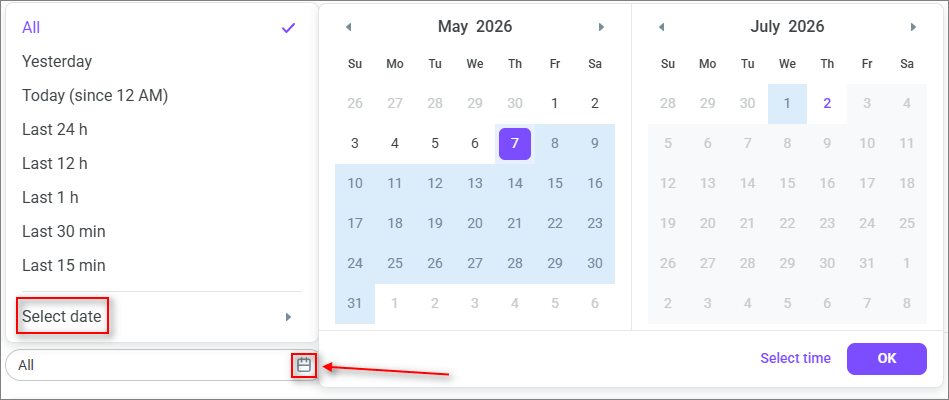
The following preset periods are available:
Today
Yesterday
Last 7 days
Last 28 days
Last 90 days
You can also select a custom period. Depending on the selected period, data can be displayed by hour, day, week, month, or entire period.
Contact report settings
Click Settings to filter the report by statuses or contact lists.
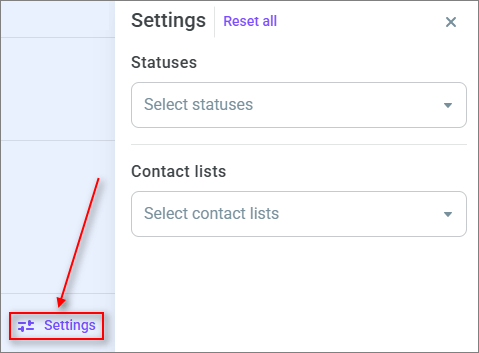
The following filters are available in the settings:
Filter | Description |
Statuses | Allows you to keep only contacts with selected statuses in the table. |
Contact lists | Allows you to keep only contacts from selected contact lists in the table. |
To apply the settings:
- Click Settings.
- Select one or several statuses.
- If necessary, select one or several contact lists.
- Click Apply.
To restore the default settings, click Reset all.
Setting changes are applied only after you click Apply. If you close the settings panel without applying changes, the previously applied settings are displayed the next time you open the panel.
If nothing is found for a query in the filter, an empty state is displayed in the list.