Bulk messaging statistics ᴺᴱᵂ
WhatsApp bulk messaging is unavailable by default. To get access, contact us.
Contents
Section purpose
The Bulk messaging statistics section displays statistics for WhatsApp bulk messages and their current status.
You can see how many messages have been sent, delivered, and read.
If you have not created any bulk messages yet, create your first WhatsApp bulk message. For detailed instructions, see WhatsApp bulk messages ᴺᴱᵂ.
To open the section, select Reporting > Bulk messages in the left menu.
Viewing reports
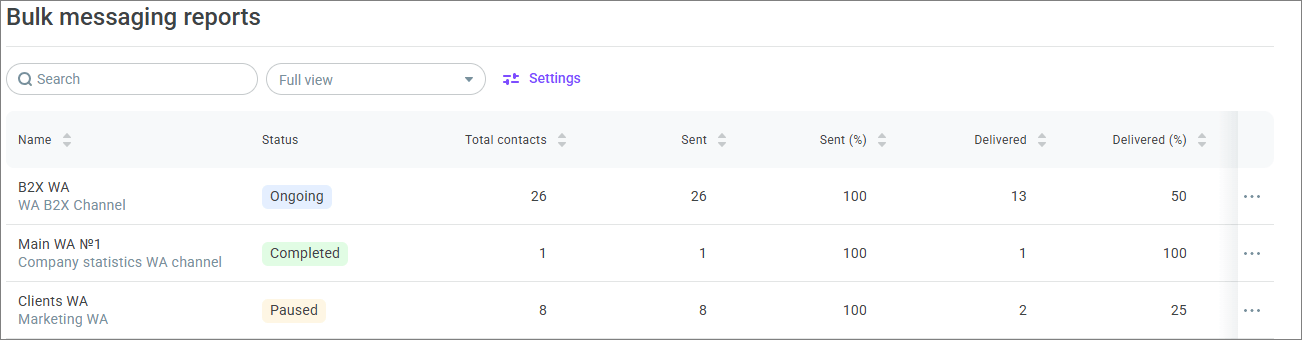
The table displays bulk messages with the following statuses:
Status | Description |
Ongoing | The bulk message is running. |
Paused | The bulk message has been paused manually or automatically. |
Completed | The bulk message has been completed manually or after the specified end time. |
If a bulk message is paused automatically, an information icon appears next to its status. Hover over the icon to view the reason.
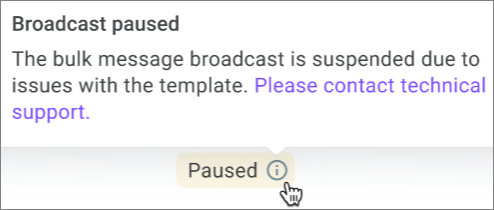
Possible reasons:
the daily channel message sending limit has been reached;
the template has been disabled by the provider or operator.
When sorted by status, bulk messages appear in the following order: Ongoing, Paused, Completed.
All metrics are calculated for the entire period since the bulk message started.
Numeric values are formatted according to the interface language. Percentage values are rounded to two decimal places using standard rounding rules.
Search, filters, and table settings
Use the Search field to find a bulk message by name or channel.

Click Settings to:
filter bulk messages by status and channel;
show or hide columns;
reset the selected settings;
save the filters and column set as a separate view.
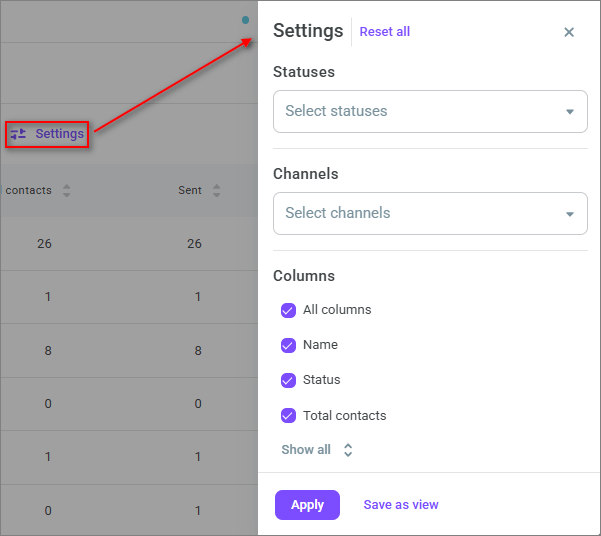
If no values are selected in a filter, the table displays all bulk messages.
To apply the changes to the table, click Apply. To save the selected filters and columns for future use, click Save as view.
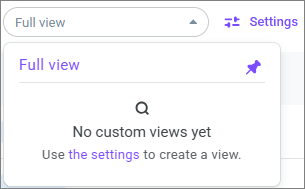
Saved views appear in the view list next to the search field. The Full view, which contains all columns, is available by default. If you have not created any custom views yet, the list displays only the Full view.
Bulk messaging metrics
The table shows the current status and results of WhatsApp bulk messages: how many messages have been sent, delivered, read, not delivered, or not sent.
Metric | Description |
Name | Bulk message name and the channel used to send messages. |
Status | Current bulk message status. |
Total contacts | Total number of contacts in the bulk message. |
Sent | Number of sent messages. |
Sent (%) | Percentage of sent messages. |
Delivered | Number of messages successfully delivered to recipients. |
Delivered (%) | Percentage of successfully delivered messages. |
Not delivered | Number of sent messages that were not delivered to recipients. |
Not delivered (%) | Percentage of sent messages that were not delivered to recipients. |
Read | Number of messages read by recipients. |
Read (%) | Percentage of read messages. |
Unread | Number of messages that recipients did not read. |
Unread (%) | Percentage of messages that recipients did not read. |
Not sent | Number of messages that were not sent to recipients. |
Not sent (%) | Percentage of messages that were not sent to recipients. |
Bulk message actions
To open the actions menu, click the ⋯ icon on the right side of the required bulk message row.
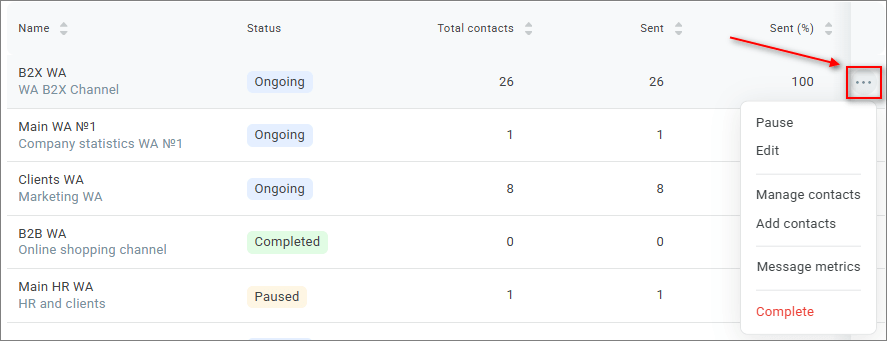
The available actions depend on the bulk message status:
Bulk message status | Available actions |
Ongoing | Pause, Edit, Manage contacts, Add contacts, Message metrics, Complete |
Paused | Resume, Edit, Manage contacts, Add contacts, Message metrics, Complete |
Completed | Manage contacts, Message metrics, Delete |
Selecting Pause pauses the bulk message and changes its status to Paused.
Selecting Resume resumes the bulk message and changes its status to Ongoing.
Selecting Edit opens the bulk message settings.
Selecting Manage contacts opens the page with the bulk message contact lists.
Selecting Add contacts opens the contact upload window.
Selecting Message metrics opens a detailed report on the bulk message messages. For more information, see Bulk message metrics.
Selecting Complete opens a confirmation window. After confirmation, the bulk message changes to the Completed status.
Selecting Delete opens a confirmation window. After confirmation, the bulk message is deleted.
If the bulk message is paused because of a template issue, the Resume action is unavailable. The reason appears next to the status and when you hover over the unavailable action.
Bulk message information
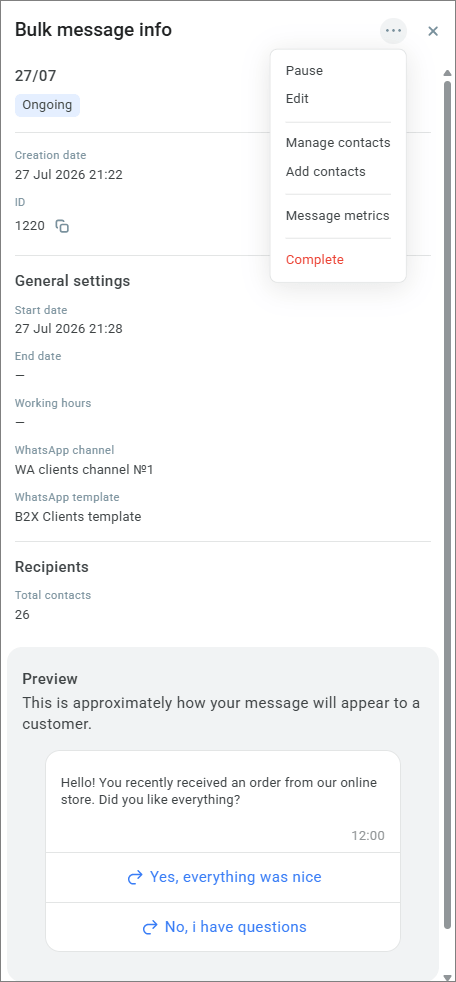
Click a bulk message row to open the Bulk message information side panel.
The panel displays:
bulk message name and status;
creation date;
bulk message ID;
start date;
end date;
working hours;
WhatsApp channel;
WhatsApp template;
total number of contacts;
message preview.
A copy icon appears next to the bulk message ID.
The side panel menu displays the actions available for the current bulk message status.