


Outbound campaign dashboards ᴺᴱᵂ
Contents
Section purpose
Outbound campaign dashboards show detailed statistics for a specific outbound campaign ᴺᴱᵂ. Use them to analyze dialing results, current campaign state metrics, completed call attempts, wrap-up codes, and call metrics.
Voximplant Kit provides dashboards for two campaign types:
Dashboards differ by the set of widgets and metrics. In automated campaigns, the main metrics are related to scenario completion. In agent campaigns, additional metrics are displayed for agents, agent statuses, agent response waiting time, and lost calls.
Opening a dashboard
To open an outbound campaign dashboard:
- In the left menu, select Reporting > Outbound campaigns.
- In the Automated campaigns performance or Agent campaigns performance table, find the required campaign.
- Click the required campaign: the selected campaign dashboard opens.
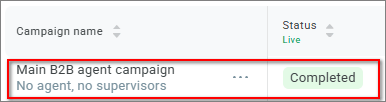
Dashboard header
The dashboard header displays:
navigation path;
campaign name;
campaign status;
campaign start date;
campaign end date, if the campaign is in the Completed status;
campaign selector;
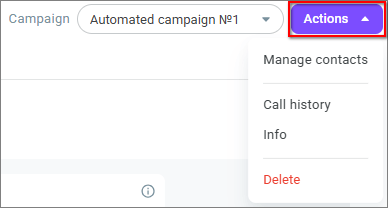
Actions button.
The campaign selector allows you to switch to another campaign dashboard. Campaigns in the selector are grouped by type.

Campaign actions
The Actions button is available on the right side of the header. The set of actions depends on the campaign status.
Campaign status | Available actions |
Ongoing | Pause, Edit, Manage agents for agent campaigns, Manage contacts, Add contacts, Call history, Info, Complete |
Paused | Resume, Edit, Manage agents for agent campaigns, Manage contacts, Add contacts, Call history, Info, Complete |
Completed | Manage contacts, Call history, Info, Delete |
Available actions:
When you select Pause, the campaign is paused and moves to the Paused status.
When you select Resume, the paused campaign resumes and moves to the Ongoing status.
When you select Edit, the campaign settings open.
When you select Manage agents, the agent management window opens for the selected agent campaign. In this window, you can add or remove campaign agents. For more information, see Agent campaigns ᴺᴱᵂ.
When you select Manage contacts, the campaign editing page opens on the Contacts tab. On this tab, you can view contact lists and manage them. For more information, see Contact lists and campaign launch ᴺᴱᵂ.
When you select Add contacts, the file upload window for contacts opens. For more information, see Uploading contacts ᴺᴱᵂ.
When you select Call history, the History > Calls section opens with a preset filter for the selected campaign.
When you select Info, the side panel with campaign information opens.
When you select Complete, a confirmation window opens. After confirmation, the campaign moves to the Completed status.
When you select Delete, a confirmation window opens. After confirmation, the campaign is deleted and cannot be restored.
Metric period
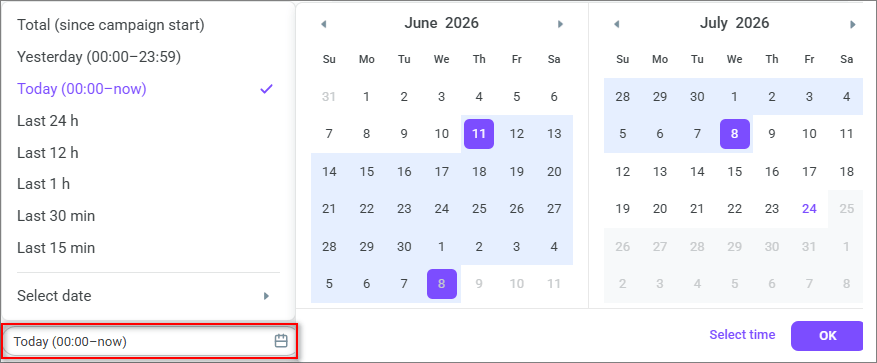
In the Campaign performance metrics block, you can select the metric period.
The time period filter is shared by both tables. Available options: Total (since campaign start), Yesterday (00:00–23:59), Today (00:00–now), Last 24 h, Last 12 h, Last 1 h, Last 30 min, Last 15 min, Select date.
When you select Select date, a calendar with date and time selection opens.
The selected period does not affect all dashboard widgets.
Depend on the selected period:
• Completed call attempt metrics.
• Key call metrics, except current campaign state metrics.
• Wrap-up codes — the selected period is displayed in a separate column.
• Agents performance in the agent campaign dashboard.
Do not depend on the selected period:
• Overall contact statistics — metrics are displayed from the campaign start.
• Current campaign state metrics — they do not depend on the selected period and have the Live label.
• Agent statuses — they are displayed in real time.
Current campaign state metrics are updated every 3 seconds. Other metrics are updated every 15 seconds. Percentage values in metrics are rounded to hundredths using standard mathematical rounding rules.
For successful call attempts, the call is included in the selected period by the post-processing end time. For unsuccessful call attempts, the call is included in the selected period by the call end time.
Configuring a dashboard
Click Settings to configure widgets and metrics.
In settings, you can:
hide or show widgets;
save selected settings as a view;
configure the metric set and threshold values for widgets where this is available;
filter agents in the agent campaign dashboard.
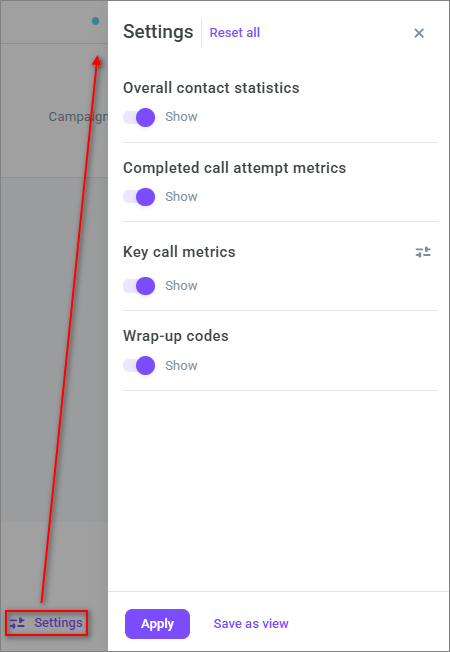
In the automated campaign dashboard, you can hide or show:
Overall contact statistics;
Completed call attempt metrics;
Key call metrics;
Wrap-up codes.
In the agent campaign dashboard, you can hide or show:
Overall contact statistics;
Completed call attempt metrics;
Key call metrics;
Wrap-up codes;
Agent statuses;
Agents performance.
The Agents filter applies only to the Agent statuses widget and the Agents performance table.
Automated campaign dashboard
The automated campaign dashboard shows statistics for a campaign where calls are processed by a scenario without agents. The automated campaign dashboard contains:
Overall contact statistics;
Completed call attempt metrics;
Key call metrics;
Wrap-up codes.
Overall contact statistics
The widget shows contact statistics from the campaign start. Widget values do not depend on the selected period.
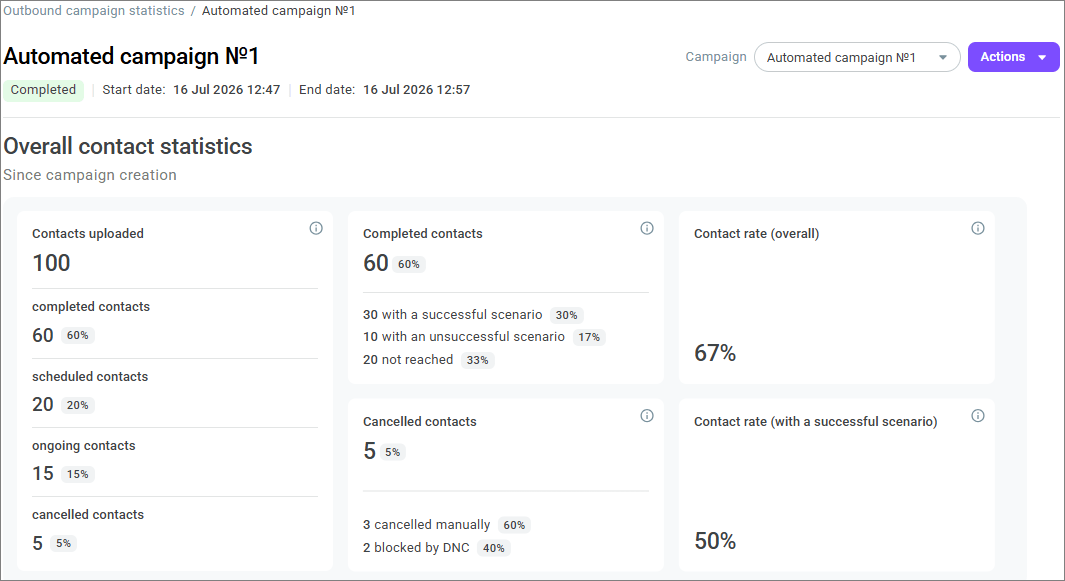
Metric | What it shows |
Contacts uploaded | Number of uploaded contacts. Percentage is not calculated. |
Completed contacts | Number of contacts for which dialing is completed. Percentage is calculated as a share of Contacts uploaded. |
With a successful scenario | Number of contacts excluded from dialing after the customer answered and passed the Call success block. Percentage is calculated as a share of Completed contacts. |
With an unsuccessful scenario | Number of contacts excluded from dialing after the customer answered but did not pass the Call success block. Percentage is calculated as a share of Completed contacts. |
Not reached | Number of contacts for which call attempts ended without the customer answering. Percentage is calculated as a share of Completed contacts. |
Scheduled contacts | Number of contacts for which no call attempts have been made yet. Percentage is calculated as a share of Contacts uploaded. |
Ongoing contacts | Number of contacts for which a retry is scheduled after an unsuccessful attempt or after an attempt with the Voicemail or Call back wrap-up code. Percentage is calculated as a share of Contacts uploaded. |
Cancelled contacts | Number of contacts cancelled manually through the interface or API, and contacts blocked by the DNC list. Percentage is calculated as a share of Contacts uploaded. |
Cancelled manually | Number of contacts cancelled manually through the interface or API. Percentage is calculated as a share of Cancelled contacts. |
Blocked by DNC | Number of contacts blocked by the DNC list. Percentage is calculated as a share of Cancelled contacts. |
Contact rate (overall) | Share of completed contacts where the customer answered: with a successful or unsuccessful scenario. Percentage is calculated using the formula: (With a successful scenario + With an unsuccessful scenario) / Completed contacts. |
Contact rate (with a successful scenario) | Share of completed contacts that passed the scenario successfully. Percentage is calculated using the formula: With a successful scenario / Completed contacts. |
If a wrap-up codes set is selected for the campaign, then the widget displays wrap-up code metrics. The With a successful scenario, With an unsuccessful scenario, Contact rate (overall), and Contact rate (with a successful scenario) metrics are not displayed in this case.
Metric | What it shows |
With wrap-up code "Closure success" | Number of contacts excluded from dialing with the Closure success wrap-up code. Percentage is calculated as a share of Completed contacts. |
Without wrap-up code "Closure success" | Number of contacts excluded from dialing with wrap-up codes other than Closure success. The Call back code is not included. Percentage is calculated as a share of Completed contacts. |
Without wrap-up code | Number of contacts excluded from dialing without a wrap-up code. Percentage is calculated as a share of Completed contacts. |
Contact rate (overall) | Share of completed contacts where the customer answered: with the Closure success wrap-up code or without this wrap-up code. Percentage is calculated using the formula: (With wrap-up code "Closure success" + Without wrap-up code "Closure success") / Completed contacts. |
Contact rate (with a successful wrap-up code) | Share of completed contacts with the Closure success wrap-up code. Percentage is calculated using the formula: With wrap-up code "Closure success" / Completed contacts. |
Completed call attempt metrics
The widget shows statistics for completed call attempts for the selected period.
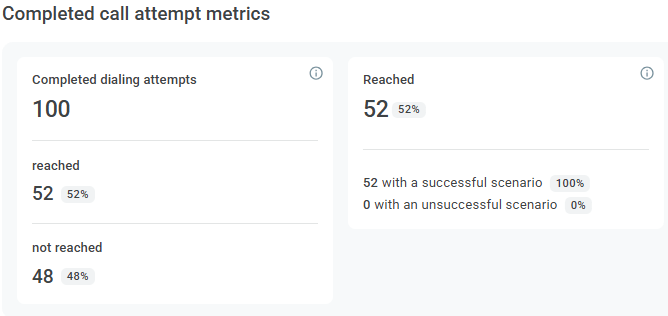
Metric | What it shows |
Completed dialing attempts | Number of completed dialing attempts. Percentage is not calculated. |
Reached | Number of calls answered by customers, with a successful or unsuccessful scenario. Percentage is calculated as a share of Completed dialing attempts. |
With a successful scenario | Number of answered calls that passed the Call success block in the scenario. Percentage is calculated as a share of Reached. |
With an unsuccessful scenario | Number of answered calls that did not pass the Call success block in the scenario. Percentage is calculated as a share of Reached. |
Not reached | Number of calls that customers did not answer. Percentage is calculated as a share of Completed dialing attempts. |
If a wrap-up codes set is selected for the campaign, then the widget displays wrap-up code metrics. The With a successful scenario and With an unsuccessful scenario metrics are not displayed in this case.
Metric | What it shows |
With wrap-up code "Closure success" | Number of answered calls with the Closure success wrap-up code. Percentage is calculated as a share of Reached. |
Without wrap-up code "Closure success" | Number of answered calls with wrap-up codes other than Closure success, including Call back. Percentage is calculated as a share of Reached. |
Without wrap-up code | Number of answered calls without a wrap-up code. Percentage is calculated as a share of Reached. |
Key call metrics
The widget shows key call metrics. Only current campaign state metrics with the Live label do not depend on the selected period.
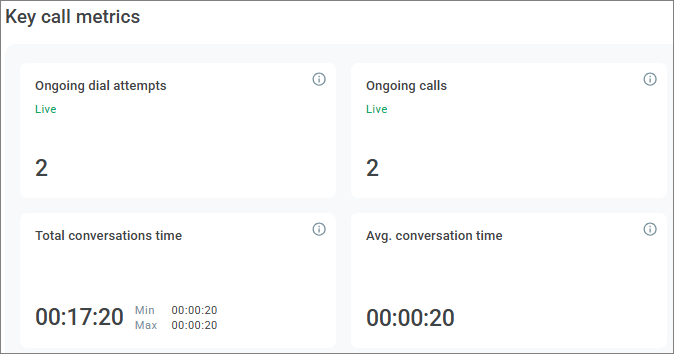
Metric | What it shows |
Ongoing dial attempts | Number of dial attempts ongoing at the current moment. Does not include Ongoing calls. |
Ongoing calls | Number of active conversations at the current moment. |
Total conversations time | Total time of completed conversations for the selected period. |
Min. conversations time | Minimum conversation time for the selected period. |
Avg. conversation time | Average conversation time for the selected period. Calculated as Total conversations time divided by the number of completed conversations. |
Max. conversation time | Maximum conversation time for the selected period. |
Conversation time is calculated from the moment the subscriber or voice assistant answers until the call ends: when the subscriber hangs up, the scenario ends, or voicemail is detected.
Wrap-up codes
The widget shows call attempt results and wrap-up codes for different periods. The selected period is displayed in a separate column. Other periods are fixed in the table.
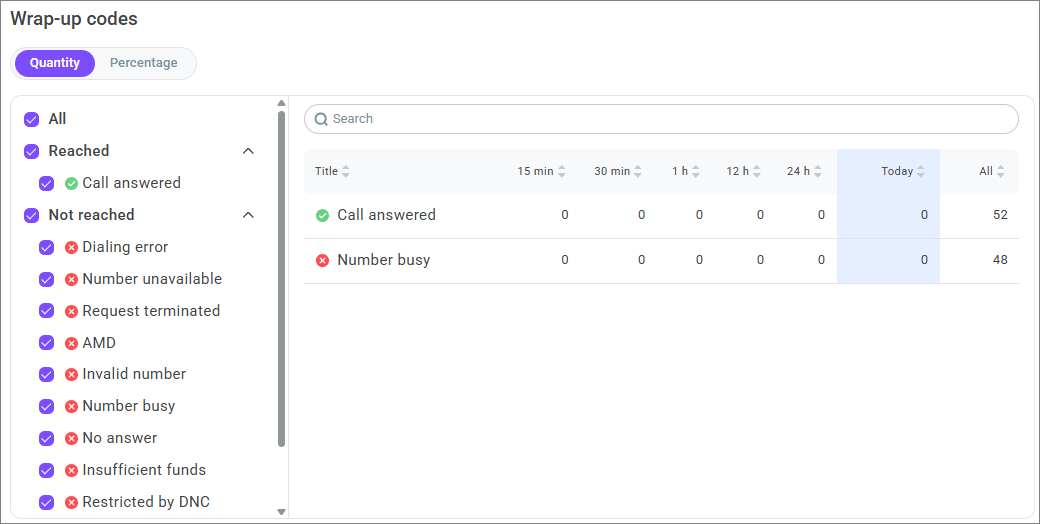
The left side of the widget displays result groups:
All;
Reached;
Not reached.
The Reached group displays the Call answered result.
If a wrap-up codes set is selected for the campaign, then the Reached group displays the Without wrap-up code, Callback, Add to DNC list, Closure success, Closure neutral, Closure negative, and AMD codes.
The Not reached group can display the following results:
Dialing error;
Number unavailable;
Request terminated;
AMD;
Invalid number;
Number busy;
No answer;
Insufficient funds;
Restricted by DNC;
Call rejected;
Ended in IVR;
No available agents.
The right side of the widget displays a table with selected results. The table contains the 15 min, 30 min, 1 h, 12 h, 24 h, selected period, Yesterday, and Total columns.
Values can be switched between quantity and percentage. The percentage is calculated from the total number of attempts in the corresponding column and does not depend on the number of selected codes.
Agent campaign dashboard
The agent campaign dashboard shows statistics for a campaign where calls are distributed to agents. The agent campaign dashboard contains:
Overall contact statistics;
Completed call attempt metrics;
Key call metrics;
Wrap-up codes;
Agent statuses;
Agents performance.
Overall contact statistics
The widget shows contact statistics from the campaign start. Widget values do not depend on the selected period.
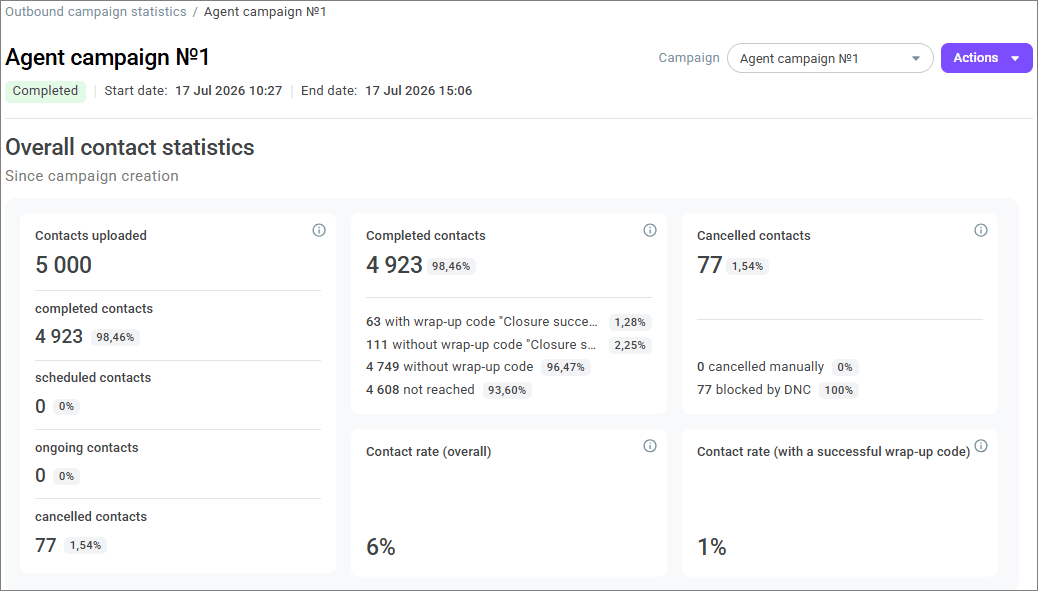
Metric | What it shows |
Contacts uploaded | Number of uploaded contacts. Percentage is not calculated. |
Completed contacts | Number of contacts for which dialing is completed. Percentage is calculated as a share of Contacts uploaded. |
With wrap-up code "Closure success" | Number of contacts excluded from dialing with the Closure success wrap-up code. Percentage is calculated as a share of Completed contacts. |
Without wrap-up code "Closure success" | Number of contacts excluded from dialing with wrap-up codes other than Closure success. The Call back code is not included. Percentage is calculated as a share of Completed contacts. |
Without wrap-up code | Number of contacts excluded from dialing without a wrap-up code. Percentage is calculated as a share of Completed contacts. |
Not reached | Number of contacts for which call attempts ended without the customer answering. Does not include attempts with the Call answered, Abandoned, and Lost by agent results. Percentage is calculated as a share of Completed contacts. |
Ongoing contacts | Number of contacts for which a retry is scheduled after an unsuccessful attempt or after an attempt with the Voicemail or Call back wrap-up code. Percentage is calculated as a share of Contacts uploaded. |
Scheduled contacts | Number of contacts for which no call attempts have been made yet. Percentage is calculated as a share of Contacts uploaded. |
Cancelled contacts | Number of contacts cancelled manually through the interface or API, and contacts blocked by the DNC list. Percentage is calculated as a share of Contacts uploaded. |
Cancelled manually | Number of contacts cancelled manually through the interface or API. Percentage is calculated as a share of Cancelled contacts. |
Blocked by DNC | Number of contacts blocked by the DNC list. Percentage is calculated as a share of Cancelled contacts. |
Contact rate (overall) | Share of completed contacts where the customer answered: with the Closure success wrap-up code or without this wrap-up code. Percentage is calculated using the formula: (With wrap-up code "Closure success" + Without wrap-up code "Closure success") / Completed contacts. |
Contact rate (with a successful wrap-up code) | Share of completed contacts with the Closure success wrap-up code. Percentage is calculated using the formula: With wrap-up code "Closure success" / Completed contacts. |
Completed call attempt metrics
The widget shows statistics for completed call attempts for the selected period.
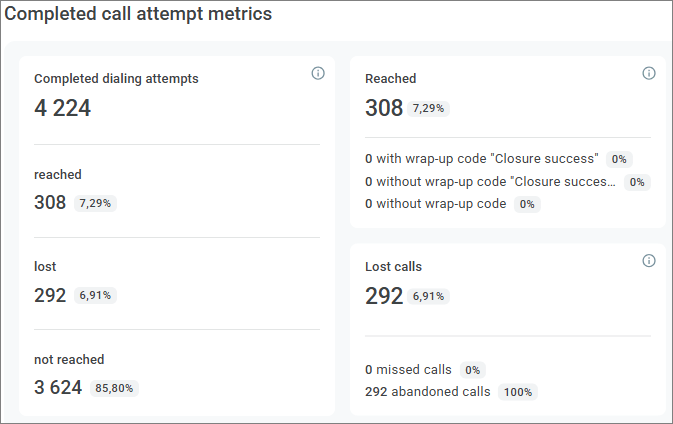
For successful attempts, post-processing completion is included in the selected period if post-processing occurred. For unsuccessful attempts, call completion is included in the selected period.
Metric | What it shows |
Completed dialing attempts | Number of completed dialing attempts. Percentage is not calculated. |
Reached | Number of calls answered by customers where connection with an agent occurred. Percentage is calculated as a share of Completed dialing attempts. |
With wrap-up code "Closure success" | Number of answered calls with the Closure success wrap-up code. Percentage is calculated as a share of Reached. |
Without wrap-up code "Closure success" | Number of answered calls with wrap-up codes other than Closure success, including Call back. Percentage is calculated as a share of Reached. |
Without wrap-up code | Number of answered calls without a wrap-up code. Percentage is calculated as a share of Reached. |
Not reached | Number of calls that customers did not answer. Does not include calls with the Call answered, Abandoned, and Lost by agent results. Percentage is calculated as a share of Completed dialing attempts. |
Lost calls | Number of calls answered by customers where the customer hung up before the call was routed to a queue, or after the call was routed to a queue but before the agent answered. Includes cases where the agent did not answer the call. The metric includes calls with the Abandoned and Missed by agent attempt results. Percentage is calculated as a share of Completed dialing attempts. |
Abandoned calls | Number of calls answered by customers where customers hung up before being connected to an agent. Includes calls with the Abandoned attempt result. Percentage is calculated as a share of Lost calls. |
Missed calls | Number of calls answered by customers that were distributed to a queue and assigned to an agent, but the agent did not answer. Includes calls with the Lost by agent attempt result. Percentage is calculated as a share of Lost calls. |
Key call metrics
The widget shows key call metrics. Only current campaign state metrics with the Live label do not depend on the selected period.
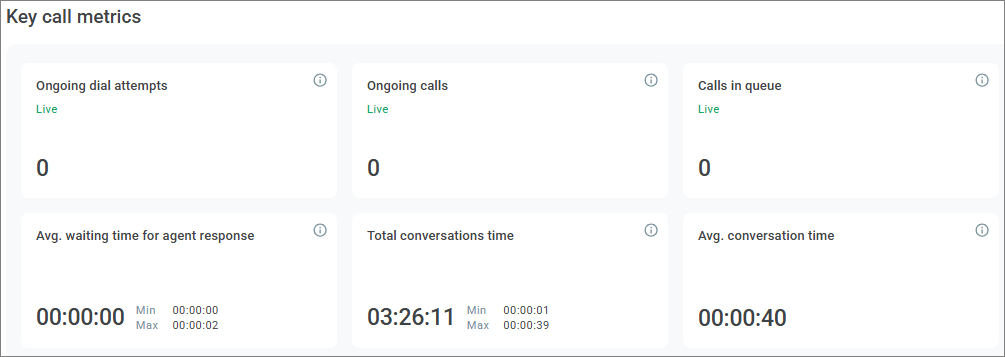
Metric | What it shows |
Ongoing dial attempts | Number of dial attempts ongoing at the current moment. Does not include Ongoing calls. |
Ongoing calls | Number of calls currently processed by agents, including service and post-processing. |
Calls in queue | Number of calls where the customer answered and is waiting to be distributed to an agent. |
Min. waiting time for agent response | Minimum time from when the customer answered to when an agent answered for the selected period. |
Avg. waiting time for agent response | Average time from when the customer answered to when an agent answered for the selected period. Calculated as total waiting time divided by Reached. |
Max. waiting time for agent response | Maximum time from when the customer answered to when an agent answered for the selected period. |
Total conversations time | Total time of completed conversations for the selected period. |
Min. conversations time | Minimum conversation time for the selected period. |
Avg. conversation time | Average conversation time for the selected period. Calculated as Total conversations time divided by the number of completed conversations. |
Max. conversation time | Maximum conversation time for the selected period. |
Conversation time is calculated from the moment the subscriber or voice assistant answers until the call ends: when the subscriber hangs up, the scenario ends, or voicemail is detected.
Wrap-up codes
The widget shows call attempt results and wrap-up codes for different periods. The selected period is displayed in a separate column. Other periods are fixed in the table.
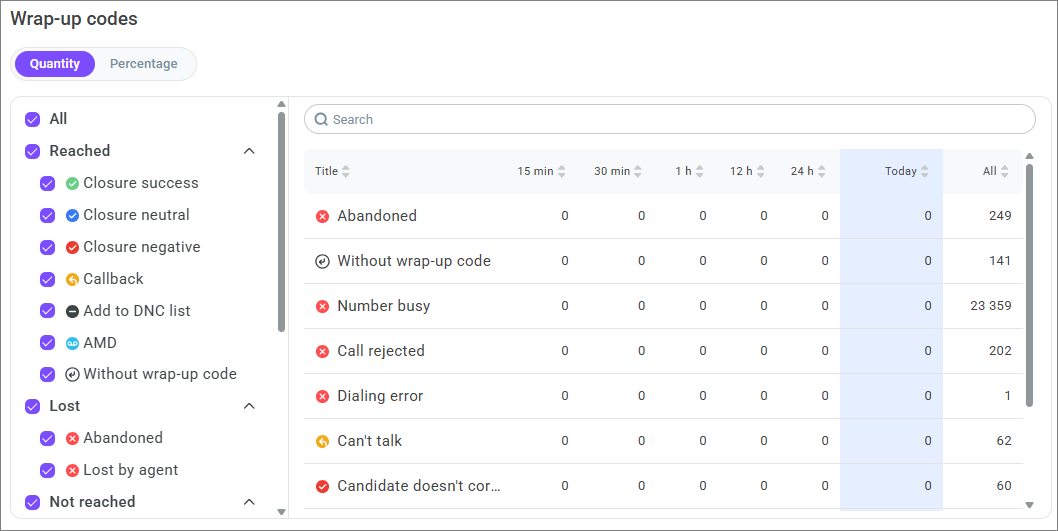
The left side of the widget displays result groups:
All;
Reached;
Lost;
Not reached.
The Reached group can display:
Without wrap-up code;
Callback;
Add to DNC list;
Closure success;
Closure neutral;
Closure negative;
AMD;
Unassigned.
The Lost group can display:
Abandoned;
Lost by agent.
The Not reached group can display:
Dialing error;
Number unavailable;
Request terminated;
AMD;
Invalid number;
Number busy;
No answer;
Insufficient funds;
Restricted by DNC;
Call rejected.
The right side of the widget displays a table with selected codes. The table contains the 15 min, 30 min, 1 h, 12 h, 24 h, selected period, Yesterday, and Total columns.
Values can be switched between quantity and percentage. The percentage is calculated from the total number of attempts in the corresponding column and does not depend on the number of selected codes.
If custom wrap-up codes are configured in the account, the names of custom codes are displayed on the right side of the widget. For example, if the custom codes Call back tomorrow and Call back next week are configured for the system code Callback, the table displays these names.
Agent statuses
The widget shows agent call statuses in real time.
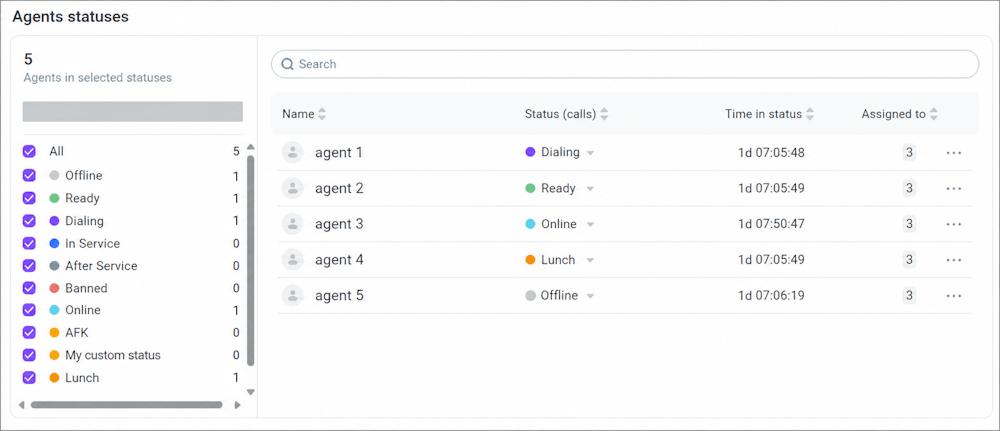
The chart consists of the following segments:
Offline;
Banned;
Ready;
Dialing;
In service;
Afterservice;
Online;
DND and custom statuses, if any.
By default, agents in the Offline status are excluded from display. The table also does not display agents that are in excluded statuses.
Search works by agent name and applies only to the table on the right side of the widget. The table supports sorting.
The table displays:
Column | Description |
Name | Agent name. |
Status | Current agent status. Clicking the status selector opens the list of statuses available for setting. |
Time in status | Time the agent has been in the current status. |
Assigned to | Number of projects to which the user is assigned as an agent. |
An agent cannot be moved from the Offline, Dialing, and In service statuses.
An agent can be moved from the Online, Ready, Afterservice, DND, Banned, and custom statuses.
An agent can be moved to the Ready, Online, DND, Offline, and custom statuses.
The following actions are available in the agent row context menu:
Notify agent — send a notification to the agent;
Edit user — go to user editing.
Agents performance
The table shows agent performance metrics for the selected period.
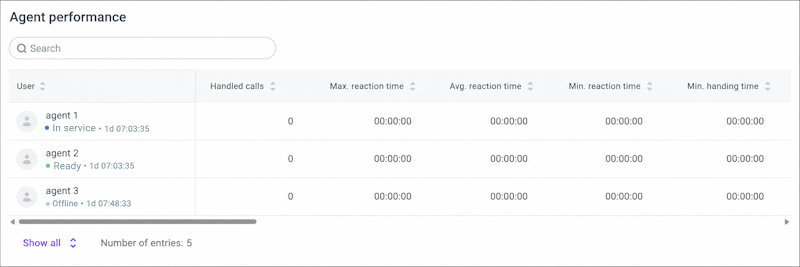
The table displays agents who were assigned to the campaign in the selected period. By default, up to 3 agents are displayed. To open the full list, click Show all. Search works by agent name.
The table can display the following metrics:
Metric | What it shows |
Handled calls | Number of calls handled by the agent for the selected period. |
Min. reaction time | Minimum time from when the call is received by the agent to when the agent answers. |
Avg. reaction time | Average time from when the call is received by the agent to when the agent answers. |
Max. reaction time | Maximum time from when the call is received by the agent to when the agent answers. |
Min. handling time | Minimum call handling time by the agent, including service and post-processing. |
Avg. handle time | Average call handling time by the agent, including service and post-processing. |
Max. handling time | Maximum call handling time by the agent, including service and post-processing. |
Avg. conversation time | Average agent conversation time. |
Min. afterservice time | Minimum call post-processing time. |
Avg. afterservice time | Average call post-processing time. |
Max. afterservice time | Maximum call post-processing time. |
Missed calls | Number of calls distributed to the agent that the agent did not accept. |
Transferred calls | Number of completed conversations with at least one transfer to another agent or queue. |
Held calls | Number of completed conversations that were put on hold at least once. |
Min. hold time | Minimum hold duration. |
Avg. hold time | Average hold duration. |
Max. hold time | Maximum hold duration. |