


Uploading contacts ᴺᴱᵂ
Contents
Uploading a contact file
After creating a campaign (either automated or agent), upload contact lists that will be used for dialing.
Open the upload window in one of these ways:
on the Contacts tab, click Add contacts;
in the campaign Action menu in the outbound campaigns list, select Add contacts;
when creating a campaign, select Create as draft and add contacts;
on the editing page, in Actions, select Save changes and add contacts.
The Select a file window opens.
You can start your campaign without adding contact lists. The campaign will launch, but it will not begin dialing until you upload contacts and add them to the call list.
Upload or drag and drop a contact list file. Supported file types: XLS, XLSX, CSV. The delimiter for CSV files is a semicolon (;). Maximum file size: 25 MB. Maximum number of rows: 250,000.
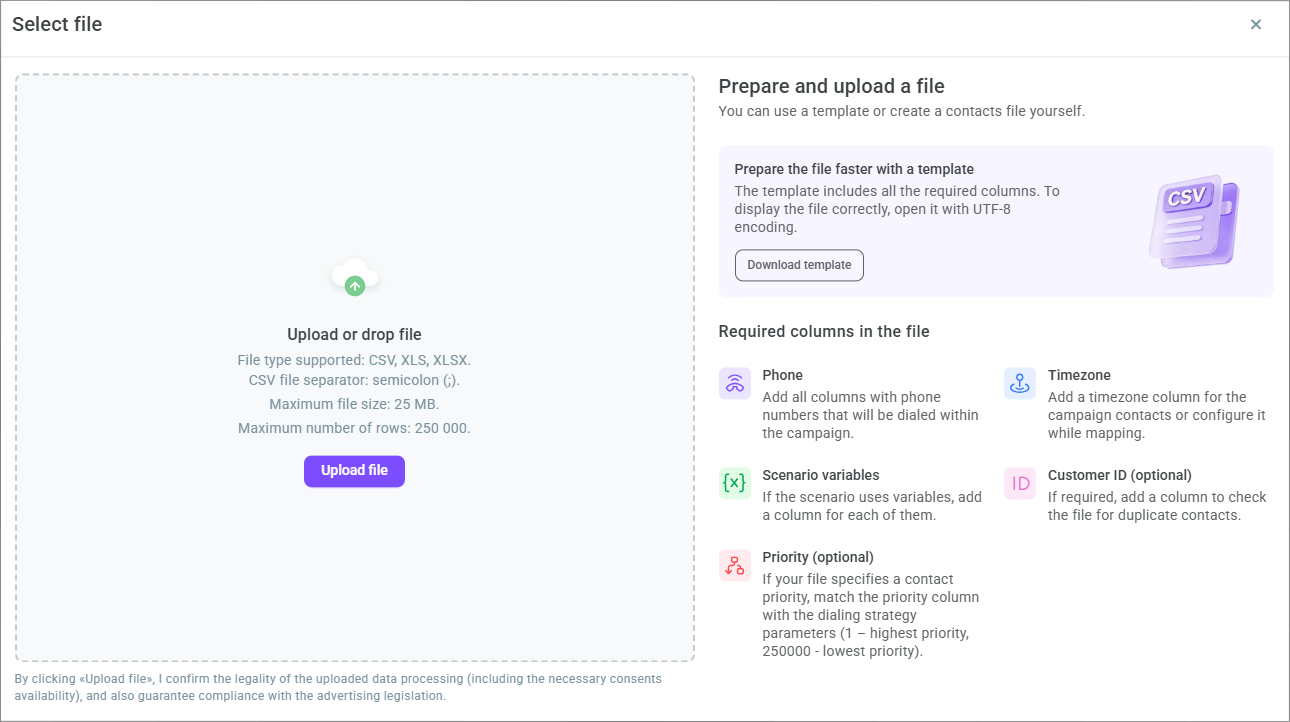
A contact file must contain the following columns:
all types of phone numbers used in the campaign strategy;
timezone;
customer ID (optional);
scenario variables or additional data to display in the Agent workspace, such as the customer name or a link to the customer record in the CRM (if any);
priority (optional), see Contact prioritization for details.
For an agent campaign with personal agent call routing enabled, the file can also contain the Agent email column — the email address of the personal agent in Voximplant Kit.
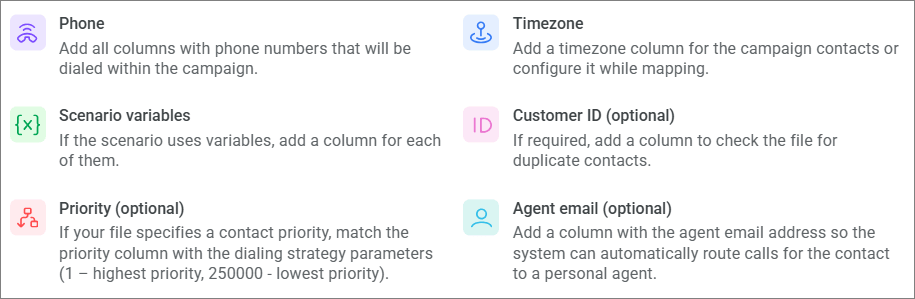
If Strict mode is enabled in the agent campaign, the Agent email column is required for mapping. If Strict mode is disabled, the Agent email column is optional.
You can download and use a ready-made contact file template. The template already contains all the columns required by the campaign dialing strategy. If you upload your own file, mandatory columns must be added manually. To correctly display the contents of the template, open the file in UTF-8 encoding.
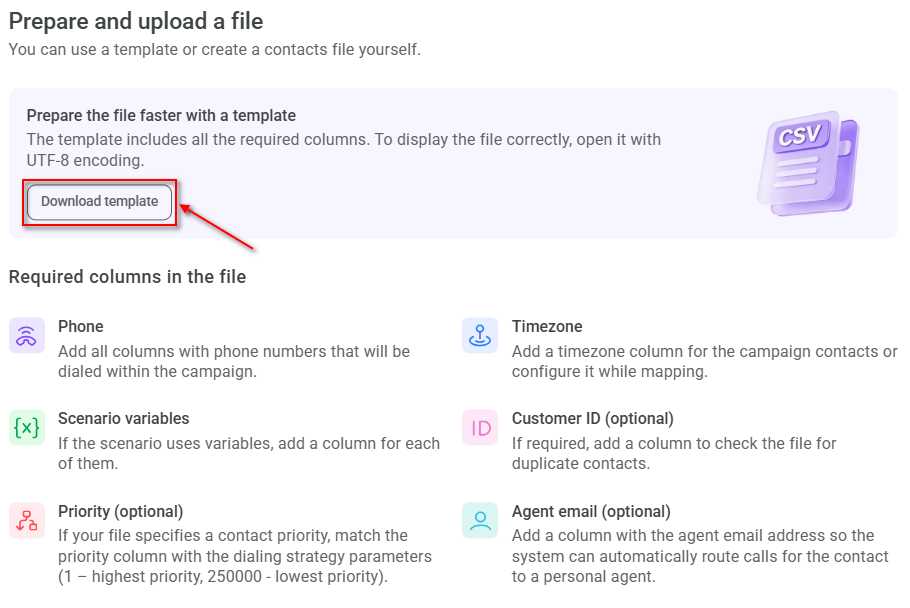
In an agent campaign, if Strict mode is enabled, the file template includes the operator_email column. If Strict mode is disabled, this column is not added to the template.
After uploading the file, proceed to the next step — column mapping.
Mapping columns
In the Map columns window, the file you uploaded is displayed as a table with columns.
- Map the columns of the contact list to the parameters of the dialing strategy. For example, map phone numbers to the types of phone numbers in the strategy (mandatory), timezone to time zone, customer name to customer ID, priority to priority, and any scenario variables (if applicable).
For an agent campaign with personal agent call routing enabled, map the column with the personal agent's email address to the Agent email parameter.
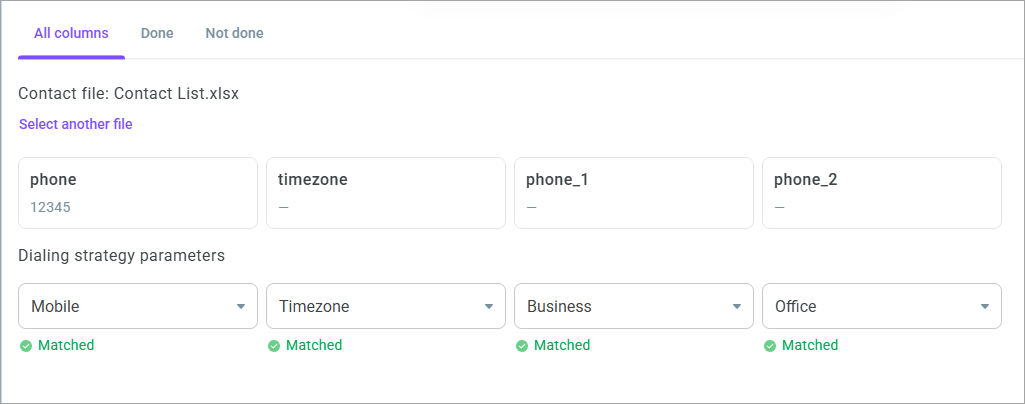
If the column names in the contact list match the dialing strategy parameters (phone number name from the strategy, timezone, customer ID, scenario variables, priority), the columns will be mapped automatically.
If the column names do not match, select the appropriate parameter from the dropdown list or create a new variable.
To pass additional contact list data to an agent, create a variable for each required column. Open the dropdown list below the column, enter the variable name, and select Create [variable name]. When a call is assigned to an agent, the variable values are displayed in the call data in the Agent workspace.
For example, create the FIO, campaign_name, and link_crm variables to pass the customer name, campaign name, and a link to the customer record in the CRM to the agent. An agent campaign does not require a scenario to pass this data.
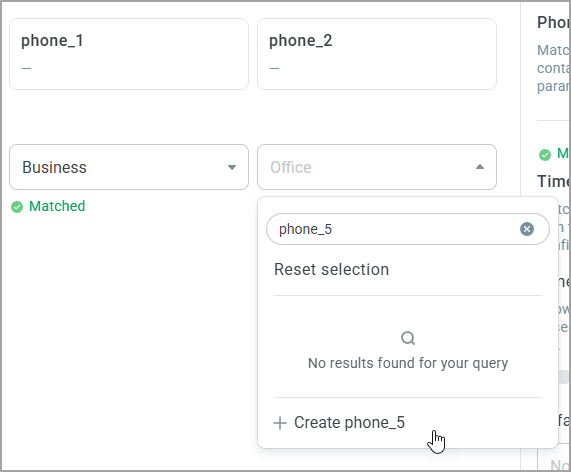
A variable can only contain Latin letters, numbers, and the $ and _ symbols. A variable cannot start with a number.
If Strict mode is enabled in the agent campaign, the Agent email parameter is required for mapping. If Strict mode is disabled, the Agent email parameter is optional. Values in this column can be empty. Contacts without a specified personal agent are processed as shared contacts. >
When processing the contact list, Voximplant Kit maps the personal agent's email to the user ID. Only active and unblocked users are used for processing.
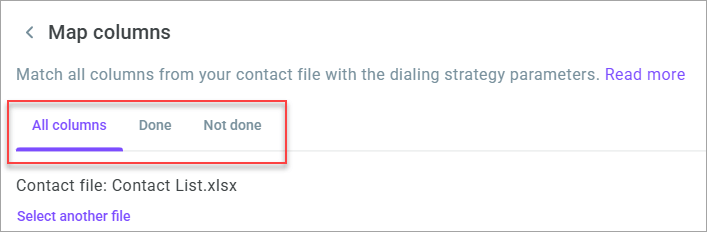
- For your convenience, navigate to the All columns (displays all contact list columns), Done (displays only mapped columns), and Not done (displays only unmapped columns) tabs.
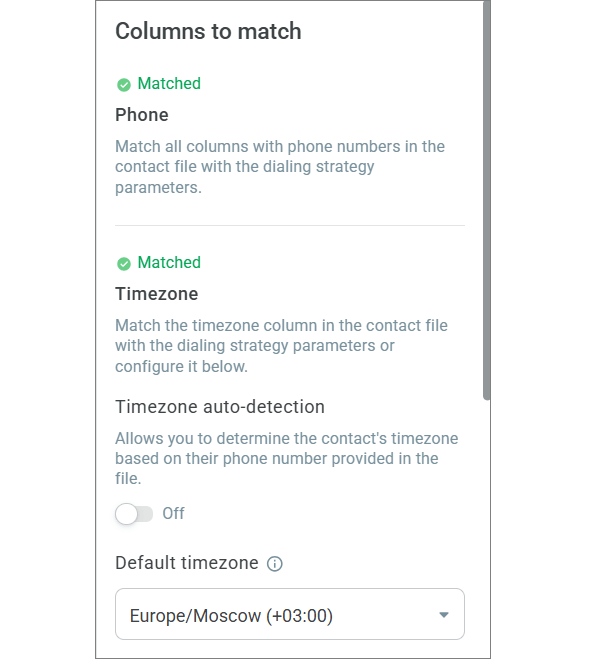
In the Columns to match sidebar, mapped sections are highlighted in green.
For an agent campaign with personal agent call routing enabled, the sidebar also displays the Agent email parameter.
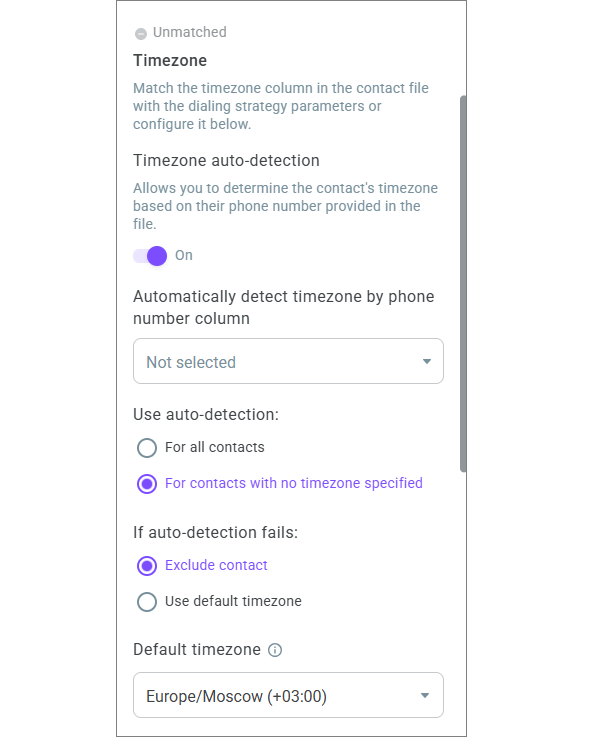
- If necessary, use Timezone auto-detection to determine the contact's timezone based on their phone number provided in the file. Choose whether auto-detection should apply to all contacts or only to contacts without a timezone. Configure actions in case of auto-detection errors: exclude the contact or use a default timezone. If you choose the latter, you must also set up a Default timezone.
- Once you map all columns, add the contact file to the campaign by clicking the Upload button. After uploading, the contact list appears on the Contacts tab of the campaign editing page.
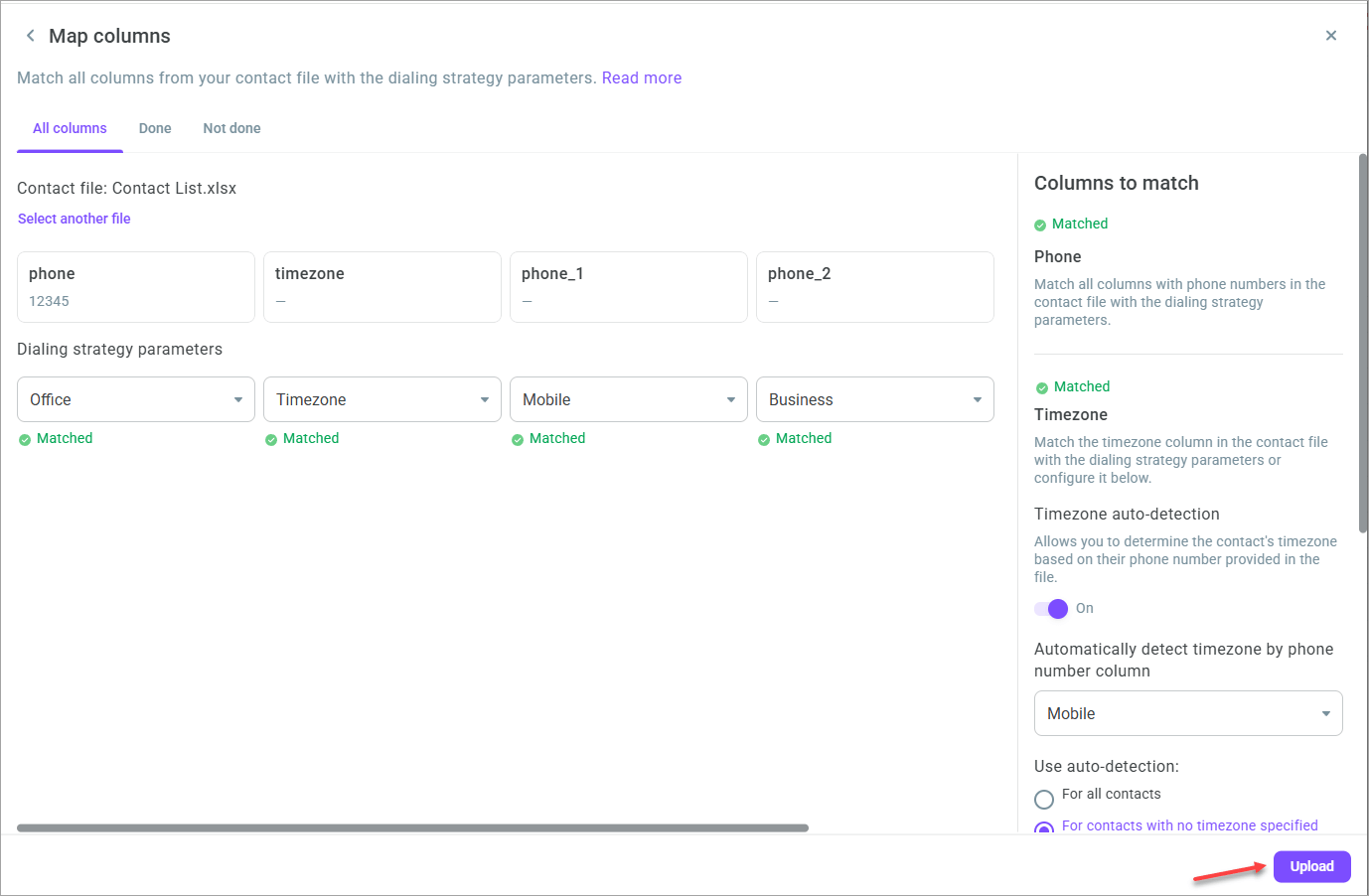
To upload the file, you must map all types of phone numbers from the strategy, and specify rules for filling in the timezone in case it is missing.
In an agent campaign, if Strict mode is enabled, the Agent email parameter must also be mapped.
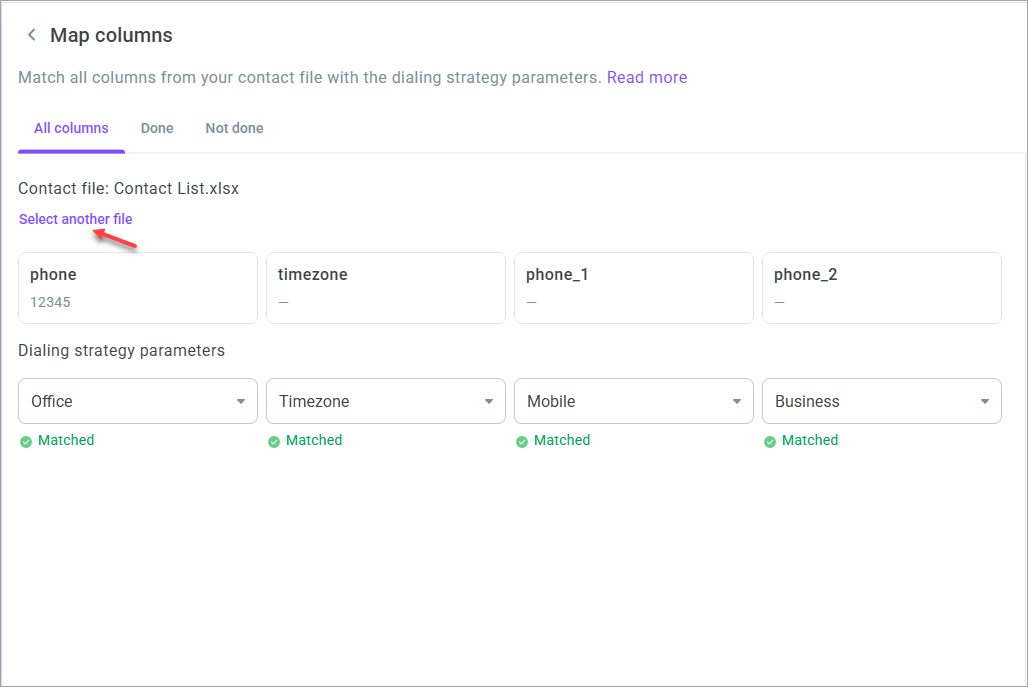
- If necessary, you can upload another contact list. To do this, click Select another file. This action takes you back to the previous step.
Contact prioritization
Prioritizing contacts in the contact list allows you to configure the logic for queue formation, taking into account priority and campaign strategy, so that the system calls significant customers first.
To use the prioritization feature, add a Priority column to your contact list or specify task_priority when adding contacts via the API.
Priority is set as an integer: 1 — highest, 250,000 — lowest. When priorities are equal, the order is determined by the campaign strategy.
When you upload a contact without a priority, it is considered the least prioritized. >
In an agent campaign with personal agent call routing enabled, personal and shared contacts with the same priority are processed equally. The system first sorts contacts by priority and then by the time they were added to the contact list.
While mapping variables, match the priority from the contact list with your campaign strategy parameters.
Queue formation
- First, the system selects all contacts with the highest priority.
- The selected contacts are sorted according to the campaign strategy (the Retry attempts have higher priority setting determines which contacts the system should call first: initial or retry attempts; you define this setting in the campaign settings).
- The system first selects priority 1, then priority 2, 3, etc.
Example
Starting conditions: you create a campaign; you disable the Retry attempts have higher priority setting in the campaign strategy, you upload a contact list with contact priorities.
Queue formation: The system selects contacts with the highest priority from all existing and yet unattempted ones in the list. Next, the contacts are sorted according to the strategy (initial attempts take precedence over retry ones).
How it works
In the contact list, there are 50 contacts with the following priorities:
Priority 1 — 15 contacts: 8 initial (A1) + 7 retry (B1)
Priority 2 — 5 contacts: 3 initial (C2) + 2 retry (D2)
Priority 3 — 30 contacts: 5 initial (E3) + 25 retry (F3)
The contact list has 5 simultaneous lines => buffer = 10 contacts.
Dialing order:
(A1) 8 contacts with initial attempts, then (B1) 2 contacts with retry attempts
(B1) 5 contacts with retry attempts, then (C2) 3 contacts with initial attempts, then (D2) 2 contacts with retry attempts
(E3) 5 contacts with initial attempts, then (F3) 5 contacts with retry attempts
(F3) 10 contacts with retry attempts
(F3) 10 contacts with retry attempts
After the first attempt, the priority of a contact remains unchanged for all subsequent attempts, except in cases where the user deliberately changes it.