


Contact lists and campaign launch ᴺᴱᵂ
Contents
Campaign contact lists
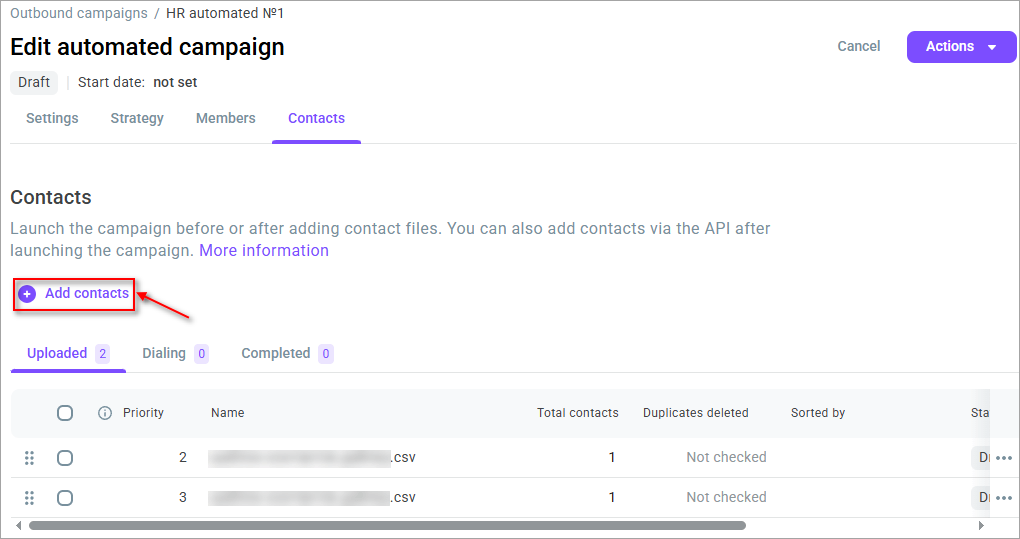
Campaign contact lists are on the Contacts tab. The tab is available when you create a campaign and when you edit it. On this tab, you can add contacts, check the file for duplicates, and sort contacts. From this tab, you can send contact lists for dialing and launch the campaign.
- In the general list of outbound campaigns, click the Action menu next to the desired campaign and select Manage contacts. You can also select Edit and go to the Contacts tab.
For a campaign in the Completed status, select View or Manage contacts.
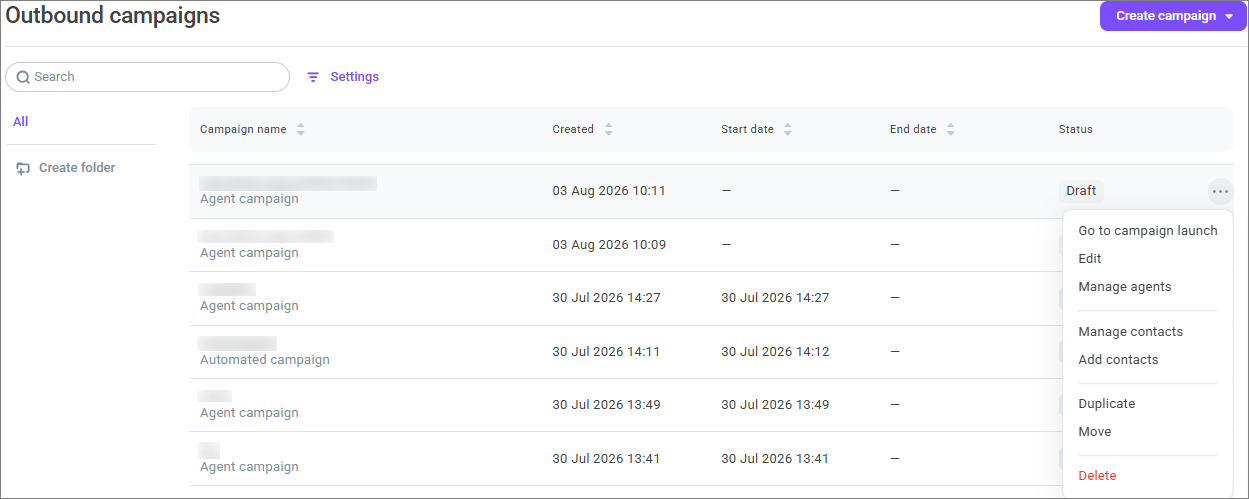
- The Edit automated campaign or Edit agent campaign page opens. For a completed campaign, the page is called Automated campaign settings or Agent campaign settings. You cannot edit the settings on this page.
The page shows the campaign name, status, and start date (if available).
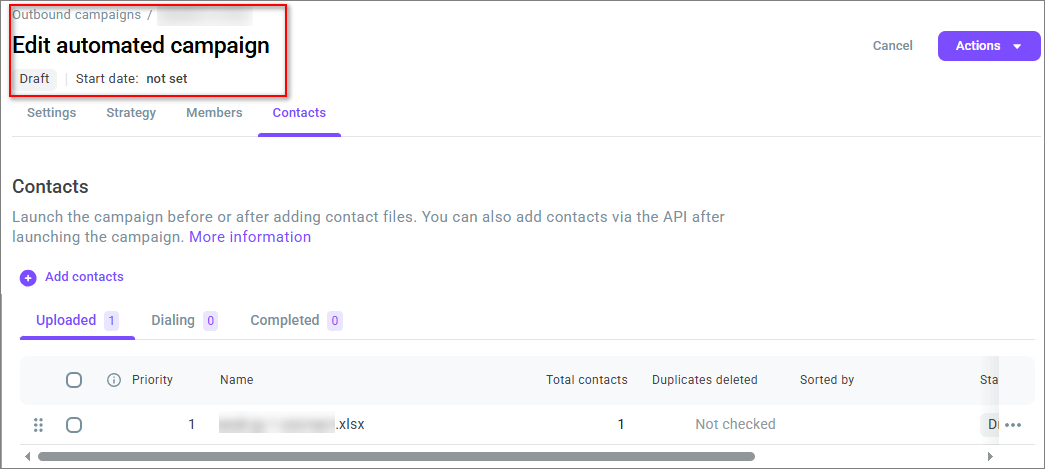
- On the Contacts tab, open Uploaded. The Uploaded tab shows the list of uploaded contact lists:
Priority — the order of the contact list in the dialing process. Drag and drop rows to change the order;
Name — the name of the contact list;
Total contacts — the number of uploaded contacts;
Duplicates deleted — the number of duplicate contacts removed from the file;
Sorted by — sorting by the selected field (if available);
Status — contact list status;
Added — date and time of the contact list upload.
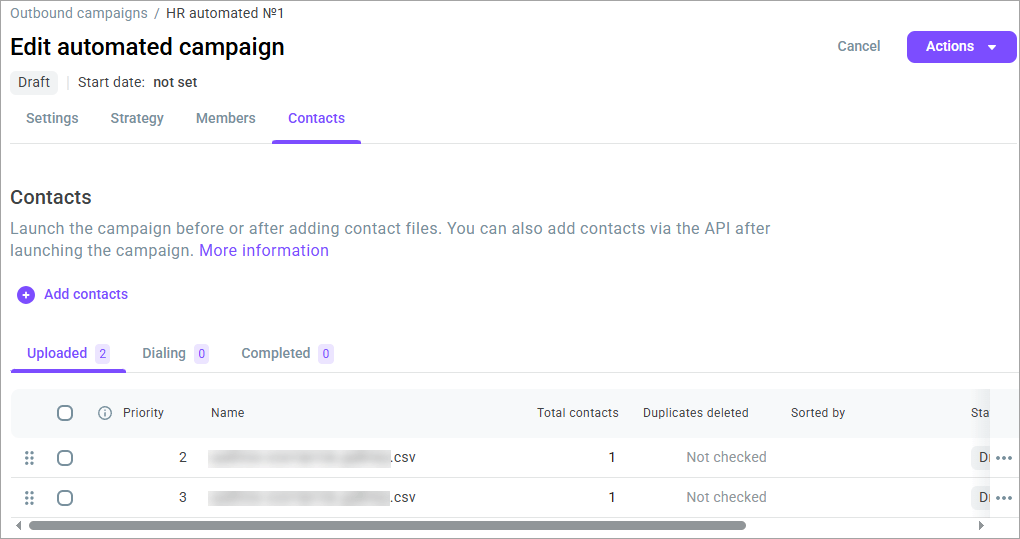
If you added contacts via API, the system creates a single row in the table for each calendar day with the following content: Name (upload via API ${upload date}), Total contacts (cumulative number of contacts), Duplicates deleted (-), Sorted (-), Date, Status.
Possible contact list statuses on the Uploaded tab:
Uploading — the upload of the contact list is not complete; a contact list in this status cannot be sent for dialing;
Draft — the contact list has been uploaded.
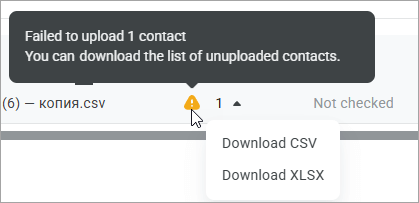
If an error occurred during the contact list upload (for example, due to an auto-detection error), you see a notification indicating how many contacts failed to upload. You have an option to download the list of unsuccessful uploads in CSV or XLSX formats.
If you have not uploaded contact lists yet, the Contacts tab shows Contacts will appear here. The Uploaded tab shows No uploaded contacts. The Dialing tab shows No contacts in dialing. The Completed tab shows No completed contacts.
- To upload contact lists, click Add contacts. The Select a file window opens. For more information, see Uploading contacts. After you upload a file or close the window, you stay on the Contacts tab.
Check for duplicates and sorting
Before adding contact lists to the dialing process, you can check them for duplicate contacts and sort them.
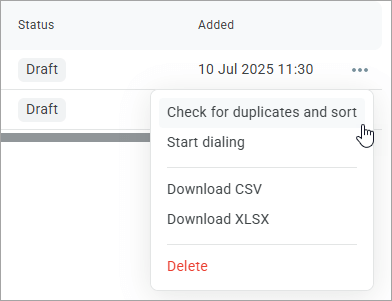
- In the Action menu next to the desired contact list, select Check for duplicates and sort.
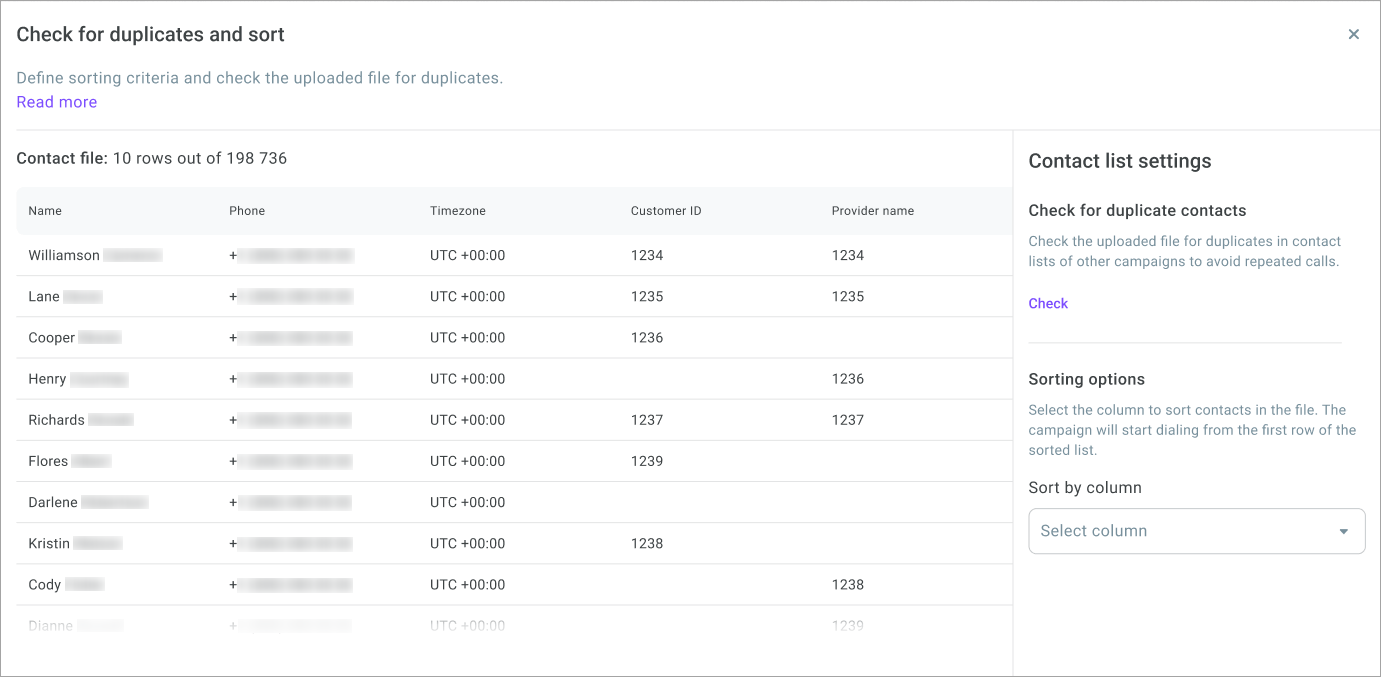
The Check for duplicates and sort window opens.
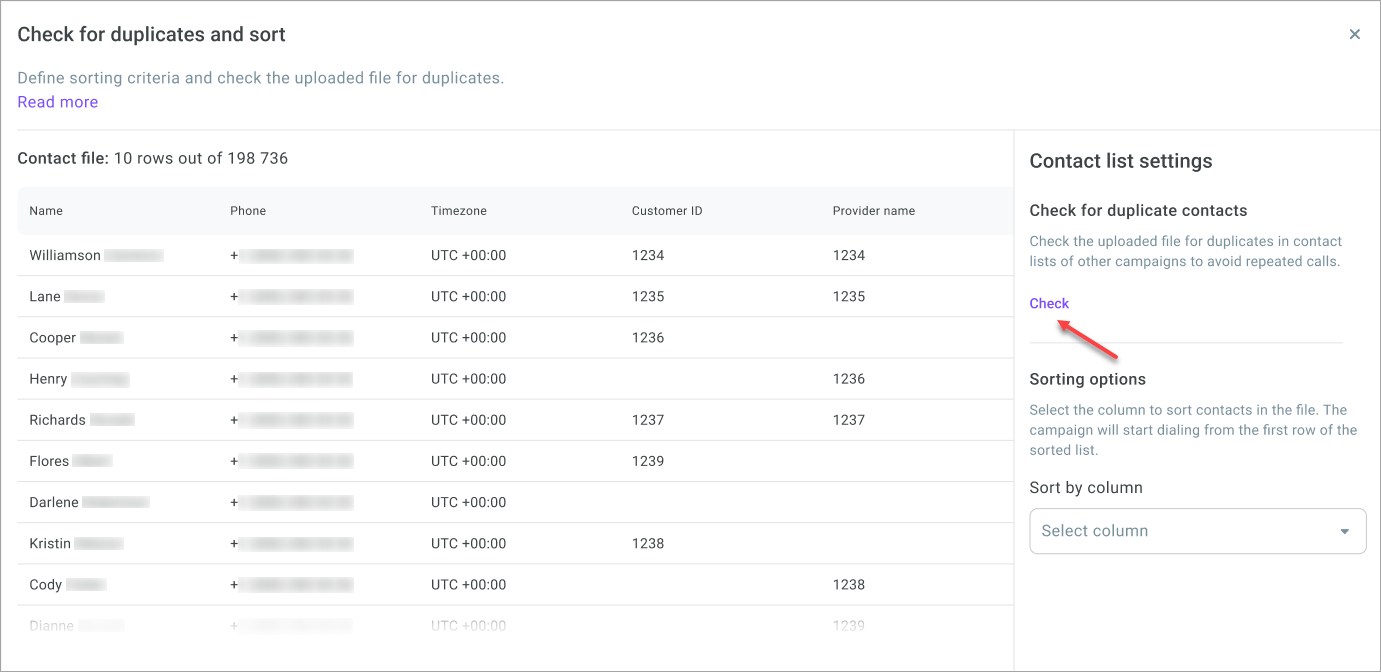
- In the contact list settings on the right, click Check.
- Choose which campaigns should be searched for repeating contact phone numbers. The system performs duplicate check based on the uploaded contact lists in the selected campaigns. You can select all campaigns (all campaigns in the Scheduled, Dialing, Paused, Completed statuses), all launched campaigns, all completed campaigns, or individual campaigns.
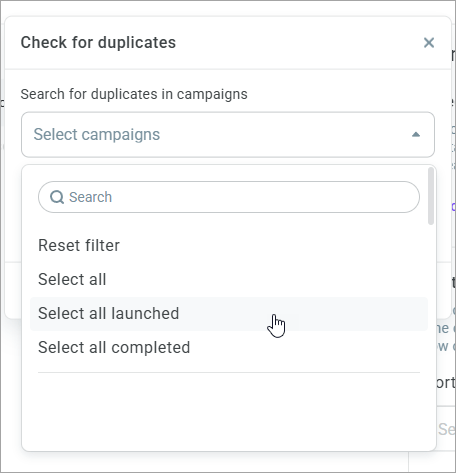
- Select the time frame for searching duplicates. The specified period (up to a maximum of 6 months from the current date) determines the date the contact list was uploaded to the campaign. The fact of making a call to the contact or having successful/unsuccessful attempts is not considered in the search — what matters is the fact of uploading the contact to the campaign.
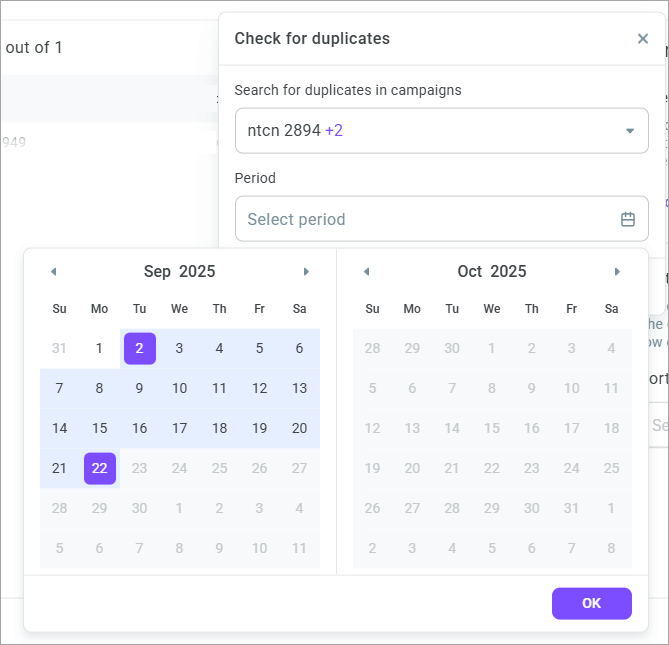
- Click OK and then Apply.
The system searches for duplicates across the selected campaigns for the specified period. If at least one contact phone number was previously uploaded to another campaign, that contact is considered a duplicate.
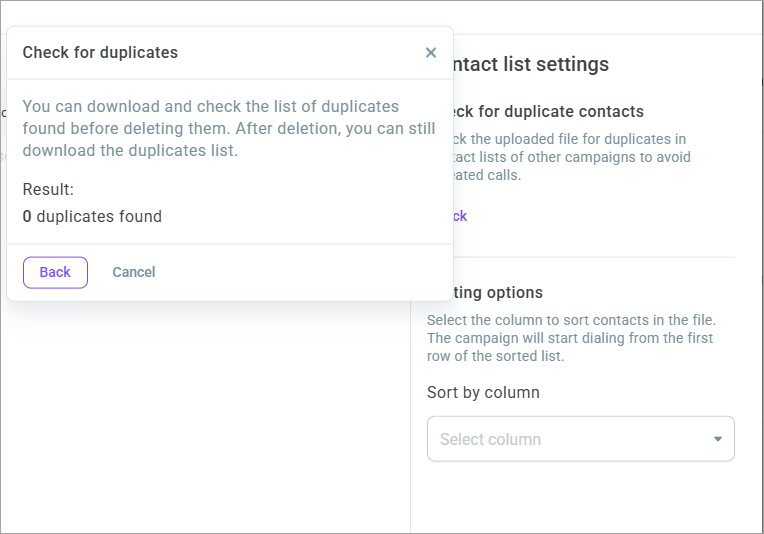
A window displays showing the number of duplicates found.
- Click Download to download the list of duplicates found in CSV or XLSX format to review them before deletion. After deleting duplicates, you can still download the list for analysis.
- Click Delete to remove duplicate contact phone numbers or Cancel to keep the duplicates in the contact list.
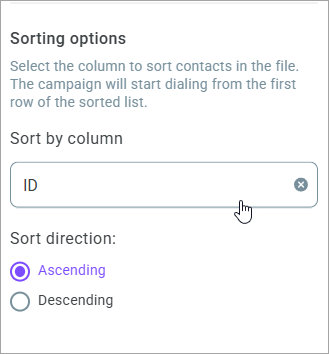
You can also sort the contact list by a specific column. To do this, in the Sorting options on the right, select the desired column, set the sorting direction (ascending or descending), and click Save.
Adding contact lists to the dialing process
After the contact lists are set up, send them for dialing.
- On the Uploaded tab, select Start dialing in the Action menu of the desired contact list.
You can only select lists in the Draft status. You cannot start dialing contact lists in the Uploading status. You must wait for the upload to complete.
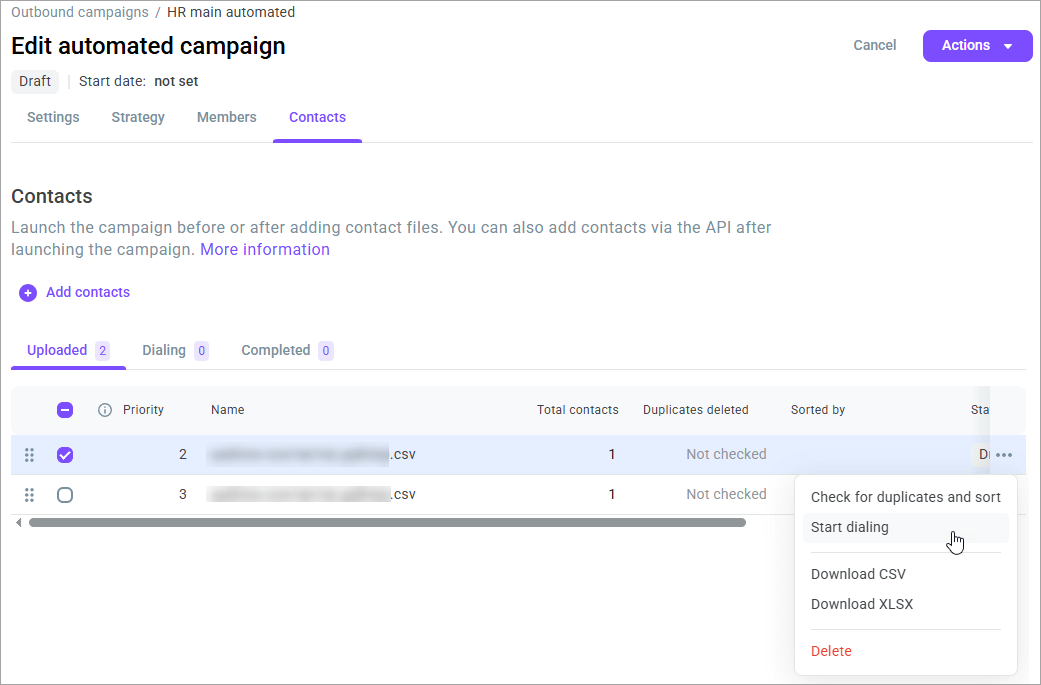
- If necessary, select all contact lists or several lists. If you select several lists, then a button appears at the bottom of the table. Use it to send the selected lists for dialing.
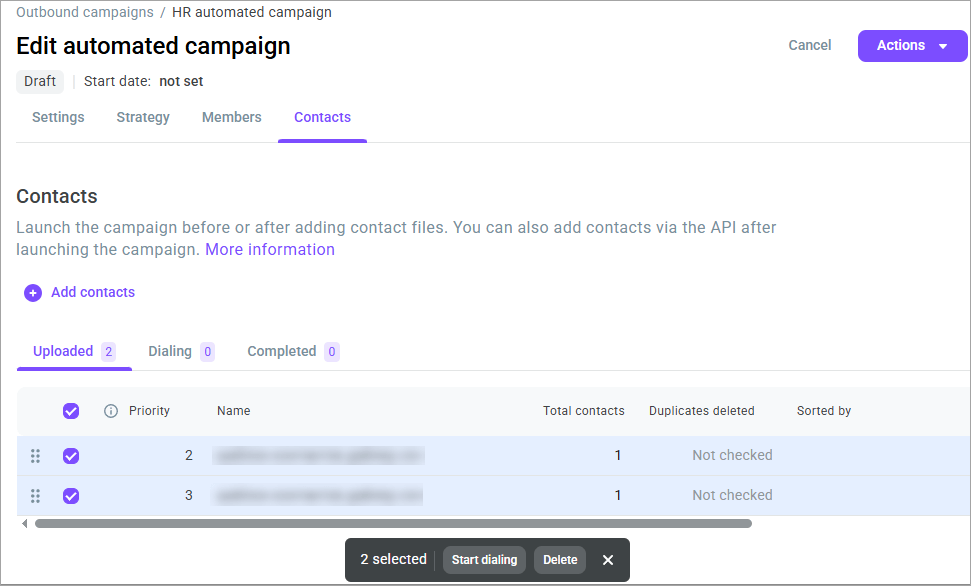
If you do not select any contact list, then all lists from the Uploaded tab that are in the Draft status are sent for dialing when you launch the campaign.
If you do not have or have insufficient phone lines, you cannot add contact lists to the dialing process. Reduce the number of lines in the Max. number of lines field or contact Voximplant Kit technical support to increase the number of lines.
- Drag and drop contact lists to set the required sequence of dialing after the campaign starts.
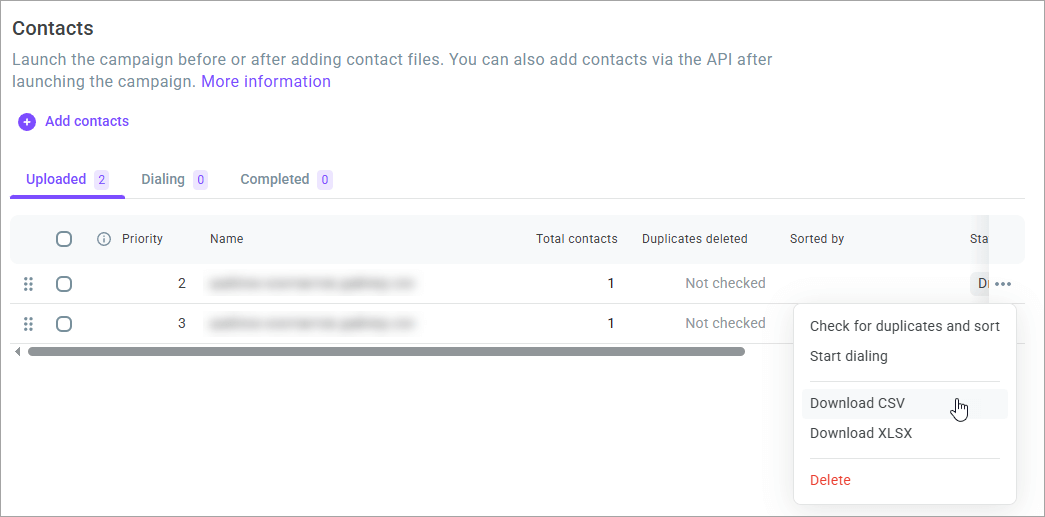
- If necessary, download files in CSV or XLSX format using the Action menu next to the desired contact list.
- After you add contact lists to dialing, they appear on the Dialing tab with the Uploading status.
If an error occurs while adding a contact list, a notification informs you how many contacts failed to upload. You can download the list of failed contacts in CSV or XLSX format.
Possible contact list statuses on the Dialing tab:
Uploading — adding the draft to the dialing process is not complete;
Dialing — the contact list is being dialed;
Scheduled — the contact list is waiting until the list in the Dialing status finishes, or it has been uploaded to a campaign that is waiting to start on schedule;
Paused — the contact list receives this status if you pause the campaign;
Upload error — a technical problem with uploading the contact list;
Cancelling — the contact list is in the process of being canceled.
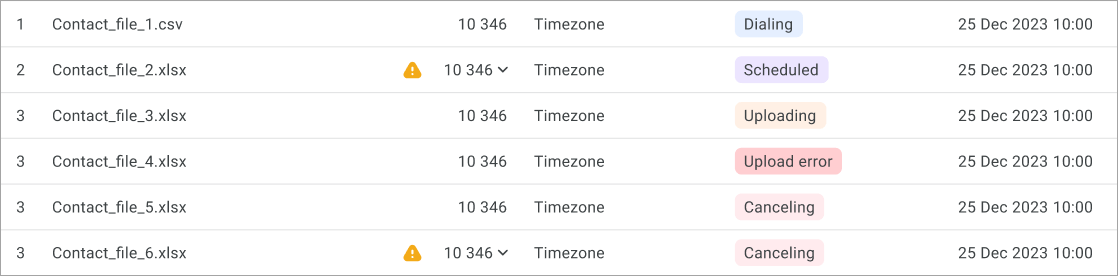
- You can download or cancel contact lists using the Action menu.
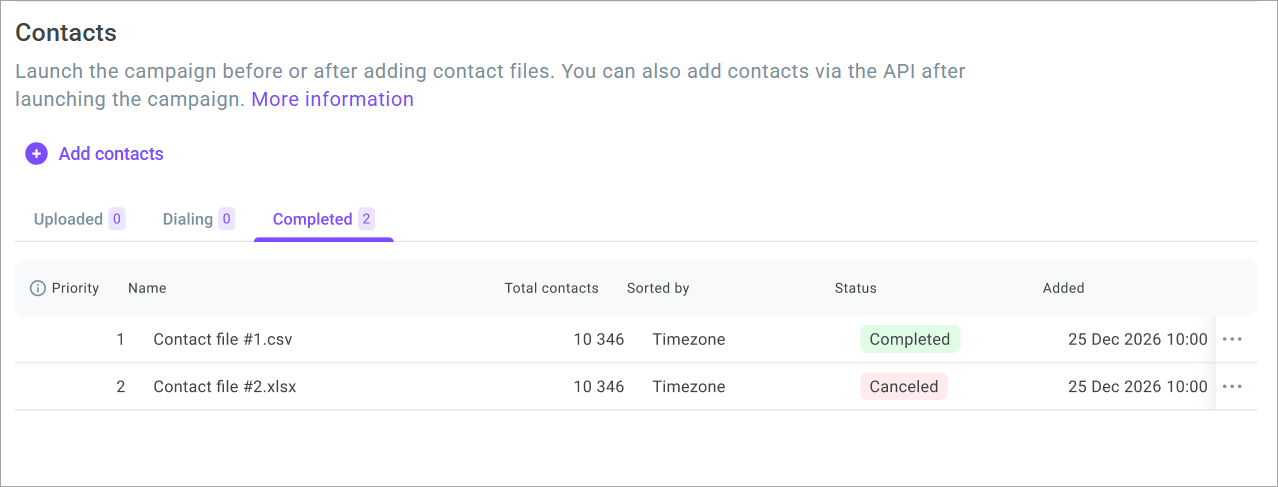
- Go to the Completed tab to view the list of completed or canceled contact lists or download them.
Launching the campaign
After adding contact lists to the dialing process, you can launch the campaign from the editing page.
After you launch the campaign, you can add contacts with the Add contacts button or with the Add contacts option in the Action menu in the outbound campaigns list. You can also add contacts via API. You can launch the campaign without contact lists. The campaign starts, but it does not begin calling until you upload contacts and send them for dialing.
- On the campaign editing page, click Actions.
For a campaign in the Draft status, select Launch now. If a start date is set, then Launch on schedule is also available.
For a campaign in the Scheduled status, select Launch.
- The Launch campaign? window opens. All contact files in the Draft status will be sent for dialing. After launch, you can no longer edit some of the settings.
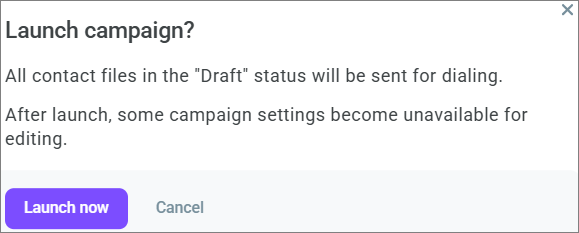
- Click Launch now. The campaign status changes to Ongoing, and dialing starts according to contact list priority and campaign strategy.
If a start date is set, then the window also includes Launch on schedule. The campaign starts on the scheduled date, and the status changes to Scheduled.
To close the window without launching, click Cancel.
You can also launch a campaign in the Draft or Scheduled status from the general outbound campaigns list. Select Go to campaign launch. The campaign launch side panel opens.
If you do not have or have insufficient phone lines, you cannot launch the campaign. Reduce the number of lines in the Max. number of lines field or contact Voximplant Kit technical support to increase the number of lines.
Actions with the campaign
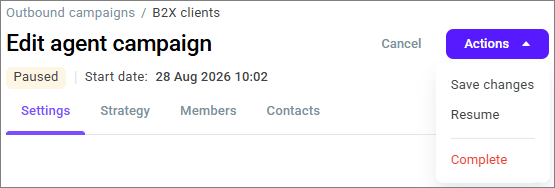
On the campaign editing page, the Actions button is on the right. The set of items depends on the campaign status. For example, for a campaign in the Paused status:
For a campaign in the Draft status:
Save changes — saves the campaign and opens the outbound campaigns list. The item is available even if you did not change anything;
Save changes and add contacts — saves the campaign and opens the contact list upload window;
Launch now — opens the campaign launch window;
Launch on schedule — available if a start date is set.
For a campaign in the Scheduled status:
Save changes;
Launch;
Pause — the campaign status changes to Paused, and no calls are made;
Revert to draft — the campaign status changes to Draft;
Complete — manually completes the campaign.
For a campaign in the Ongoing status:
Save changes;
Pause;
Complete.
For a campaign in the Paused status:
Save changes;
Resume — the campaign status changes to Ongoing;
Complete.
For a campaign in the Completed status, the Actions button is not displayed. The Automated campaign settings or Agent campaign settings page opens. You cannot edit the settings on this page. The Back and Duplicate buttons are on the right.
