Automated campaigns ᴺᴱᵂ
Contents
General campaign settings
- Log in to your Voximplant Kit account.
- Go to Administration > Automation > Outbound campaigns.
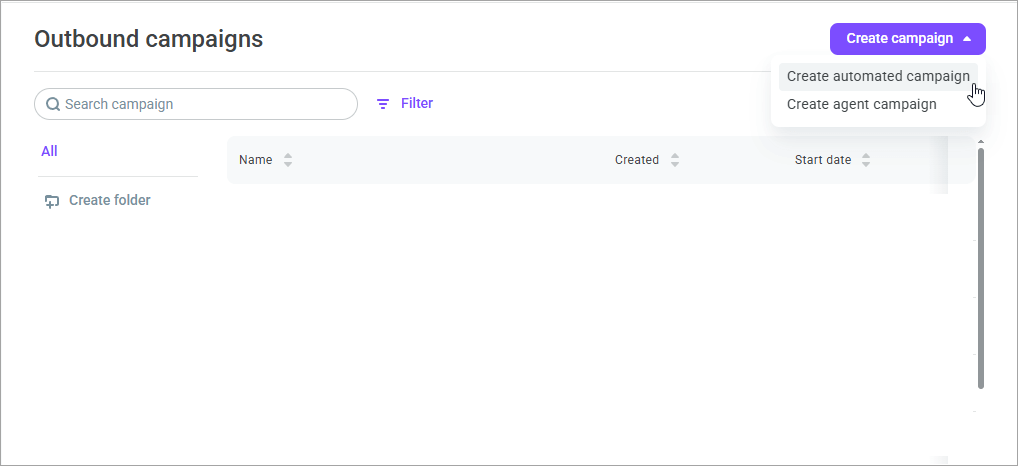
- Click the Create campaign button and select the Create automated campaign option.
Creating a campaign is not available to users with the Supervisor role.
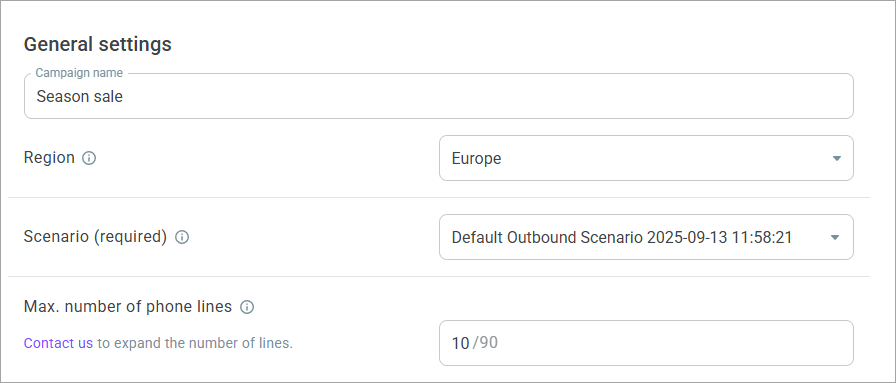
- On the Settings tab, enter the campaign name. The maximum number of characters is 40.
You cannot edit the setting after the campaign launch.
- Select the region for launching campaign calls. This setting is required if the region where the campaign is launched differs from your current location (determined by your IP address). For example, if you are launching a campaign from your office in the USA but need to call customers in France, you would select the Europe region.
The options for selecting a region vary depending on the account's affiliation: for US accounts — USA, Europe, South America, Singapore; for European accounts — Europe and Kazakhstan; for South American accounts — South America; for Kazakh accounts — Kazakhstan.
You cannot edit the region after the campaign launch.
- Select an outbound scenario to use in the campaign. The campaign will make calls according to the selected scenario.
You cannot edit the scenario after the campaign launch.
- In the Max. number of lines field, specify how many calls the campaign can make simultaneously. Once a call on one line is completed (the call is declined, ended, etc.), a call to the next number on the list is initiated. The default value is 10 lines.
After specifying a value, the selected number of phone lines for the campaign is displayed, as well as the total number of lines on your account. Please note that the account lines are occupied by all outbound campaigns in the Scheduled, Ongoing, and Paused statuses.
If there are not enough lines on your account, you can contact the Voximplant Kit team through the feedback form. To do this, click Contact us.
- The Use wrap-up codes set switch is not displayed on every account. It is off by default. Enable it to select a wrap-up codes set to mark call results within the campaign.
When the switch is on, the list of wrap-up codes sets from the wrap-up codes section is displayed. If the section contains only one set, the set is not selected automatically. You cannot save the campaign with the switch on and no set selected. If you turn the switch off, the selected set is cleared.
If the selected set contains the Add to DNC list wrap-up code, then the required field Bind a DNC list to store contacts labelled with the corresponding wrap-up code is displayed.
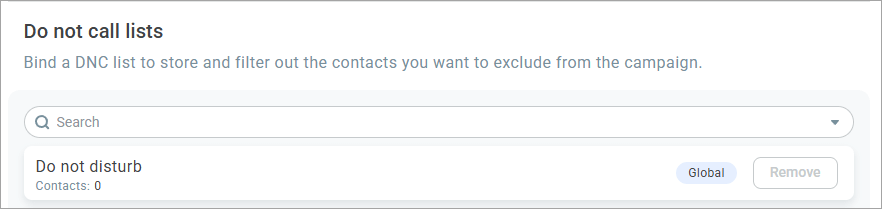
- If necessary, bind DNC lists to the campaign. The campaign will not attempt to dial numbers that are on the list.
Global DNC lists, if any, automatically apply to all outbound calls in Voximplant Kit.
Adding Caller IDs and configuring dialing strategy
- Go to the Strategy tab.
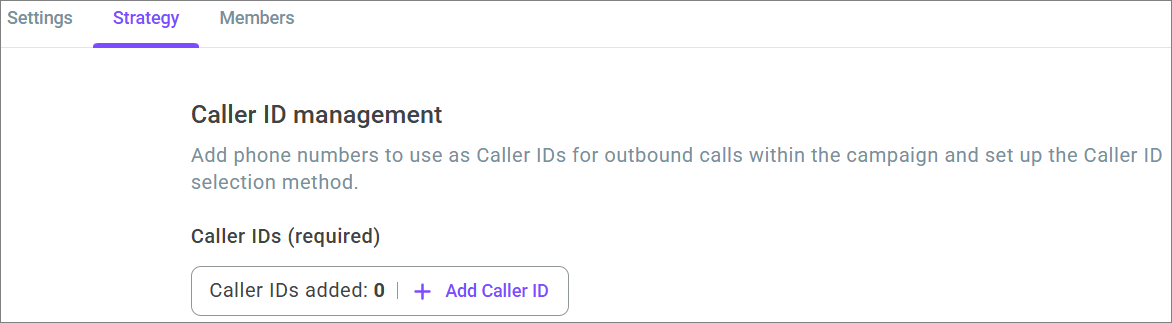
- Click the Add Caller ID button to add one or several Caller IDs the campaign will use for outbound calls. When several numbers are selected, the system automatically rotates the pool of numbers and uses them as outbound Caller IDs in random order. This helps improve the contact rate of your database.
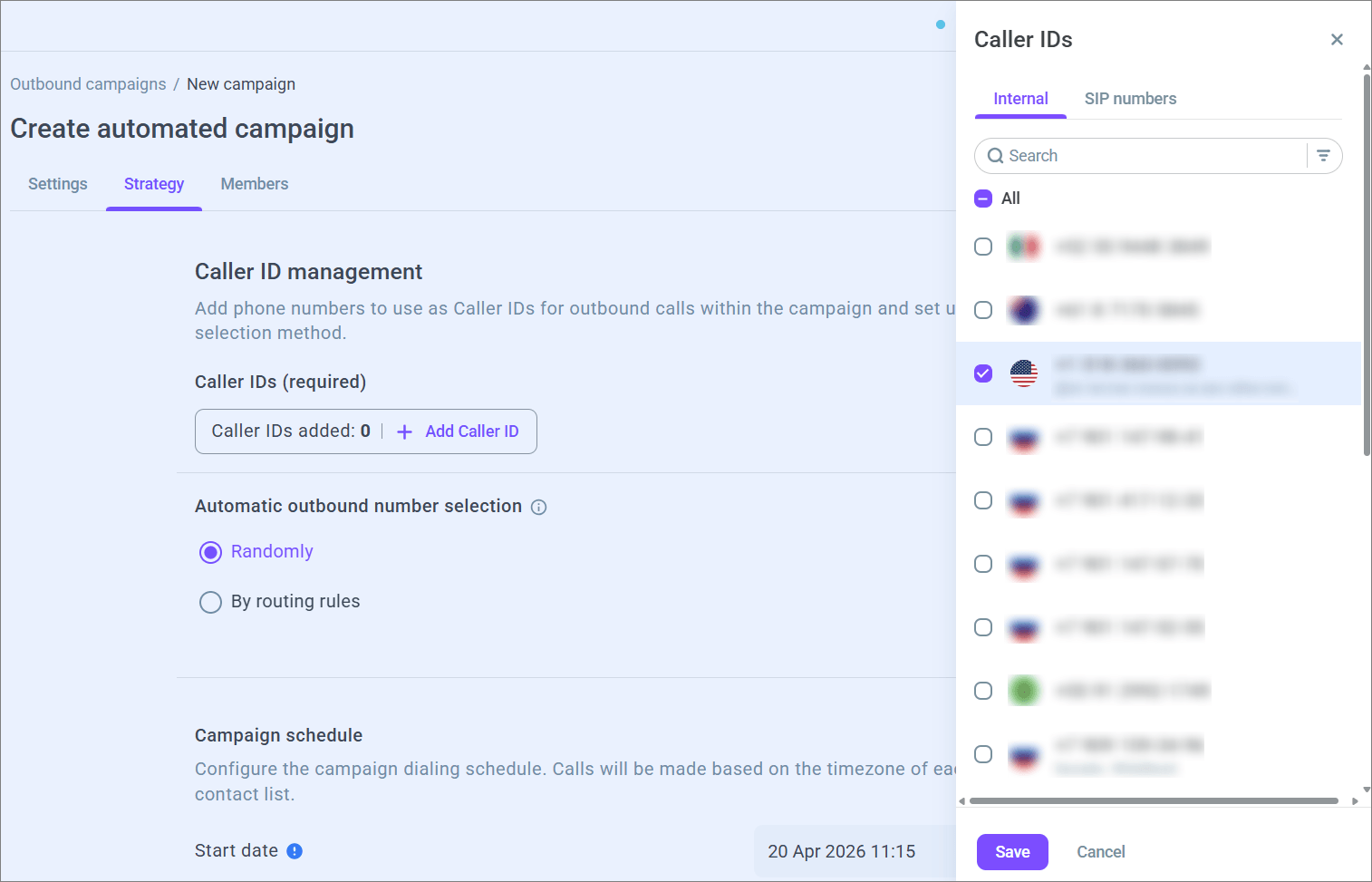
- In the sidebar, select the required Caller IDs from the list. You can choose either Internal (own and rented) or SIP numbers. You can select only external or only SIP numbers.
The maximum number of Caller IDs is 500. To use a Caller ID in a campaign, linking it to an incoming scenario is not required.
If all selected Caller IDs expire during the campaign, the campaign will change the status to Suspended.
- Click Save to add the selected Caller IDs to the campaign.
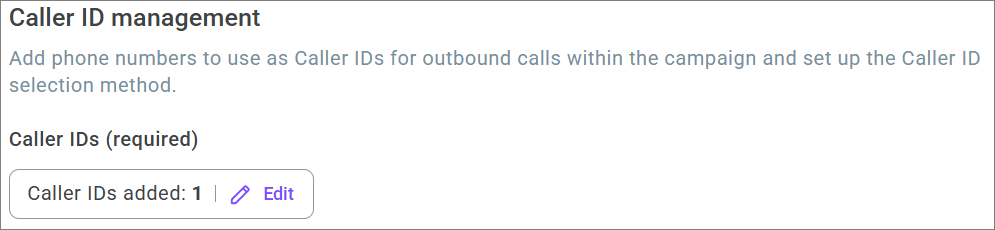
To add new Caller IDs or remove already added ones, click the Add button again, make changes, and save.
- In the Automatic outbound number selection setting, select one of the following options:
Randomly — the system automatically selects a number from the list of account numbers linked to the campaign. This option is selected by default.
By routing rules — the system automatically selects a number from the list of account numbers linked to the campaign depending on whether the dialed number matches one of the routing rules in the selected set.
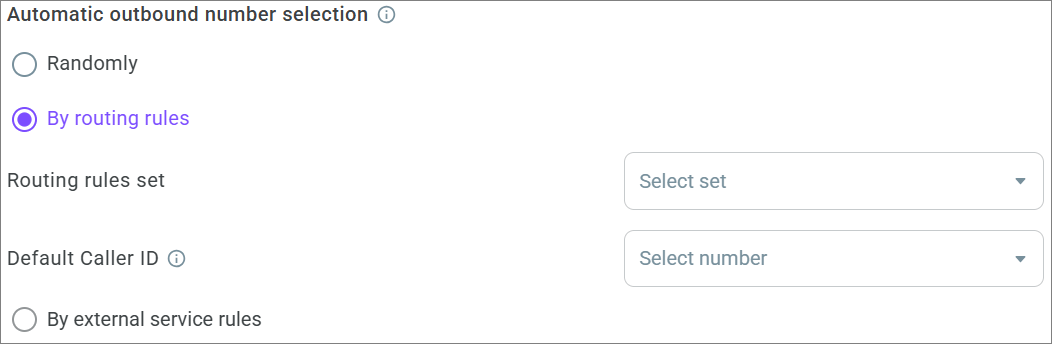
If you selected By routing rules, in the Routing rules set field select a previously created routing rules set.
In the Default Caller ID field, select one of the numbers added to the Caller IDs list. The outbound call is made from the default Caller ID if the dialed number does not match any routing rule in the selected set.
If there are no routing rules sets in the account yet, create one in the Routing rules section.
If there is only one routing rules set in the account, it is selected in the Routing rules set field automatically. If only one number is selected in the Caller IDs list, it is selected in the Default Caller ID field automatically.
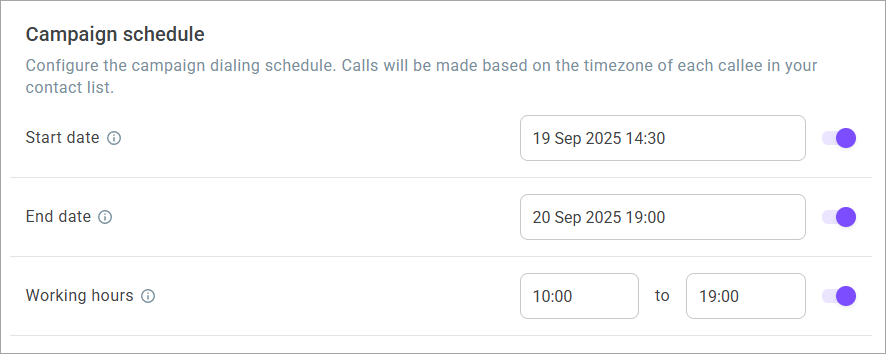
- Set the campaign schedule. Campaign calls are made according to the timezone of each subscriber on the contact list (local time is calculated based on the Timezone parameter in the contact list).
Enable the Start date switch to select the date and time when the campaign should start calling customers. When disabled, dialing begins immediately after the campaign is launched.
You cannot edit the start date after the campaign launch.
Enable the End date switch to select the date and time when the campaign should stop calling customers. When disabled, the campaign keeps on placing calls until it reaches the limit of attempts on each phone number.
The End date must be later than the Start date.
Enable the Working hours switch to select the time during which the campaign should make calls. If you disable the switch, the campaign calls customers 24/7.
You cannot edit the working hours after the campaign launch.
- In the Dialing strategy section, configure how the system should dial phone numbers of campaign contacts:
Click Add and add phone number types, such as mobile or home. You can add the same phone number type more than once in different positions in the sequence. Each position has its own number of attempts, interval, and dialing time. The maximum number of phone numbers in the sequence is 14, and the minimum is 1. If necessary, you can edit or delete the added phone number types. For that, select the corresponding Action menu option for the required phone number type.
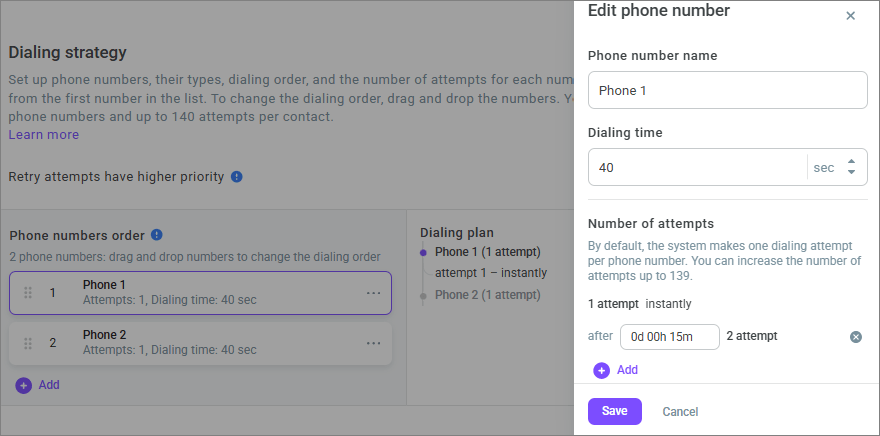
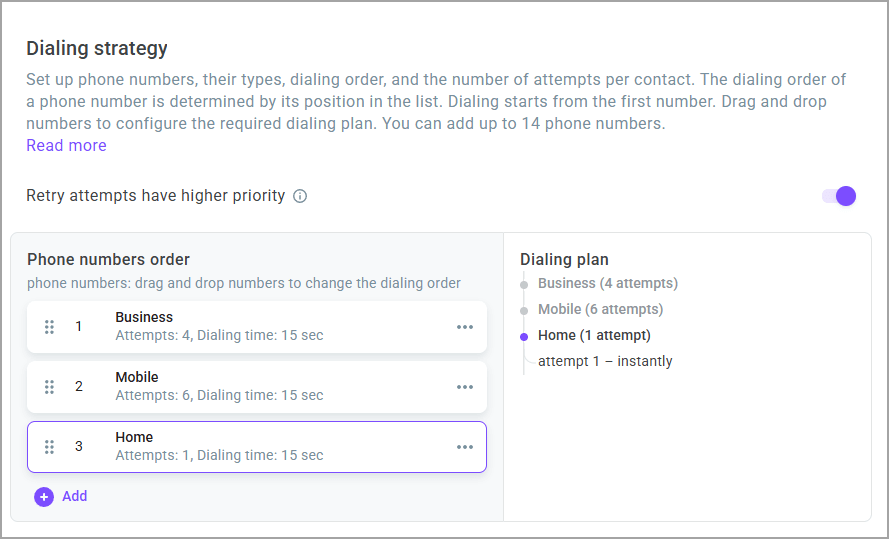
Set the dialing sequence for phone number types. The order of dialing a phone number is determined by its position in the list. Dialing starts with the first number and ends with the last. Drag and drop numbers to configure the required dialing order. Dialing of numbers is sequential — the system first makes all attempts for the first number, then all attempts for the second number, and so on until the last one. If one of the phone numbers is missing for a contact, that number is skipped, and dialing automatically moves to the next phone number in order. Skipping a contact's phone number does not count as a dialing attempt and is not included in reports.
Specify the dialing time for each phone number (from 1 to 60 sec, 40 sec by default).
Set the number of dialing attempts for each number and intervals between attempts (from 1 minute to 168 hours / 7 days). By default, the system makes one dialing attempt per number. You can increase the number of attempts per number up to 140. The total number of attempts across all numbers cannot exceed 140. The interval between attempts starts counting from the end of the previous attempt.
After the campaign launch, changes to the number of dialing attempts apply only to new contacts. You can edit the number of attempts, interval, and dialing time for each added phone number. You cannot add or delete phone number types, edit their names, or change their order in the dialing plan.
Example: To try each number once and then call the mobile number again, add them to the sequence like this: mobile — 1 attempt, work — 1 attempt, mobile again — 1 attempt. The campaign calls the mobile number, then the work number, then the mobile number again.
You can give one number more attempts than the others. For example, 100 attempts for mobile and 40 for work. The total number of attempts across all numbers cannot exceed 140.
Enable the Retry attempts have higher priority switch to determine which contacts the campaign should call first according to the strategy. When you enable the switch, the campaign first calls contacts that have already been attempted (retry attempts). Disable the setting to prioritize contacts that have not yet been attempted (initial attempts). The system selects which contacts to call as follows: first, contacts are chosen based on the priority set in the contact list (if available), and then the contacts are sorted according to the chosen strategy (the system first calls contacts with the highest priority and initial OR retry attempts). For a detailed example of how contacts are distributed during dialing, go to this article.
Once you launch the campaign, you cannot change the setting.
Adding supervisors
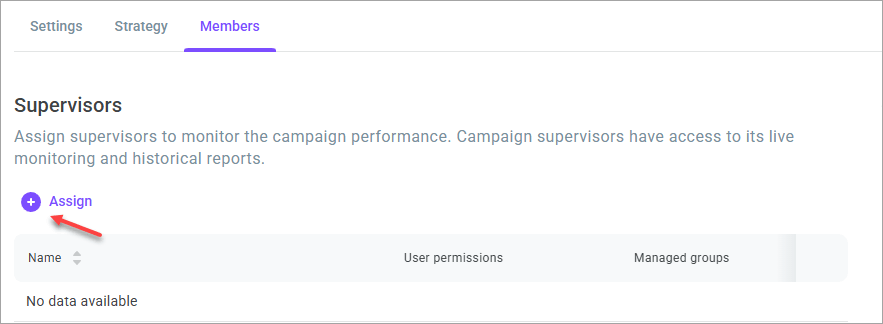
- Go to the Members tab.
- In the Supervisors section, click Assign to select supervisors to manage the campaign. Adding a supervisor to the campaign is not mandatory; a campaign can have no supervisors assigned. You can also add supervisors via API.
- Select supervisors from the list.
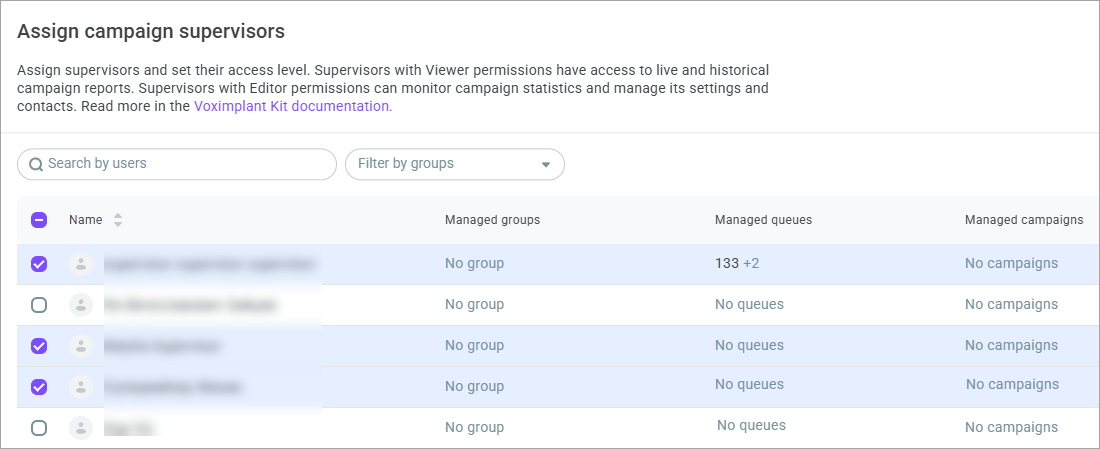
- The selected employees display in the sidebar. Set the access level for each supervisor and click Save.
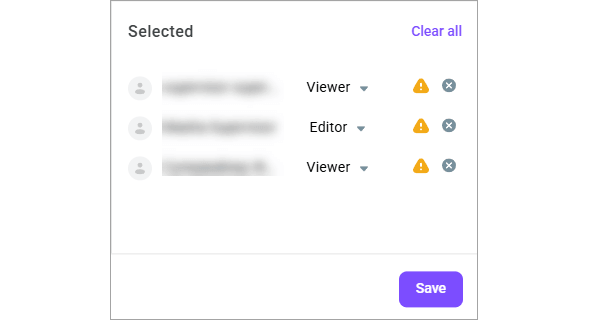
A supervisor with the Viewer access level is allowed to:
View the list of campaigns (in which the employee is assigned as a supervisor);
View historical reports;
View Live dashboards;
View call history;
View campaign information.
A supervisor with the Editor access level is allowed to:
View the list of campaigns (in which the employee is assigned as a supervisor);
View historical reports;
View Live dashboards;
View call history;
View campaign information;
Start a campaign;
Pause a campaign;
Resume a campaign;
Edit campaign settings (including DNC lists, wrap-up codes, and topics, except adding/removing phone numbers and adding/excluding supervisors);
Add contacts;
Manage contacts (delete/cancel/download/check for duplicates/send to dialing);
End a campaign.
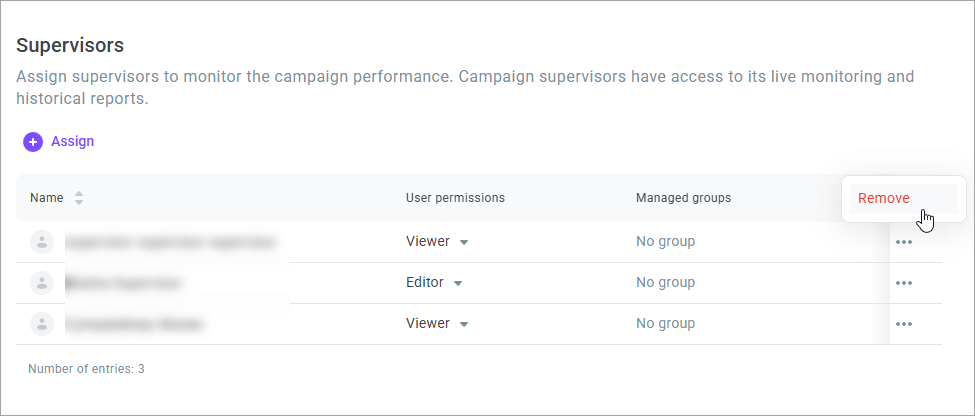
- To unassign a supervisor from the campaign, select Remove in the Action menu of the desired employee.
Contacts tab
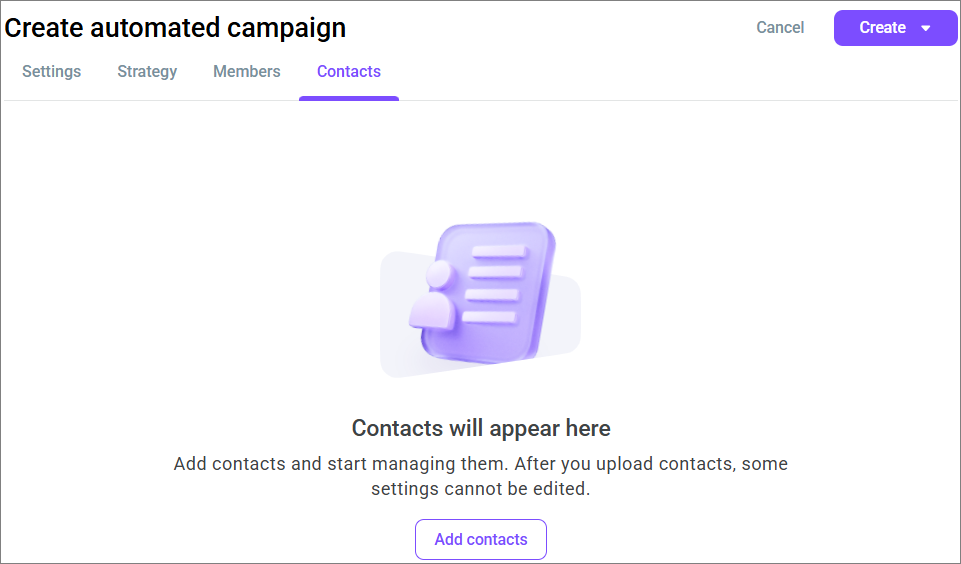
The campaign creation page includes a Contacts tab. Until you create the campaign, there are no contact lists. The tab shows Contacts will appear here.
Click Add contacts to create the campaign as a draft and upload a file. For more information about contact lists, see Contact lists and campaign launch.
Creating the campaign
After completing all necessary settings, you are ready to create the campaign.
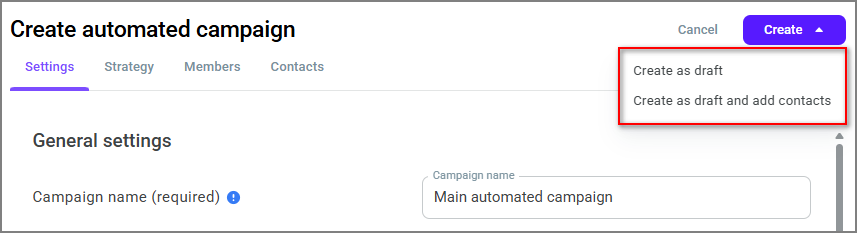
Click Create and select one of the options:
Create as draft — the campaign is saved in the Draft status. The outbound campaigns list opens. You can add contacts and launch the campaign later;
Create as draft and add contacts — the campaign is saved in the Draft status. The contact list upload window opens. After you upload a file or close the window, you stay on the campaign editing page, and the Contacts tab opens.