General page of outbound campaigns ᴺᴱᵂ
All created automated and agent campaigns are displayed on the general page. This is the starting page for working with outbound campaigns. Here, you can create a new automated or agent campaign, as well as manage existing campaigns.
Contents
Campaign list
- Log in to your Voximplant Kit account.
- Go to Administration > Automation > Outbound campaigns.
A list of created campaigns is displayed with the following data:
Name — campaign name;
Created — date and time of campaign creation;
Start date — campaign start date and time;
End date — campaign end date and time;
Status — campaign status.
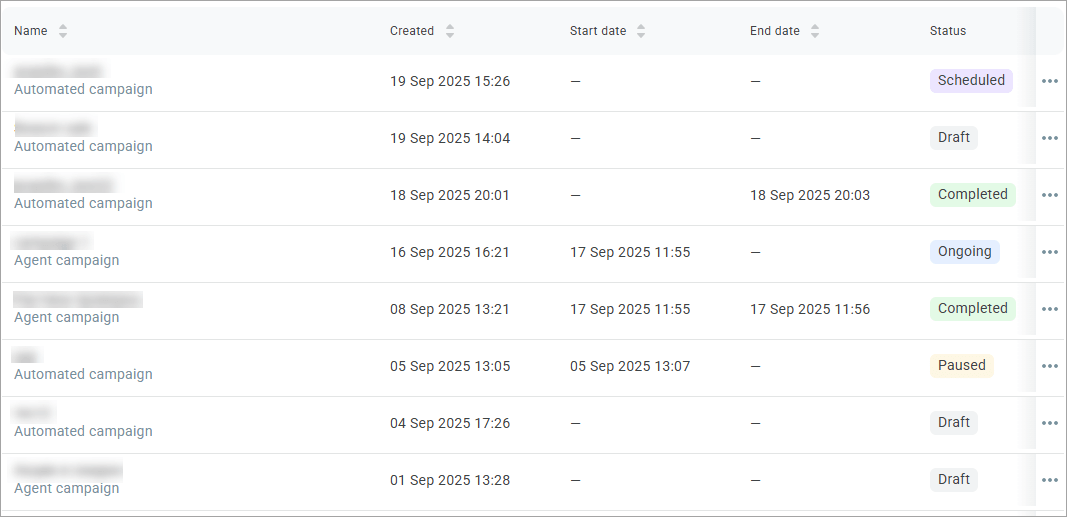
Possible campaign statuses:
Draft — the campaign is created but not launched or scheduled;
Scheduled — the campaign is scheduled to launch at the specified time;
Ongoing — the campaign is launched and calls are being made;
Paused — the campaign is paused, no calls are being made;
Completed — the campaign has been completed manually or has reached its scheduled end time.
Campaign information
- Click any campaign from the list to view its information.
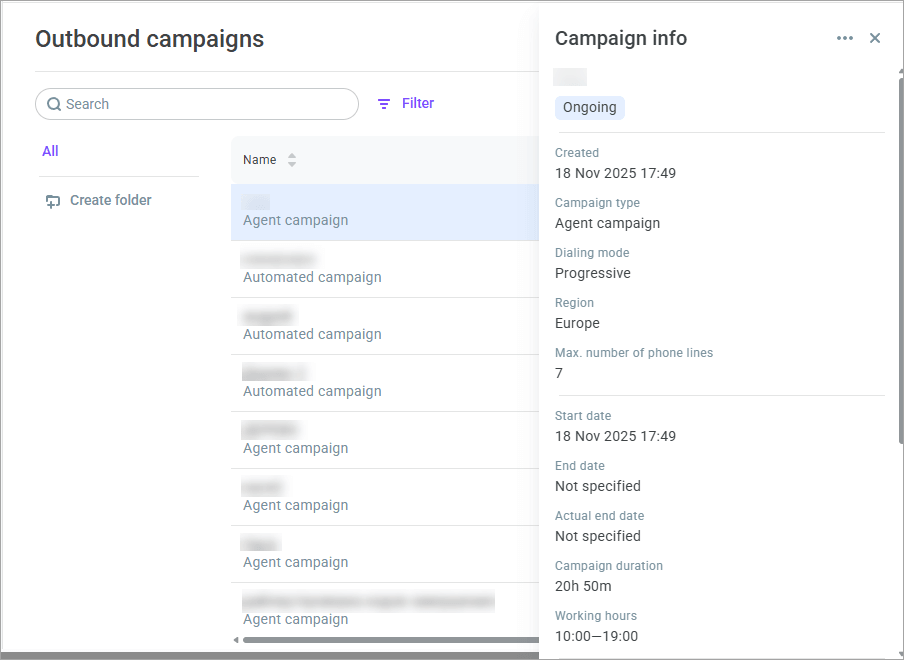
The sidebar displays the following campaign information:
Name — campaign name;
Status — campaign status (Draft, Scheduled, Ongoing, Paused, Completed);
Created — date and time of campaign creation;
Campaign type — campaign type (agent or automated);
Mode — campaign dialing mode (only for agent campaigns);
Region — region where calls are launched (will be launched/have been launched);
Max. number of phone lines — maximum number of phone lines the campaign can use from the total number of phone lines on the account;
Start date — campaign start date and time;
End date — campaign scheduled end date and time;
Actual end date — campaign actual end date and time;
Campaign duration — duration of the campaign from start to end (or until now for ongoing campaigns);
Working hours — hours during which the campaign makes calls;
Spent — current campaign expenses in the account currency. The field is displayed only to users with the Administrator and Owner roles. For campaigns in the Draft and Scheduled statuses, a dash is displayed;
Caller IDs — campaign Caller IDs + the number of active and inactive phone numbers;
Max. number of attempts per contact — number of calls the campaign makes to each contact from the contact list;
Members — number of assigned supervisors and agents (for agent campaigns);
Campaign ID — unique identifier of the campaign with an option to copy it to the clipboard;
Session ID — unique identifier of the session with an option to copy it to the clipboard.
Actions with campaigns
On the general campaigns page, you can perform various actions depending on the campaign status.
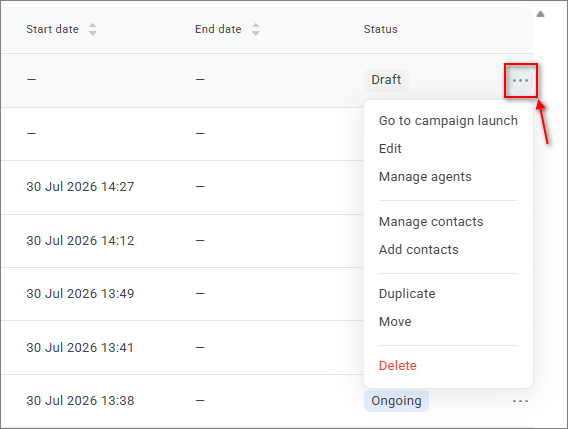
- Select the desired campaign and click the Action menu icon.
When you select Edit, the campaign editing page opens. The Settings, Strategy, Members, and Contacts tabs are available. If the campaign is not in the Completed status, then the Actions button is displayed on the right. For example, for a campaign in the Paused status:
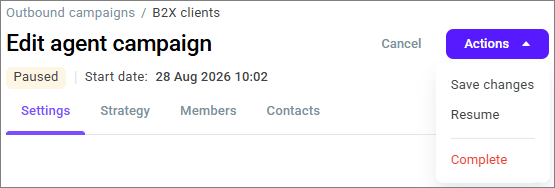
The items in Actions depend on the status:
Draft — Save changes, Save changes and add contacts, Launch now. If a start date is set, then Launch on schedule is also available;
Scheduled — Save changes, Launch, Pause, Revert to draft, Complete;
Ongoing — Save changes, Pause, Complete;
Paused — Save changes, Resume, Complete.
Save changes saves the campaign and opens the outbound campaigns list. The item is available even if you did not change anything.
Available actions for a campaign in the Draft status
Go to campaign launch | Takes you to the campaign launch (see details below) |
Edit | Allows you to edit campaign settings, strategy, members, and contacts |
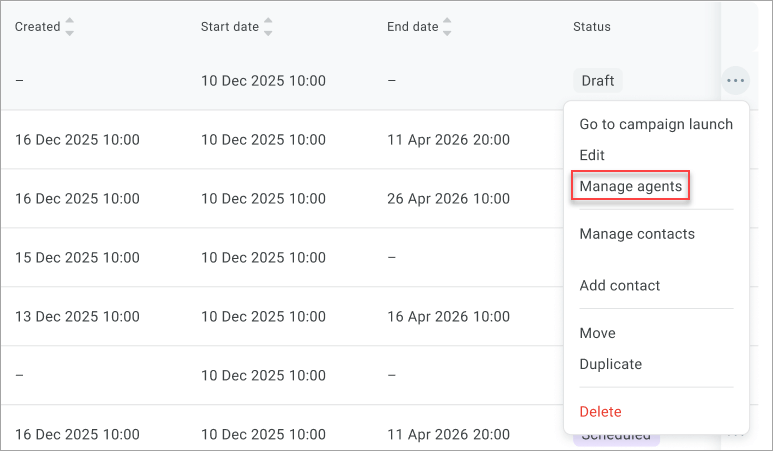
Manage agents | Opens the modal window for managing agents (only for agent campaigns, see details below) |
Manage contacts | Opens the campaign editing page on the Contacts tab |
Add contacts | Opens the contacts upload window |
Move | Allows you to place/move the campaign into a folder for convenient sorting and storage; if no folders exist, you can create a new one |
Duplicate | Allows you to create a Draft campaign with identical settings and added supervisors, BUT without agents and contact lists |
Delete | Permanently deletes the campaign |
If you have uploaded contact lists to a Draft campaign and mapped variables, you can no longer change the scenario (for automated campaigns) with the Edit option.
Available actions for a campaign in the Ongoing status
Pause | Moves the campaign from the Ongoing to the Paused status; new dialing attempts are not initiated, scheduled attempts are not canceled |
Edit | Allows you to edit campaign strategy (partially) and members; you can change the dialing mode in agent campaigns |
Manage agents | Opens the modal window for managing agents (only for agent campaigns, see details below) |
Manage contacts | Opens the campaign editing page on the Contacts tab |
Add contacts | Opens the contacts upload window |
Move | Allows you to place/move the campaign into a folder for convenient sorting and storage; if no folders exist, you can create a new one |
Duplicate | Allows you to create a Draft campaign with identical settings and added supervisors, BUT without agents and contact lists |
Call history | Takes you to the Call history section to view campaign communication history |
Complete | Moves the campaign from the Ongoing to the Completed status; dialing stops, and you cannot resume the campaign |
Available actions for a campaign in the Scheduled status
Go to campaign launch | Takes you to the campaign launch (see details below) |
Pause | Moves the campaign from the Scheduled to the Paused status; new dialing attempts are not initiated, scheduled attempts are not canceled |
Revert to draft | Moves the campaign from the Scheduled to the Draft status |
Edit | Allows you to edit campaign strategy (partially) and members; you can change the dialing mode in agent campaigns |
Manage agents | Opens the modal window for managing agents (only for agent campaigns, see details below) |
Manage contacts | Opens the campaign editing page on the Contacts tab |
Add contacts | Opens the contacts upload window |
Move | Allows you to place/move the campaign into a folder for convenient sorting and storage; if no folders exist, you can create a new one |
Duplicate | Allows you to create a Draft campaign with identical settings and added supervisors, BUT without agents and contact lists |
Complete | Moves the campaign from the Scheduled to the Completed status; dialing stops, and you cannot resume the campaign |
Available actions for a campaign in the Paused status
Resume | Moves the campaign from the Paused to the Ongoing status; the campaign starts working with current settings |
Edit | Allows you to edit campaign strategy (partially) and members; you can change the dialing mode in agent campaigns |
Manage agents | Opens the modal window for managing agents (only for agent campaigns, see details below) |
Manage contacts | Opens the campaign editing page on the Contacts tab |
Add contacts | Opens the contacts upload window |
Move | Allows you to place/move the campaign into a folder for convenient sorting and storage; if no folders exist, you can create a new one |
Duplicate | Allows you to create a Draft campaign with identical settings and added supervisors, BUT without agents and contact lists |
Call history | Takes you to the Call history section to view campaign communication history |
Complete | Moves the campaign from the Paused to the Completed status; dialing does not start, and you cannot resume the campaign |
Available actions for a campaign in the Completed status
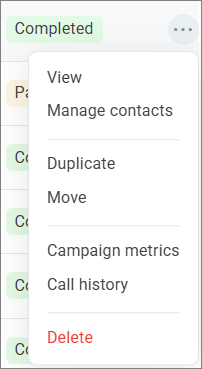
View | Opens campaign settings, strategy, members, and contacts. You cannot edit them |
Manage contacts | Opens the campaign settings page on the Contacts tab |
Move | Allows you to place/move the campaign into a folder for convenient sorting and storage; if no folders exist, you can create a new one |
Duplicate | Allows you to create a Draft campaign with identical settings and added supervisors, BUT without agents and contact lists |
Call history | Takes you to the Call history section to view campaign communication history |
Delete | Permanently deletes the campaign |
When you select View, the Agent campaign settings or Automated campaign settings page opens. You cannot edit the settings on this page. The Back and Duplicate buttons are displayed on the right side of the page.

Launching a campaign
- To launch a campaign from the general page, select the Go to campaign launch option in the Action menu of the desired campaign (in the Draft or Scheduled status).
From the campaign editing page, launch the campaign from Actions. For more information, see Contact lists and campaign launch.
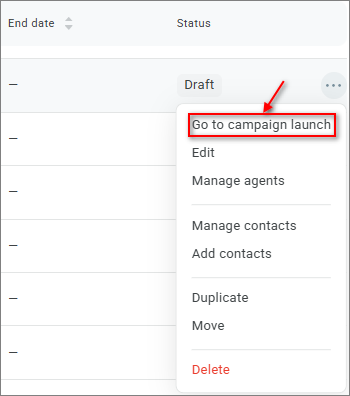
- The campaign launch side panel opens.
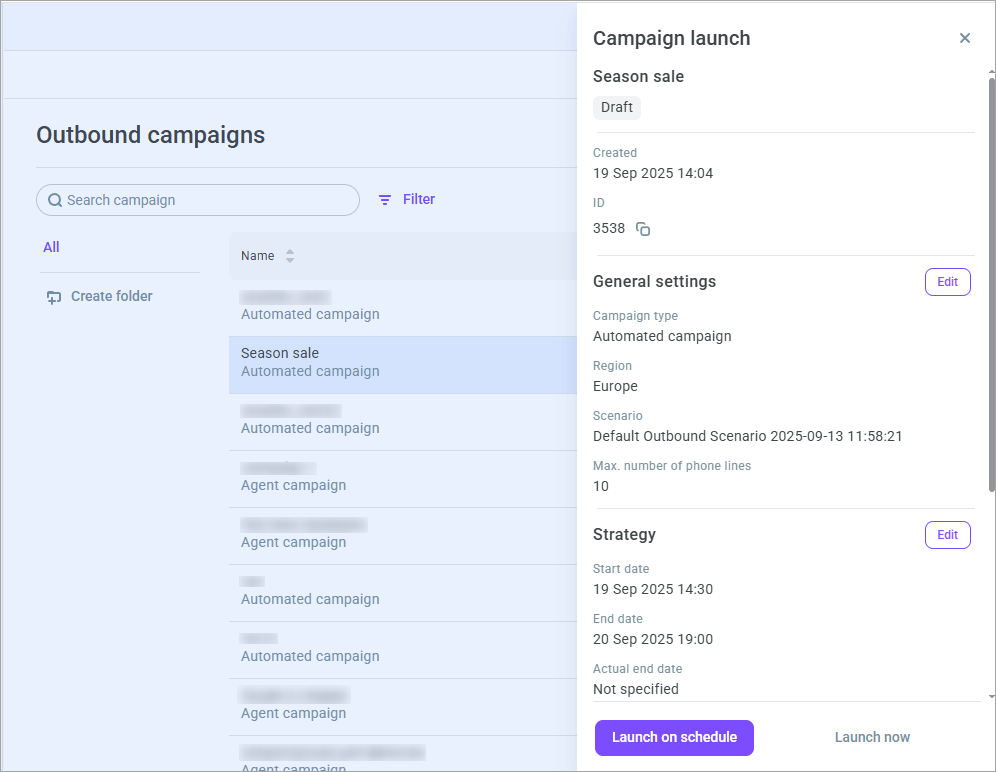
- If necessary, change the campaign settings, strategy, or participants using the Edit buttons. The action returns you to the campaign creation/editing window.
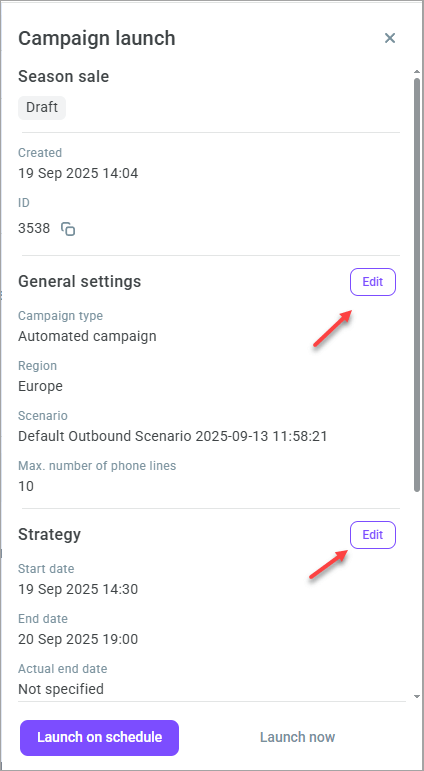
- If you did not select a start date when creating the campaign, then the Launch now button is displayed at the bottom of the campaign launch window. Click the campaign start button.
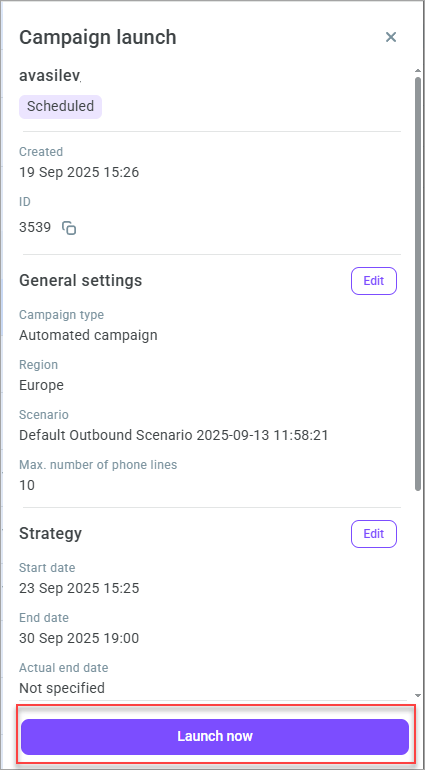
The status of the campaign changes to Ongoing and dialing begins according to contact lists' priority and campaign strategy.
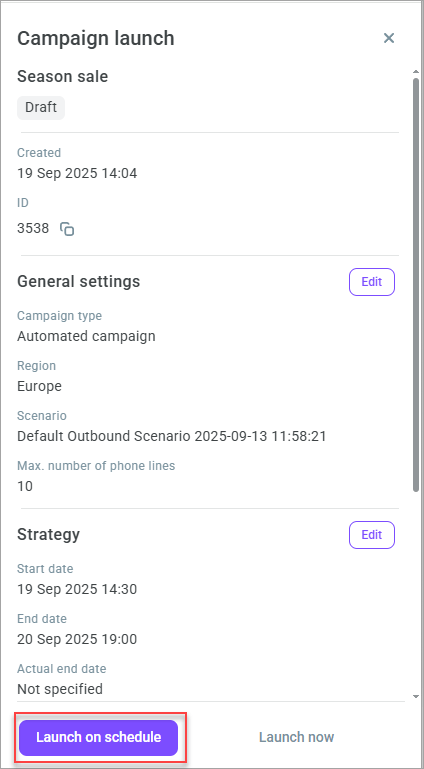
- If you specified a start date in the campaign strategy settings, then the Launch on schedule button is also displayed. The option allows you to launch the campaign on the scheduled start date. The campaign status changes to Scheduled.
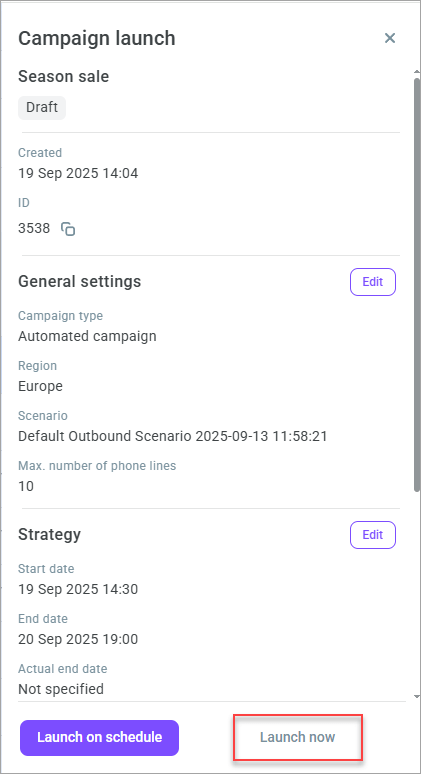
If there is a scheduled start date, you can still launch the campaign immediately by clicking Launch now. The start date is then automatically updated in the campaign settings.
If you do not have or have insufficient phone lines, you cannot launch the campaign. Reduce the number of lines in the Max. number of lines field or contact Voximplant Kit technical support to increase the number of lines.
Managing agents
- To manage campaign agents, select Manage agents in the Action menu (except for campaigns in the Completed status).
This action is only available for agent campaigns.
- The Manage agents window opens.
In the left column, all agents from your call center are displayed (available, and assigned to queues and campaigns), while the right column shows agents assigned to the current campaign.
- Select the agents you want to assign to the current campaign from the left column and click the right arrow button. To remove agents from the campaign, select them in the right column and click the left arrow button.
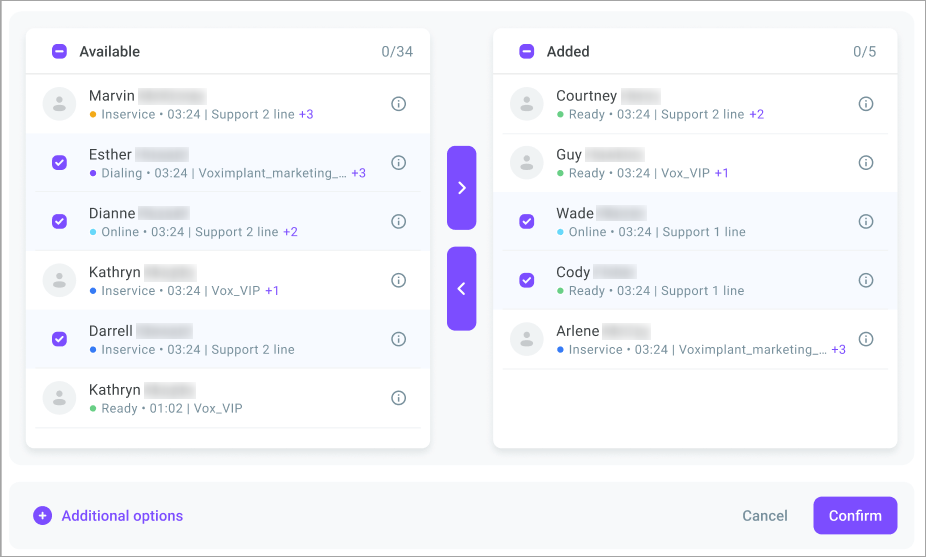
- Click the Confirm button.
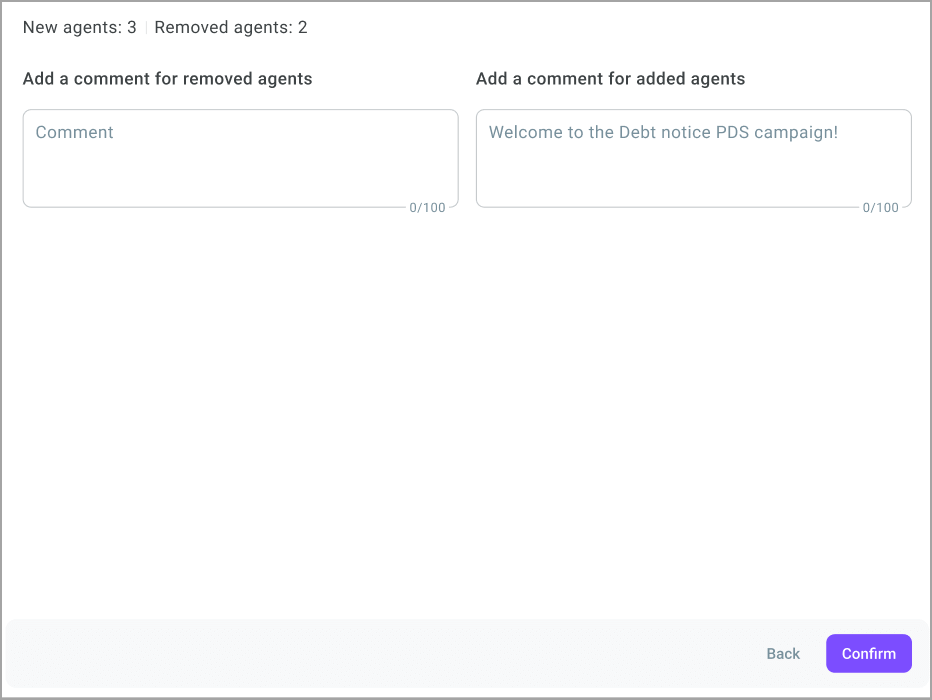
- Use additional settings to add comments for new and excluded agents or assign additional skills to new agents.
Using filters
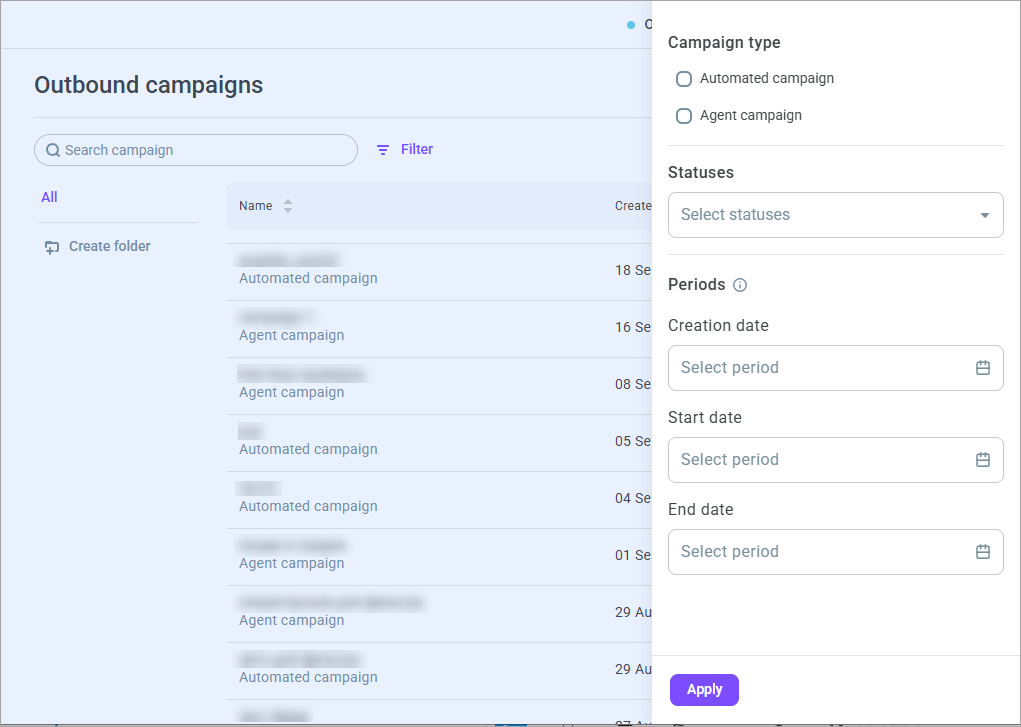
Use filters to customize the display of the general campaigns list. Filters are available by campaign types and statuses, as well as by periods that include the start or end date of the campaign.