


WhatsApp bulk messages ᴺᴱᵂ
WhatsApp bulk messages are a tool for sending messages in bulk (text, images, videos, buttons) through the messenger to your customer base. Use them to increase sales, inform customers about discounts, send personalized offers, send automated notifications, and improve customer communication.
The WhatsApp bulk messages feature is unavailable by default. To get access, contact technical support.
Benefits of WhatsApp bulk messages
Modern marketing tool for promotions and product advertising.
High reach and open rate.
Commercial use support.
Ability to start a conversation first by using pre-approved templates.
Two-way communication with the customer.
The Bulk messages section is available to users with the Owner, Administrator, and Manager roles. Creating, editing, launching, pausing, resuming, completing, and deleting bulk messages, as well as uploading contacts, are available in this section. Creating a WhatsApp channel and a template is available only to users with the Owner and Administrator roles.
Table of contents
Creating a bulk message
To create a bulk message, you need to create a WhatsApp channel and have at least one registered HSM template.
Bulk message settings
- Log in to your Voximplant Kit account.
- Go to Administration > Automation > Bulk messages.
- Click Create bulk message.
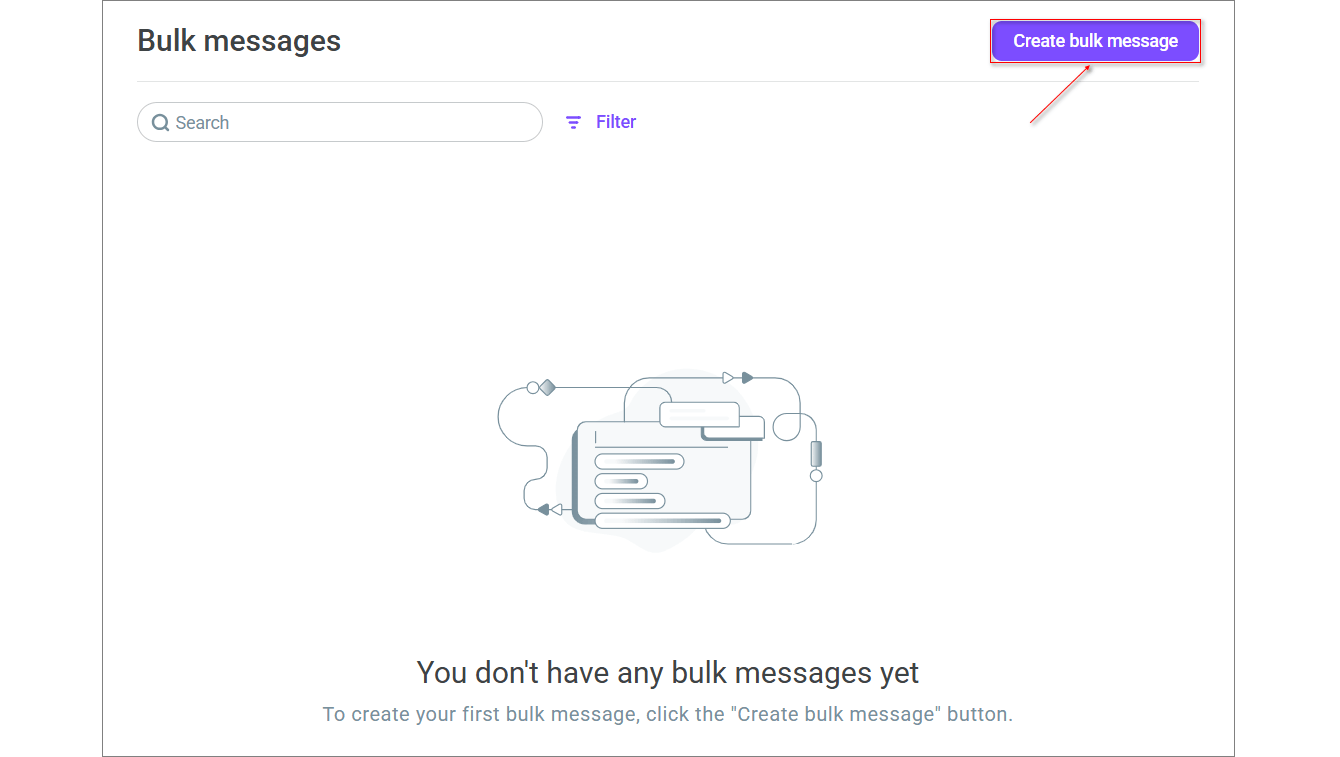
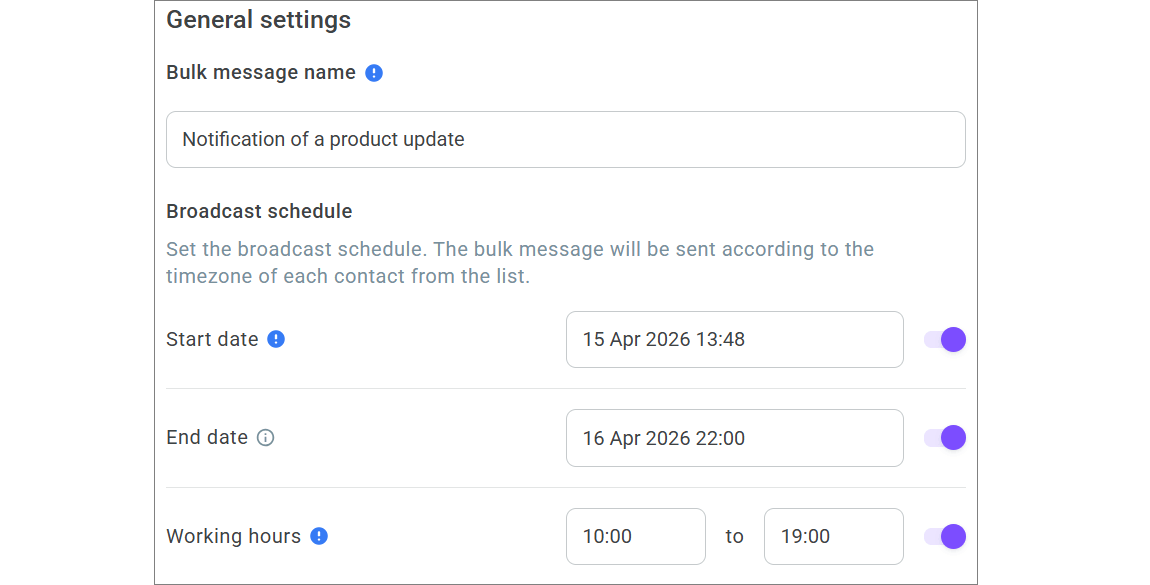
- On the Main settings page, enter the bulk message name. The maximum number of characters is 140. Any symbols can be used.
Bulk message schedule
Next, set the bulk message schedule. The bulk message runs according to each subscriber's time zone from the contact list.
Enable Start date to set the date and time when the bulk message should be sent. If no date is specified, messages start sending immediately after the bulk message is launched.
Enable End date to set the date and time when the bulk message should end. If no date is specified, the bulk message ends after messages are sent to all customers.
Enable Working hours to select the time interval when the bulk message should run. The bulk message runs only within the selected time range. If no time is specified, messages start sending immediately after the bulk message is launched or at the configured start time.
The Start date, End date, and Working hours settings are validated in real time. If a value is incorrect, the system shows an error.
Template settings
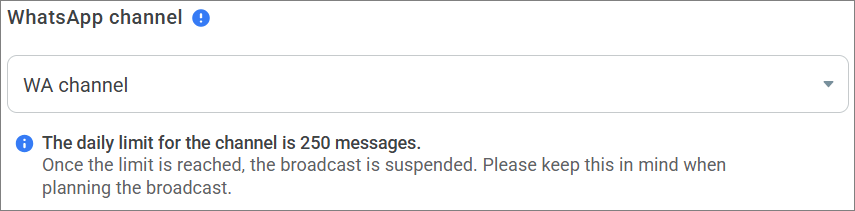
- Select the WhatsApp channel that will be used to send messages. You can select only one channel. If your account does not yet have a WhatsApp channel, you can create one by clicking Add channel.
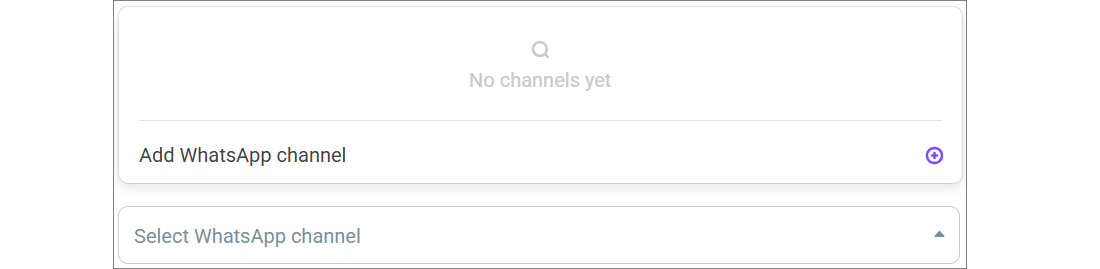
If only one WhatsApp channel is available in the account, the system selects it automatically. If there are no WhatsApp channels in the account, a user with the Owner or Administrator role can go to the channel creation page in a new tab. A user with the Manager role needs to contact the owner or administrator.
You cannot delete a WhatsApp channel if it is used in at least one bulk message. On the channel editing page, the Delete channel button is unavailable. In the Action menu in the channel list, the Delete action is unavailable. When you hover over the unavailable action, the Deletion is unavailable. The channel is used in bulk messages. tooltip appears. For details, see WhatsApp.
If the selected WhatsApp channel has a daily messaging limit, consider it when planning your campaign. After the limit is reached, the campaign changes to the Paused status, and message sending stops until the next day.
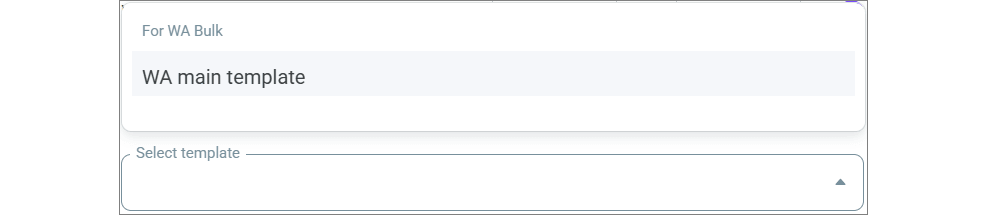
- Select the template that will be used in the bulk message. Only registered HSM templates linked to the selected channel are available for selection.
If only one template is available in the channel, the system selects it automatically. If there are multiple templates, the field remains empty until you select the required template. If there are no templates, a user with the Owner or Administrator role can go to the template creation page. A user with the Manager role needs to contact the administrator.
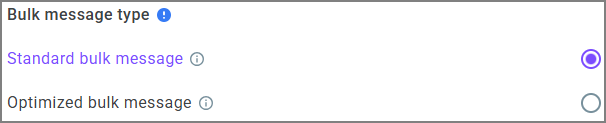
- If you select a template from the Marketing category, select a sending method in the Bulk message type section:
Standard — sends messages to every recipient in the contact list without additional filtering.
Optimized — excludes recipients who rarely open or interact with marketing messages. The bulk message is sent to recipients who are more likely to engage with it.
By default, Standard is selected. The Bulk message type section is not displayed for templates from other categories.
To send an optimized bulk message, Marketing Messages API (MM API) must be enabled in Facebook for the WhatsApp Business account connected to the selected channel. Voximplant Kit does not verify this setting when you create a bulk message, so both types are available in the interface. If MM API is not enabled, the sending error is recorded in History section.
You can change the bulk message type only when the bulk message is in the Draft status. In other statuses, the setting is unavailable for editing.
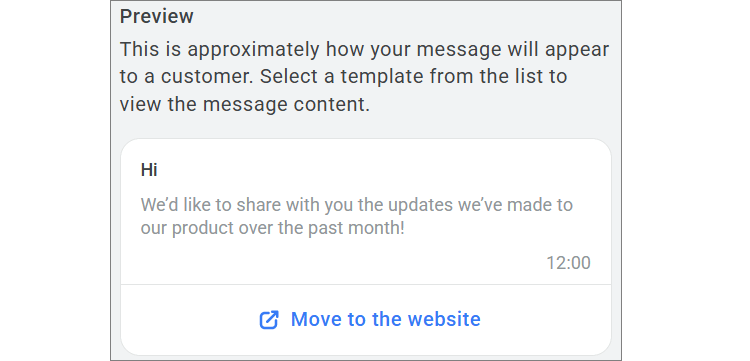
- After you select a template, a preview pane appears on the right. In it, you can see how the message will look to the recipient.
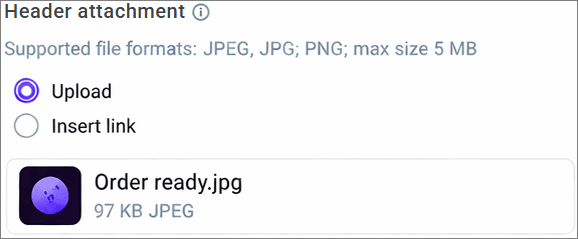
- If a header with an attachment was selected when the template was registered, change it by selecting Upload or Insert link.
Test send
In the Template message test broadcast field, enter a WhatsApp phone number to check how the template is displayed in the bulk message, then click Test broadcast.
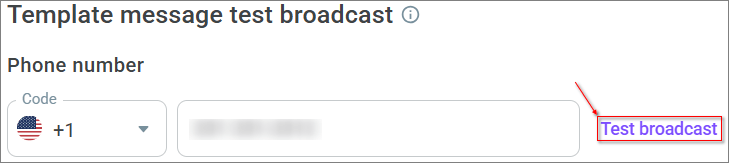
The Test broadcast button is inactive until a phone number is entered or if the entered number is invalid.
The phone number is displayed in the format of the region selected during channel registration.
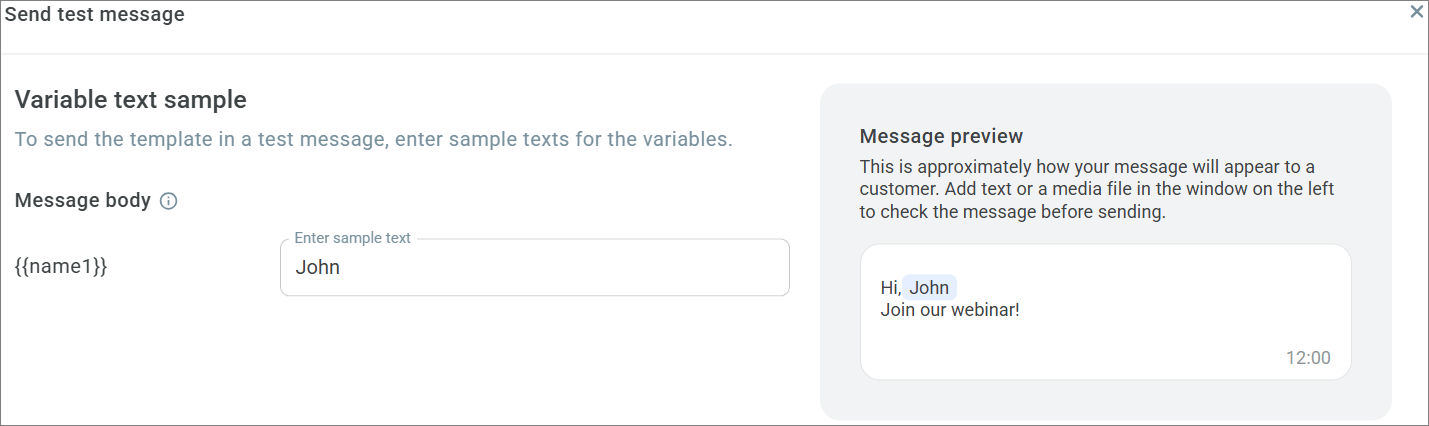
- If variables were used in the template header or main message, enter example values for the test send in the window that opens.
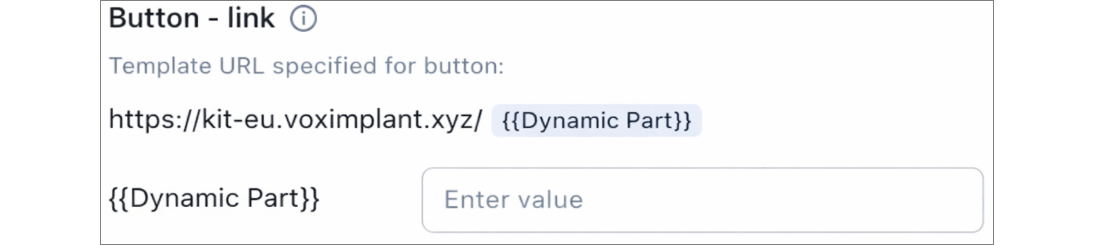
- If you used a button-link with a dynamic part when registering the template, enter a value for that part of the link.
- After entering all required data, click Send.
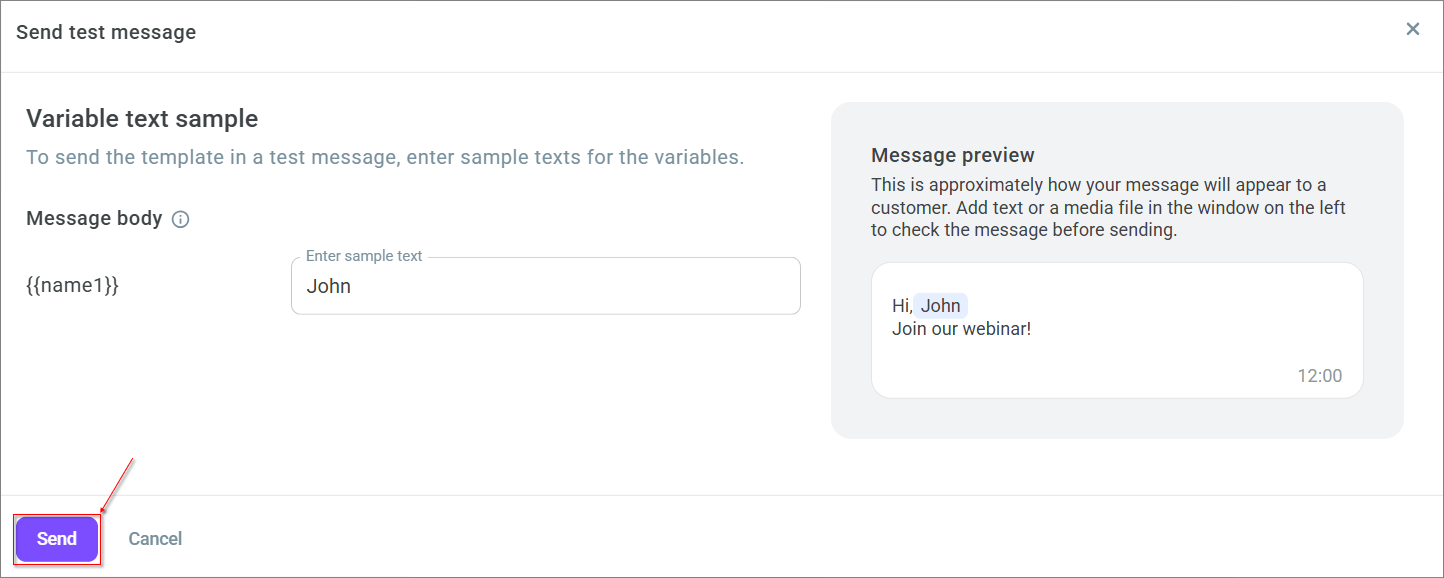
You can also send a test when editing a bulk message. There is no limit on the number of test sends.
After successful testing, proceed to the next step.
Uploading contacts
After creating a bulk message, upload the contact lists that will be used to send template messages.
Uploading a contacts file
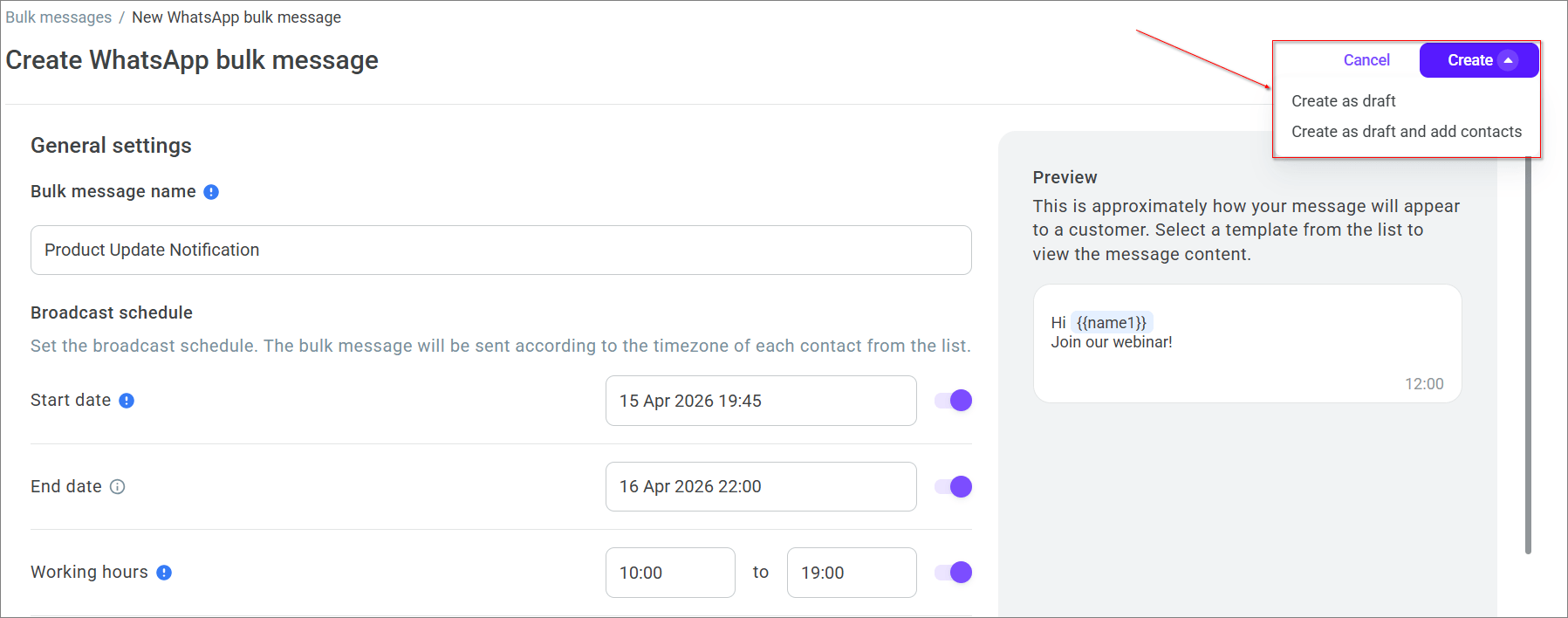
- In the bulk message creation window, click Create and select Create as draft and add contacts. If you want to add contacts later, select Create as draft.
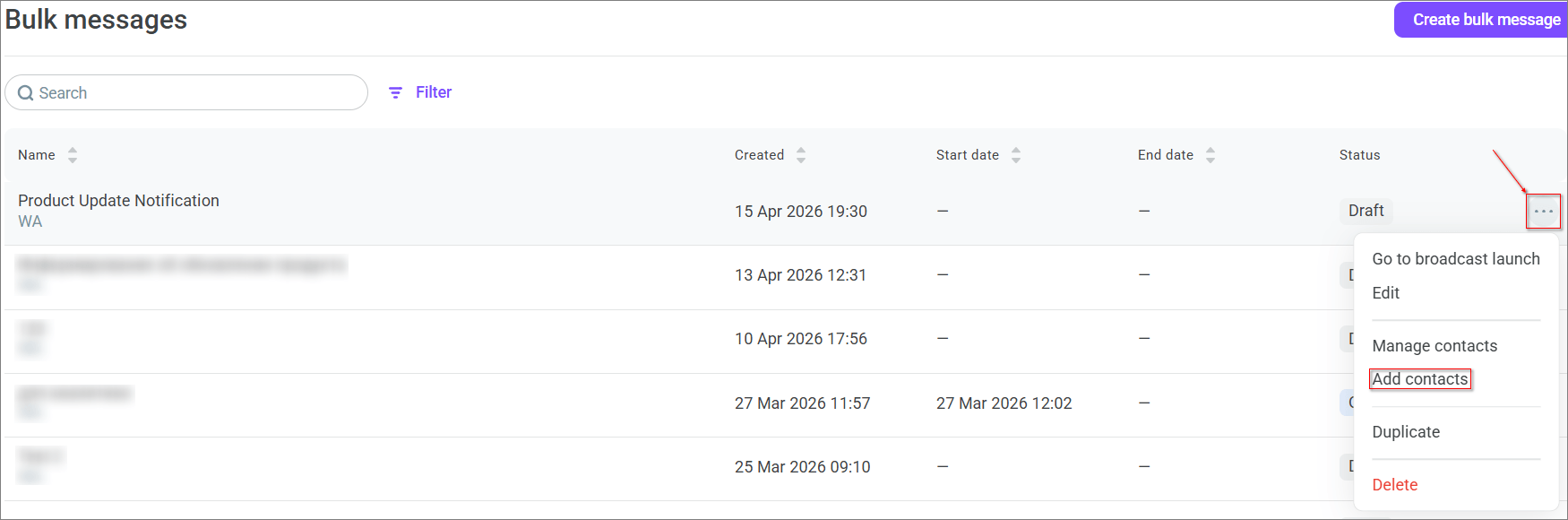
You can also go to contact upload from the general bulk message list. This is available for bulk message in all statuses except Completed.
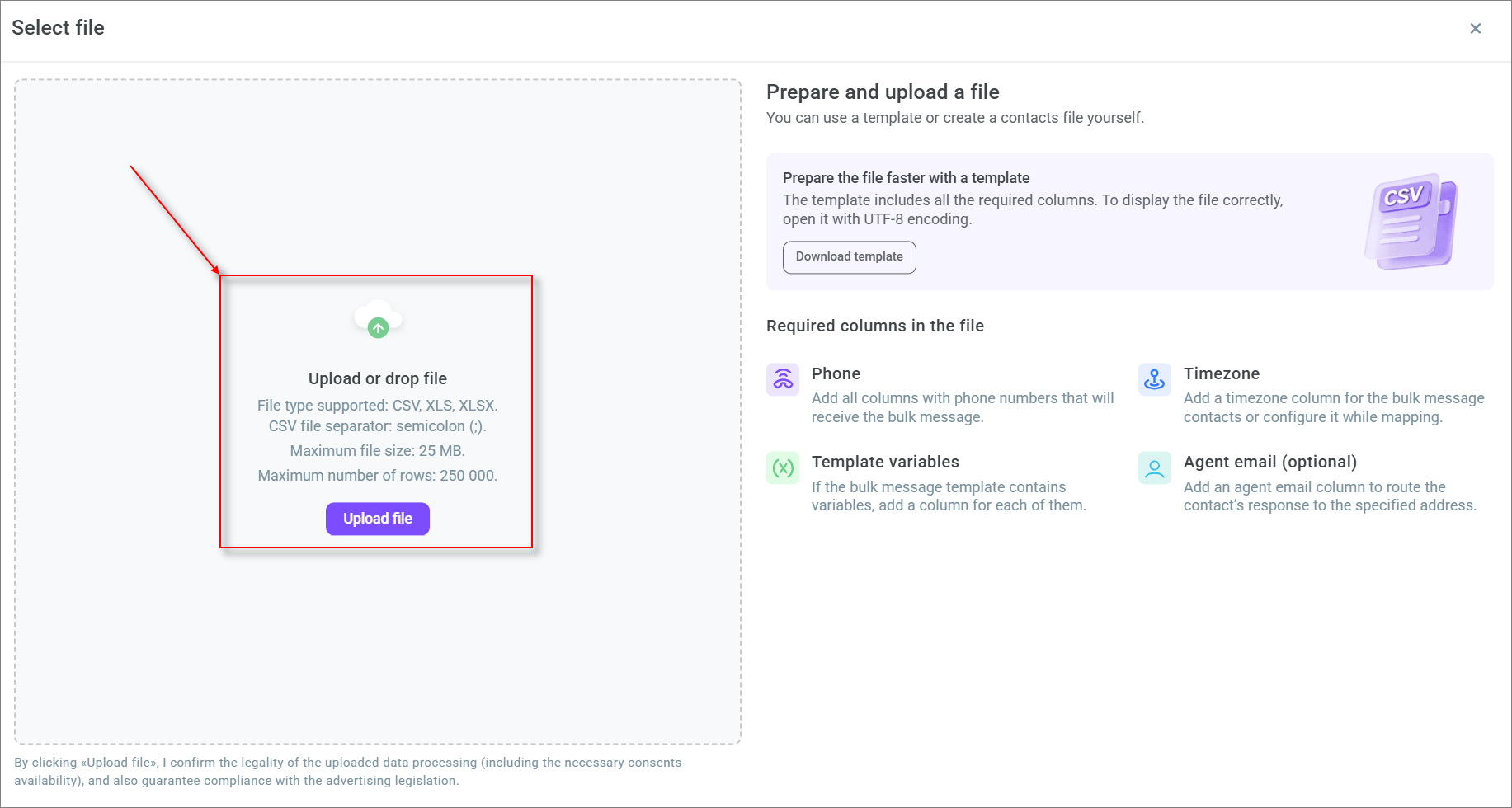
- Upload or drag a contacts file. Supported file types are XLS, XLSX, and CSV. Use a semicolon (
;) as the separator for CSV files. The maximum file size is 25 MB. The maximum number of rows is 250,000.
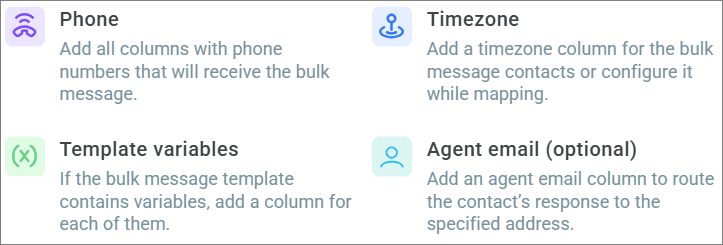
The contacts file must contain the following columns:
Phone numbers to which the bulk message will be sent (required field).
Contact time zones (can be configured at the variable mapping stage, optional field).
Template variables (optional fields, but required if variables are used in the selected template).
Agent email — the email address of the contact center employee used to route the customer reply (optional field).
You can download and use a ready-made contacts file template. The ready-made template already contains all columns provided by the bulk message settings. If you upload your own file, you need to add the required columns manually. To make sure the template contents display correctly, open the file in UTF-8 encoding.
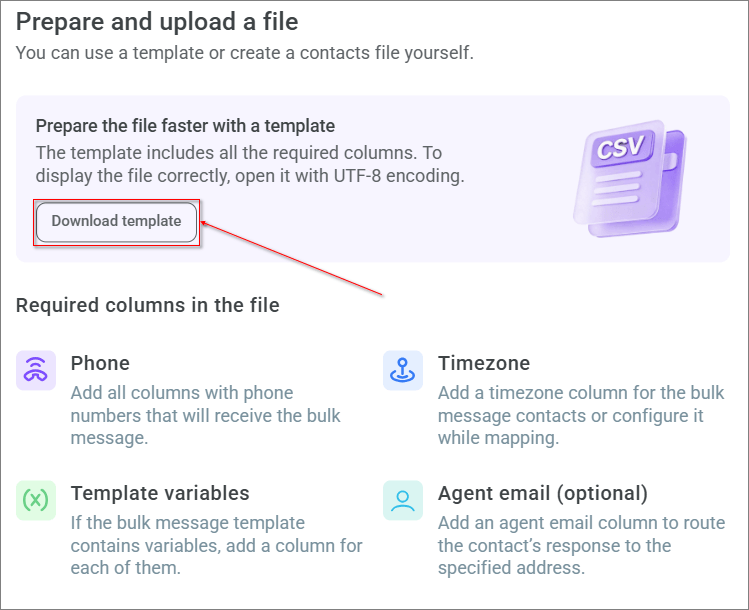
You can upload contacts not only through the interface, but also using public WhatsApp bulk messaging methods from external CRM systems.
Mapping columns
After the file is uploaded, the system opens the column mapping page.
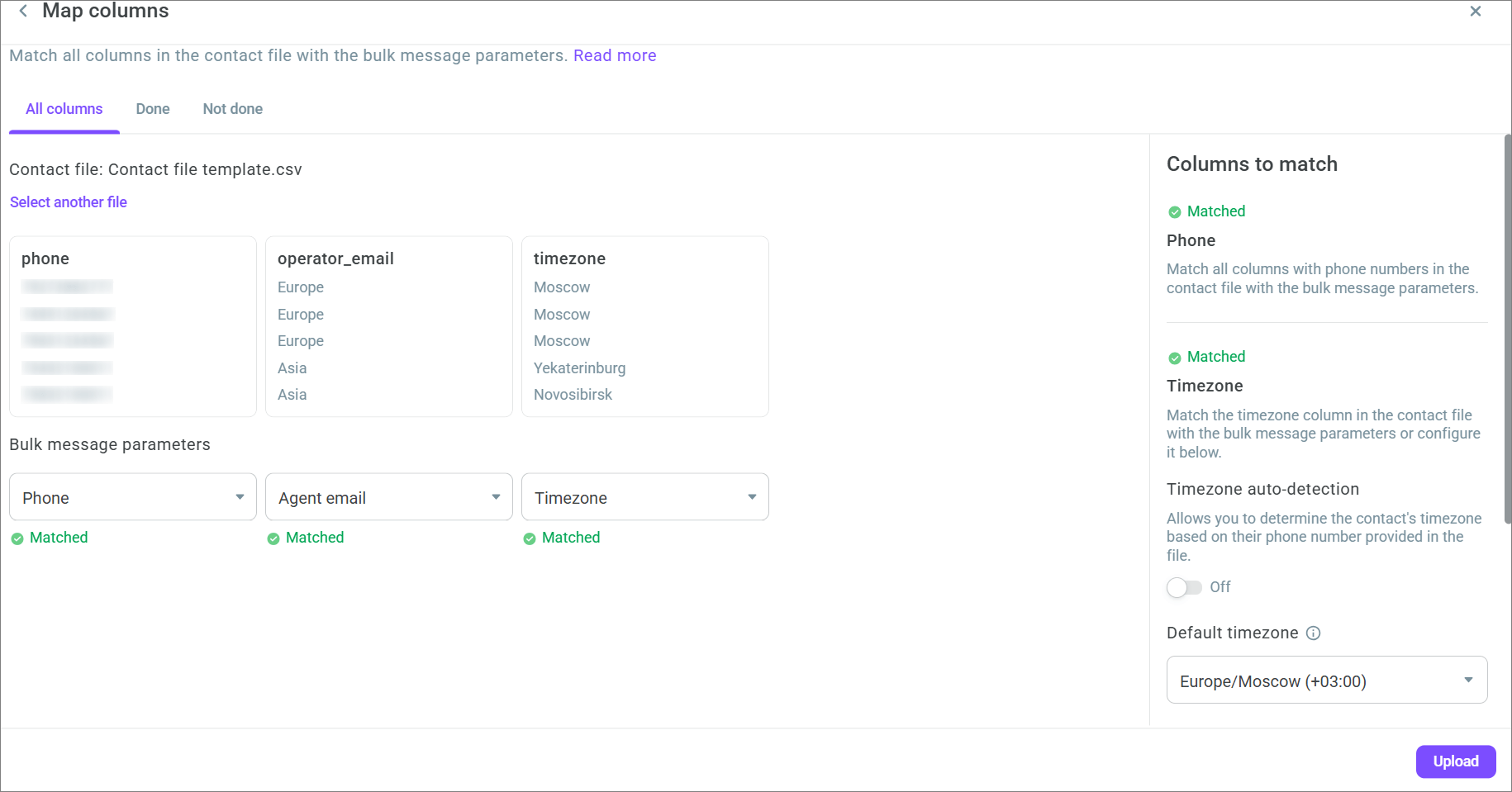
Map the column with the phone number. This is a required field.
If variables are used in the selected template, map a column for each variable. If the template contains variables but they are not mapped, you cannot complete the upload.
If the selected template uses a button-link with a dynamic part, map the column with the value for that part of the link.
If the selected template uses a media header, the system uses the file that was uploaded during template registration by default. Upload a different attachment if needed.
Configure time zone detection. To do this, you can:
- Use the time zone from the file
- Enable Timezone auto-detection
- Use Default time zone
- If you enabled Timezone auto-detection, select one of the following options:
- For all contacts
- Only for contacts without a time zone
If the system cannot detect the time zone automatically, the contact is excluded from the bulk message by default.
If you use Default time zone, select it from the menu. This is a required field.
Click Upload.
The system checks phone numbers against the E.164 standard. If a number does not match the format, the contact does not participate in the bulk message, and the system shows a notification with the number of found errors.
Contact lists and launching a bulk message
After the file is uploaded successfully and the columns are mapped, the system opens the bulk message contact lists page. The uploaded contact list has the Draft status.
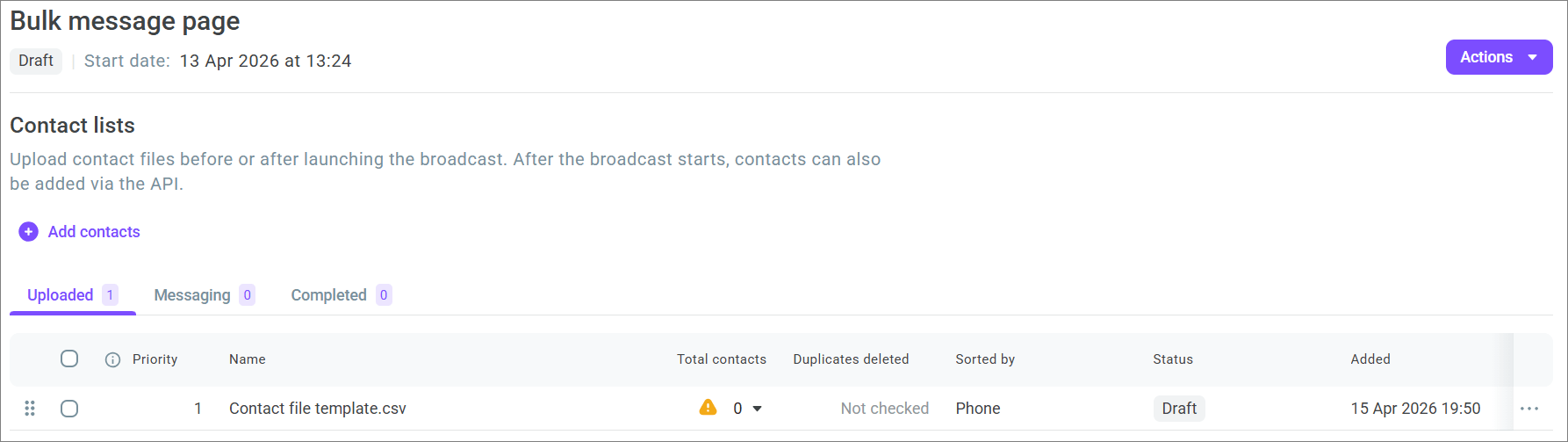
Checking duplicates and sorting
For a contact list, it is recommended to check duplicates and sort contacts. To do this, open the contact list action menu and select Check for duplicates and sort.
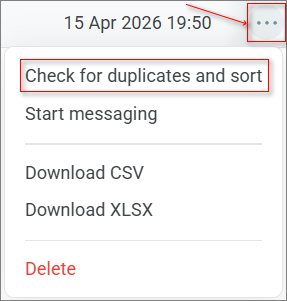
To check for duplicates, click Check and specify the scope:
- All running and completed bulk messages
- All running bulk messages
- All completed bulk messages
- Selected bulk messages
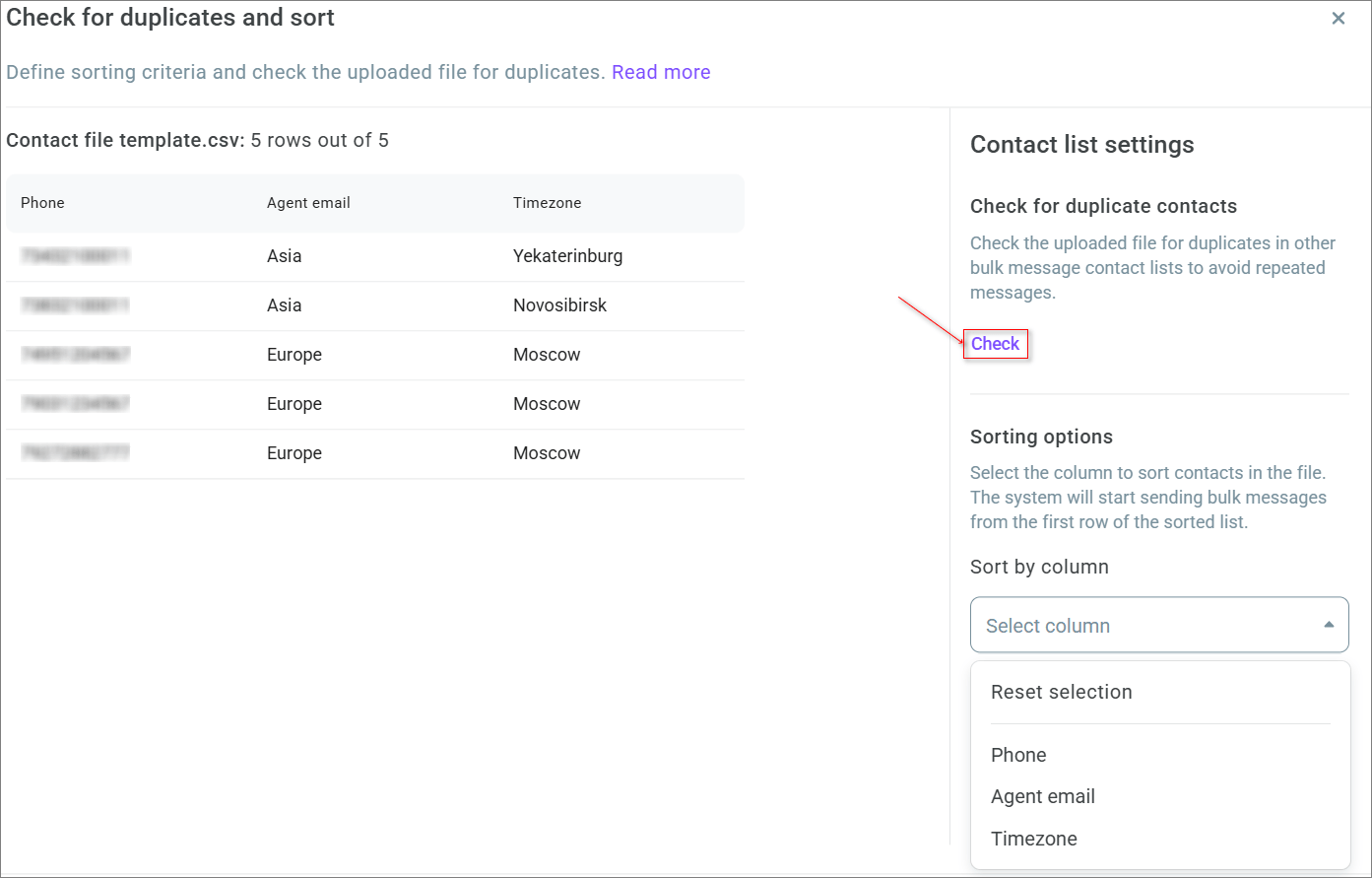
The maximum check period is 6 months from the current date.
After the check, the system shows the number of found duplicates and offers to download a file in XLSX or CSV format so that you can decide whether to delete duplicates or keep them in the contact list.
If you keep multiple contacts with the same phone number in the contact list, the first successfully sent message creates an active conversation for that number. The conversation appears in History > Conversations. While it remains active, messages to the remaining contacts with the same phone number are not sent, and their status in the report is Failed. The conversation closes after 24 hours. To avoid sending errors, remove duplicates before launching the bulk message.
If contacts were added via API, the table contains a separate row for each calendar day of upload with the name Upload via API [upload date].
To configure sorting, specify the column by which you want to sort and the sort order. After sorting, contacts are displayed and processed in the specified order.
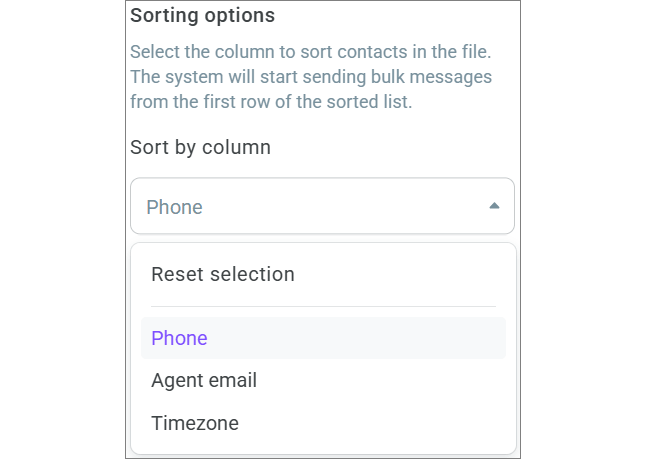
After you check duplicates and sort the contact list, you can launch the bulk message.
Launching a bulk message
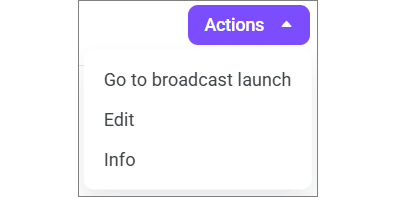
To launch a bulk message, open the Actions menu and select Go to broadcast launch.
Select one of the following bulk message options: Launch on schedule or Launch now.
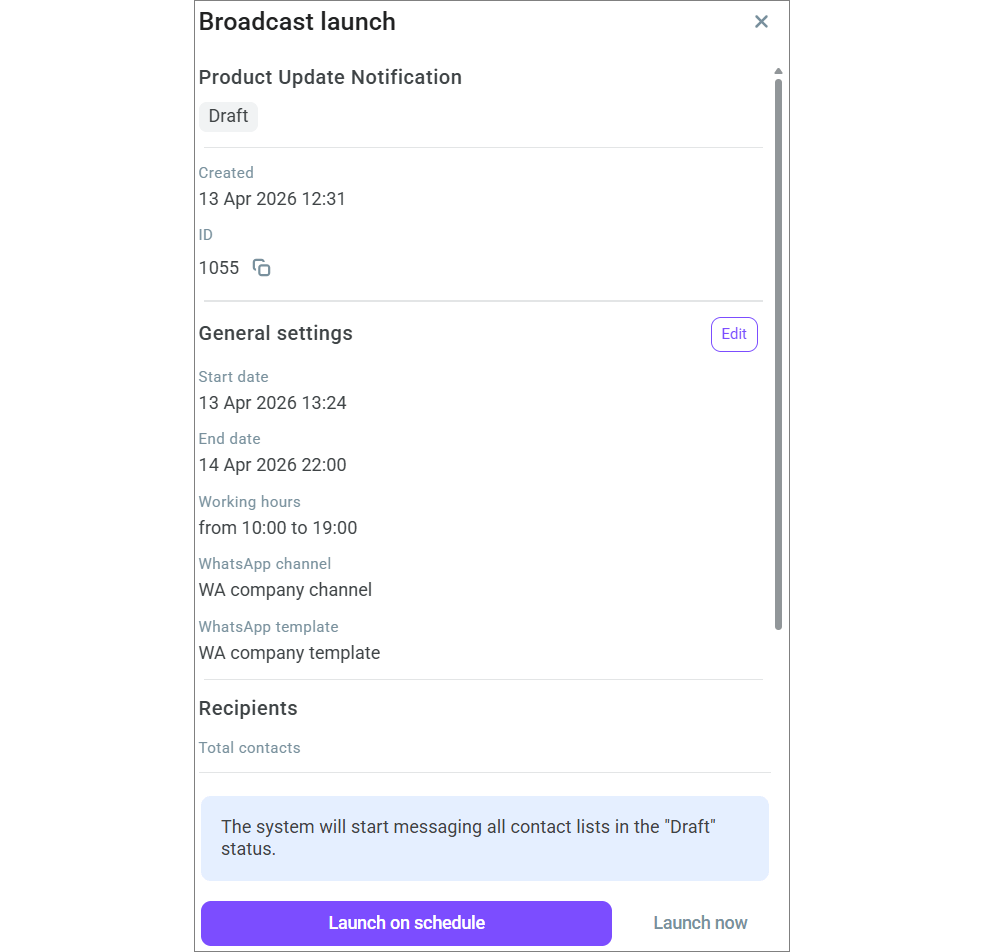
Launch on schedule — if delayed launch was configured when you created the bulk message.
Launch now — the bulk message starts immediately.
Bulk message list
The Bulk messages page displays a list of all created bulk messages.

The table contains the following columns:
Name
Created
Start date
End date
Status
Actions
The page supports:
Filtering by status
Filtering by channels
Filtering by period
Sorting by all columns except Status
By default, the page displays 50 bulk messages. To load the next 50, click Show more.
Bulk messages information
To open detailed information about a bulk message, click its row in the table.
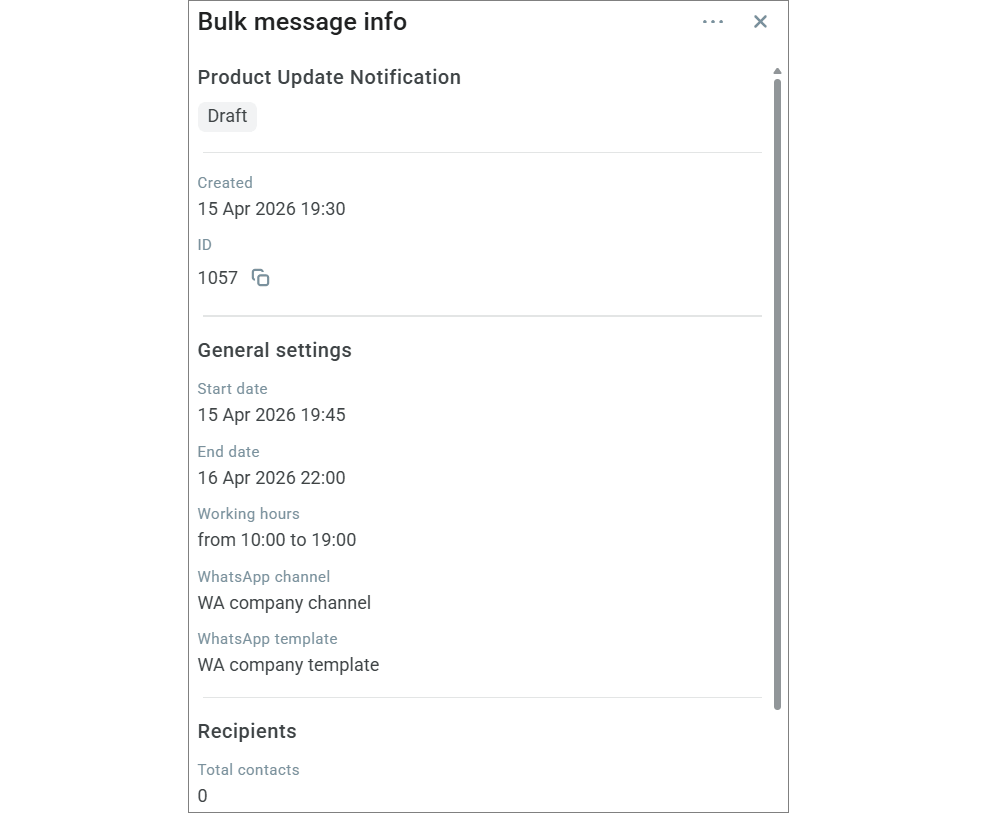
The side panel displays:
Bulk message name
Status
Creation date
ID
Start date
End date
Working hours
Channel
Template
Number of unique recipients
Template preview
Bulk message statuses
A bulk message can have the following statuses:
Draft — the bulk message is created, but not yet launched or scheduled.
Scheduled — the bulk message is scheduled and starts at the specified time.
Running — the bulk message is launched.
Paused — the bulk message is paused manually or automatically.
Completed — the bulk message is completed manually or when the end date is reached.
A bulk message automatically changes to the Paused status in the following cases:
The channel daily limit for sent messages is reached.
The template used in the bulk message is disabled by the provider or operator and moved to the Paused or Stopped status.
Actions for a bulk message
A context menu is available in the bulk message row to the right of the Status column.
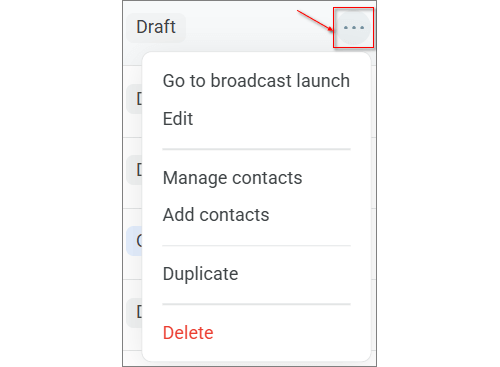
Depending on the bulk message status, the following actions are available:
Go to broadcast launch — opens the bulk message launch window. In this window, you can launch the bulk message immediately or on schedule if a start date was configured.
Return to drafts — changes the bulk message status to Draft.
Pause — temporarily stops the bulk message. After that, the bulk message changes to the Paused status.
Resume — resumes the paused bulk message. After resuming, the bulk message status depends on the start and end dates.
Edit — opens the bulk message settings. The settings available for editing depend on the bulk message status.
Duplicate — creates a new bulk message in the Draft status with the name
Bulk message name_(copy). The system copies the original bulk message settings, but does not copy contacts, the Start date, or the End date.Move to folder — moves the bulk message to a folder.
Manage contacts — opens the bulk message contact lists page.
Add contacts — opens the window for uploading new contact lists.
Message metrics — opens message metrics for the selected bulk message with general statistics and a contact report.
Messaging history — opens History > Conversations with a filter applied to the selected bulk message.
Complete — completes the bulk message. You need to confirm the action before completing the bulk message.
Delete — deletes the bulk message. You need to confirm the action before deleting the bulk message.
When you resume a bulk message, the system acts as follows:
- It checks the end date.
- If the end date has already been reached, the system changes the bulk message status to Completed.
- If the end date has not yet been reached, the system checks the start date.
- If the start date has not yet been reached, the system changes the bulk message status to Scheduled.
- If the start date has already been reached, the system changes the bulk message status to Running.
If a bulk message is paused because the template is disabled, the Resume action is unavailable. In this case, contact technical support.